We use cookies, including cookies from third parties, to enhance your user experience and the effectiveness of our marketing activities. These cookies are performance, analytics and advertising cookies, please see our Privacy and Cookie policy for further information. If you agree to all of our cookies select “Accept all” or select “Cookie Settings” to see which cookies we use and choose which ones you would like to accept.
What’s The Best Monitor for Remote Work in the UAE
29th June,2026
If you’re working from home in the UAE, chances are you’re still using just your laptop screen. That works in a pinch, but it’s not ideal for a full day’s work. Laptop displays are usually 13 or 15 inches, which means you’re always switching between windows, sitting closer than you’d like, and stuck with a screen height that doesn’t fit your posture. Add a dedicated monitor, and suddenly your workspace feels more comfortable and better suited for long hours.
The question is not whether to add a monitor. For anyone working more than a few hours a day from a fixed desk, the answer to that is fairly settled. The decisions that actually require thought are screen size, panel type, and whether the marketed eye comfort features have independent verification. Getting those three things right means the monitor works for focused reading, video calls, and document work throughout the day without the fatigue that comes from a display not chosen for that use case.
The UAE ranks among the world's highest remote work adoption rates, with around 60 percent of the local workforce doing some form of remote work, driven by government digital initiatives and a knowledge economy that has grown significantly across Dubai and Abu Dhabi. That means a large portion of the working population here relies on a home setup for most of their professional output. What that setup looks like, and specifically what the primary display looks like, has a direct effect on how productive and physically comfortable that output is.
What Specs Matter Most in a Work-From-Home Monitor?
Most people start by thinking about screen size, but that’s not actually the most important thing. For example, a 32-inch 1080p monitor has about 70 pixels per inch. That means text looks a bit blurry, and your eyes work harder to read over time. Compare that to a 27-inch 4K monitor, which packs in over 160 pixels per inch. Text is crisp, everything looks cleaner, and the monitor even takes up less space. So, resolution and pixel density decide how sharp things look, while size just changes how far you’ll want to sit from the screen.
After resolution, the two specs that shape day-to-day usability are connectivity and ergonomics. USB-C with power delivery connects a laptop to the monitor, charges the device, and handles data transfer through a single cable. Height and tilt adjustment on the stand matter for similar reasons. A monitor that cannot be positioned correctly forces the user to adapt their posture to the screen rather than the other way around, and that cost accumulates across weeks rather than hours.
| Spec | What to confirm |
|---|---|
| USB-C power delivery | 65W minimum, 90W preferred |
| DisplayPort | Present alongside HDMI |
| Height adjustment | 130mm range minimum |
| Tilt | 15 degrees backward minimum |
| Brightness | 300 nits or above |
| VESA compatibility | 75x75mm or 100x100mm |
| Ambient light sensor | Present on select LG models |
Pixel Density and Text Clarity: 27-Inch 4K Versus Larger 1080p
With a 27-inch 4K monitor, text in your documents and spreadsheets looks sharp and easy to read, even from a normal distance. But if you use a 32-inch monitor with only 1080p resolution, the text starts to look fuzzy. If you spend most of your day reading or writing, you’ll notice the difference pretty quickly.
Treat USB-C with Power Delivery as a Requirement
Without it, a separate power cable, a display cable, and potentially a hub all occupy the desk. USB-C with power delivery consolidates those into one connection. LG's UltraWide range includes USB-C with power delivery across multiple models, with some supporting up to 96W charging alongside display output.
Confirm Height and Tilt Adjustment Before Evaluating the Display
A fixed-height stand limits where the screen sits relative to eye level. For a standard seated working position, the top of the monitor should be at or slightly below eye level. A stand that cannot reach that position means the user compensates with posture rather than adjustment. LG's Ergo stand range attaches via a desk clamp and covers the full range of height, tilt, pivot, and swivel positions a typical working desk needs.
Check That Brightness Reaches 300 Nits for Daytime Use Near a Window
If your desk is near a window, you know how bright UAE sunlight can get. A monitor that tops out at 250 nits will be tough to see during the day. Aim for at least 300 nits of brightness so you can read the screen comfortably. Some LG UltraWide and 4K models even reach 350 or 400 nits, so you won’t have to move your whole setup just to see clearly.
How Do Screen Size and Panel Type Affect Productivity and Eye Strain?
The type of panel your monitor uses affects how the picture looks from different angles and how true the colors stay as the light in your room changes. In most work setups, you’ll choose between IPS and VA panels. Screen size, on the other hand, decides how much you can fit on your display at once and how much your eyes have to move as you switch between tasks.
Consistent Color Accuracy at Off-Axis Viewing Angles
IPS panels maintain consistent color and brightness up to 178 degrees horizontally and vertically. At a home desk, the image looks the same whether you are sitting directly in front of the screen or leaning to one side. LG manufactures its own IPS panels used across its UltraWide and consumer monitor ranges, with 99 percent sRGB coverage on the current lineup.
Consider VA for Deeper Contrast in Mixed-Use Setups
VA panels produce higher static contrast ratios than IPS panels, typically 3000:1 versus 1000:1. That difference is visible in shadow detail and in scenes with strong light-dark contrast. The trade-off is a narrower comfortable viewing angle. For a desk used primarily for documents and video calls, IPS is the more consistent choice. For a desk that doubles as a media or gaming setup, VA's contrast becomes more relevant.
Eliminate the Center Bezel With a 34-Inch Ultrawide Panel
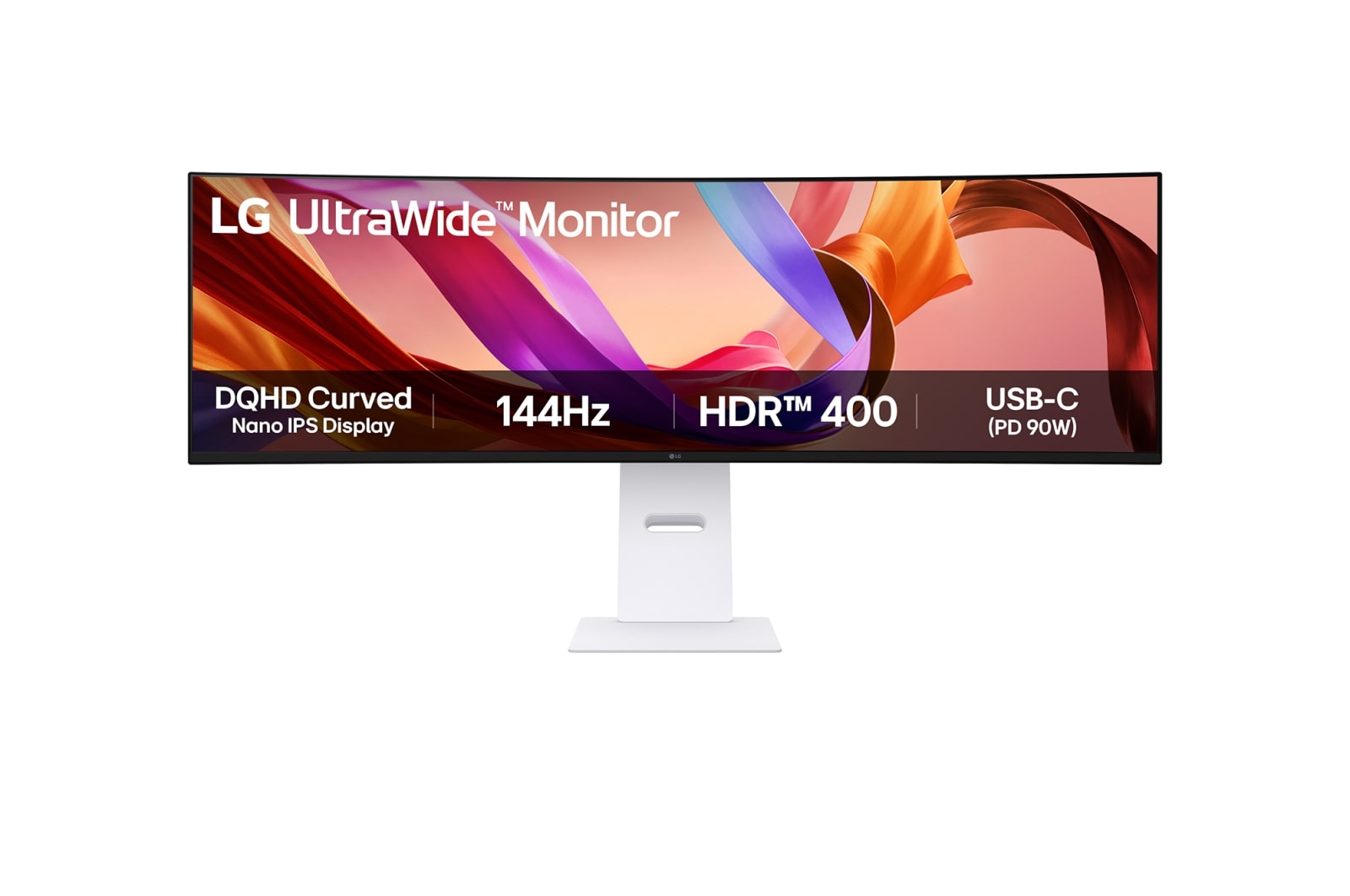
The standard argument for two monitors is the need for more screen real estate. The practical argument against it is the bezel running down the center of the workspace, interrupting the field of view where most people position their primary content. A 34-inch 21:9 ultrawide replaces both screens with a single continuous panel. The usable horizontal resolution at 3440x1440 is wider than two 1080p screens side by side, without the visual break.
Panel Curvature and Consistent Focal Distance Across the Full Width
A flat 34-inch panel places the screen edges physically further from the eyes than the center. A curved panel at 1800R or 1900R keeps the viewing distance more consistent across the full width. The effect is gradual but relevant over a full working day, particularly for work that involves scanning across wide spreadsheets or multiple application windows at once.
What Eye Comfort Technologies Are Worth Looking for in a Monitor?
You’ll see a lot of monitors advertising eye comfort features, but not all of those claims are backed up by real testing. Many brands use their own labels like “Eye Care” or “Low Blue Light,” but unless there’s a third-party certification, it’s just marketing. The certifications that matter are from TUV Rheinland and Eyesafe. These groups actually test for factors such as blue light levels, flicker, and glare. If you don’t see one of those certifications, take the eye comfort claims with a grain of salt.
Require TUV Rheinland or Eyesafe Certification
Two certifications carry real weight; confirm at least one at the panel level:
● TUV Rheinland Eye Comfort: covers blue light reduction, flicker-free performance, and discomfort glare within defined thresholds.
● Eyesafe: targets blue light spectral output and limits the wavelengths most associated with retinal exposure during prolonged use.
LG Display panels hold both certifications across select models in the UltraWide and 4K consumer range. The certification applies at the panel level, so it is worth confirming which specific model it applies to rather than assuming it applies to the full lineup.
Verify Flicker-Free Performance Across All Brightness Levels
Most monitors eliminate flicker at high brightness using DC dimming. The problem occurs at lower settings, where many panels revert to PWM dimming, which rapidly cycles the backlight to simulate reduced brightness. At low frequencies, that cycling is perceptible as flicker and contributes to eye fatigue during extended evening use. A genuinely flicker-free monitor maintains DC dimming across the full brightness range. TUV Rheinland's flicker-free certification tests at multiple brightness points, which is why it is a more reliable indicator than a product page claim alone.
Use Reader Mode for Evening Work Sessions
Reader Mode is a built-in setting that makes your screen look warmer and cuts down on blue light, so you don’t need any extra software. If you’re working late, this helps your eyes relax by reducing the harshness of cool, blue tones. It’s meant to work with the monitor’s low-blue-light certification, not replace it.
Let an Ambient Light Sensor Adjust Brightness Automatically
Some monitor models include an ambient light sensor that measures room brightness and adjusts the panel's output accordingly. In a UAE home office where light levels change considerably between morning and afternoon, particularly near windows, automatic brightness adjustment keeps the screen comfortable without manual intervention. The practical benefit is that the monitor stays readable as daylight increases and dims as the room darkens, keeping the contrast between the screen and its surroundings within a comfortable range throughout the day.
Final Picks: Monitors Built for Long Hours at Home
The decision comes down to your primary use case.
● Text, documents, and video calls: A 27-inch 4K IPS panel with TUV Rheinland certification and USB-C power delivery covers the core requirements without overcomplicating the setup.
● Multiple windows or mixed reference work: A 34-inch 21:9 UltraWide with a curved IPS panel eliminates the center-bezel problem and provides a single, uninterrupted workspace.
LG's UltraWide and consumer monitor ranges cover both use cases, with models that include USB-C power delivery, height-adjustable stands, Reader Mode, and TUV Rheinland-certified panels. The specs that define a good home office monitor are determined by how the screen performs at hour six of a working day, not by the headline numbers on the product page.
Life's Good, LG!
More To Read
LG Launches UltraFine evo 6K Monitor for Pro Creators
LG STORY features the UltraFine evo 6K monitor with Thunderbolt 5, built for creators who need clear detail, wide color coverage, and fast transfer speeds.
Learn moreLG Launches the World’s First 240HZ OLED Gaming Monitor in the UAE
LG introduces a 45-inch 240Hz OLED gaming curved monitor in the UAE market for the best gaming experiences. Check the LG’s latest gaming monitor now.
Learn more