Top Deals: Save 30-50% on select home appliances

Top Deals: Save 30-50% on select home appliances
Get connected with LG cell phones
Experience simple, streamlined devices, with the latest LG smartphones.

Whether you're searching for state-of-the-art smartphones, basic cell phones, or something in-between, with LG it's all at your fingertips. Designed for the way you live, new LG smartphones give you access to the latest technology and features, plus essentials like talk and text messaging. Learn more about LG phones, products, and offers that best match your needs.
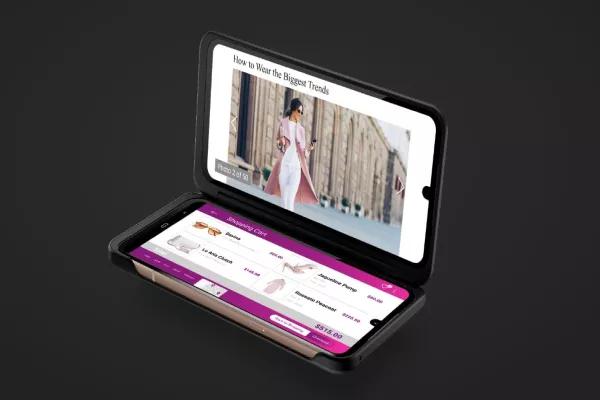
• LG Dual Screen™: Designed to keep pace with all you do, pairing compatible LG phones with the
LG Dual Screen™ gives you more space to multitask – text a friend while watching a video, share & compare while shopping, or update your fantasy football team while researching a player’s stats. Do it all at the same time, quickly and easily, without toggling back and forth between apps.
• 5G Phones: Tap into some of the fastest cell phone networks in the US with our
5G smartphones. With our latest tech right in the palm of your hand, you can watch videos seamlessly, take photos in brilliant color & clarity, surf the web, send emails, deliver text messages, work on documents or just kick back with social media – all at blazing 5G speeds.
• G Series Phones: Sleek, slim and designed for the way you live,
LG G Series phones make it easy to connect virtually anywhere. And with their ultra-fast processors, crystal-clear screens, booming sound and cutting-edge camera phone technology, our G Series smartphones have the power to make your on-the-go life even better.
• V Series Phones: Innovative to their core, our state-of-the-art
V Series smartphones make 24/7 connections effortless – all while delivering superb multimedia audio and video experiences. This way you can work and play, watch videos, listen to music, and capture life's best moments in pure clarity.
• LG Stylo™ Series Phones: For the ultimate in creative expression and productivity, check out our
Stylo Series. Featuring our innovative & easy-to-use stylus pen, fast processors, brilliant displays with vibrant colors, plus all the technology you expect from a cutting-edge smartphone, our Stylo Series makes life more creative by giving you the power to write, draw or doodle whenever, wherever you're inspired.
• Budget Phones: Our budget cellphones let you call, text, browse the internet and access all your favorite apps – everything you need from a smartphone – at unbelievable prices. And with the devices that pair with no-contract, prepaid or standard carrier data plans, LG budget phones truly give you the value and variety you deserve.
• Unlocked Phones: Check out the latest collection of LG unlocked phones with sophisticated designs and top-notch features. And with the flexibility to choose or change your carrier, our unlocked smartphones give you the freedom to connect your way.
To stay in the know on all our cell phones, sign up to receive LG promotions and find out about great cell phone deals.
Images may be simulated and dramatized for illustrative purposes. Actual features, functionality, and other product specifications may differ and are subject to change without notice. Prices, promotions, and availability may vary by model, store, and online. Prices subject to change without notice. Quantities are limited. Check with your local retailers for their final price and availability.
- TV & Home Theater
- My Account
- About LG
- Offers
- Articles & Gift Guides
Social Support
 Copyright © 2009-2026 LG Electronics. All Rights Reserved