Zoom Function in Internet Explorer (version 10.0 or later)
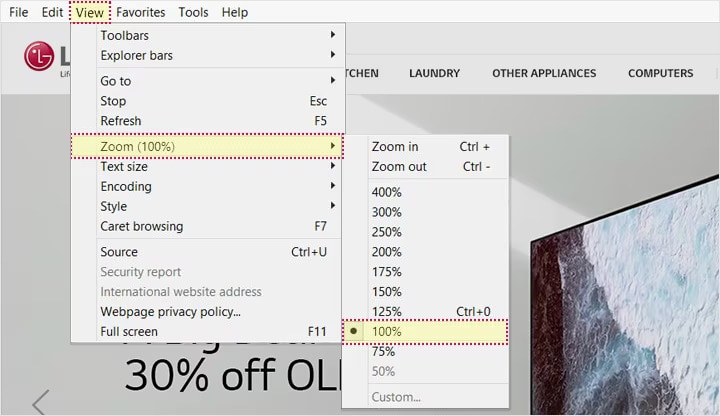
- 01.If you are using Internet Explorer, select
View on the browser menu bar and then
select Zoom.
- 02.Select a predefined zoom level, or specify
a custom level by selecting Custom and
entering a zoom value.
Internet Explorer also allows the text size to be changed with
keyboard shortcuts:
- To increase the size: Press Ctrl and +
- To decrease the size: Press Ctrl and -
- Reset zoom: Press Ctrl + 0
Zoom Function in Firefox (Current –1)
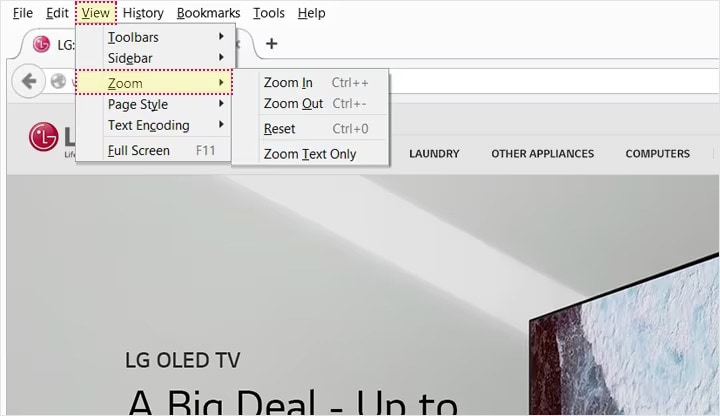
- 01.If you are using Firefox, select View on the browser menu bar and then
select Zoom.
- 02.Select Zoom
In to increase the text size or Zoom Out to decrease the text size.
- 03.Select Reset to return to the default size (100%).
Firefox also allows the text size to be changed with keyboard
shortcuts:
- To increase the size: Press Ctrl and +
- To decrease the size: Press Ctrl and -
- Reset zoom: Press Ctrl + 0
Zoom Function in Chrome (Current –1)
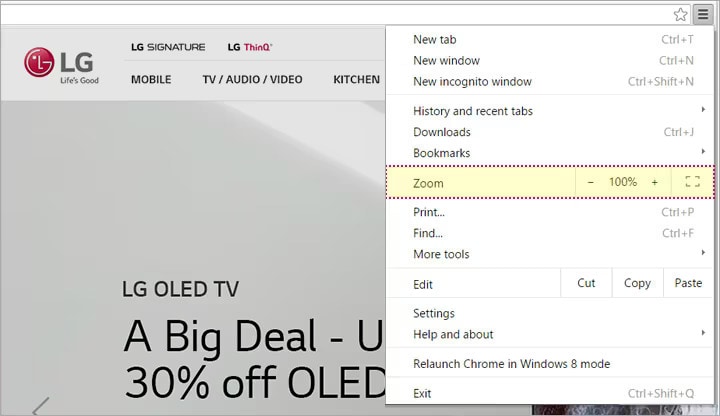
- 01.If you are using Chrome, click on the Menu
icon at the top right.
- 02.Next to "Zoom", click on '–' to zoom out or
'+' to zoom in.
- 03.Click on '100%' to return to the default
size.
Chrome also allows the text size to be changed with keyboard
shortcuts:
- To increase the size: Press Ctrl and +
- To decrease the size: Press Ctrl and -
- Reset zoom: Press Ctrl + 0
Use Magnifier, the Built-in Magnification Feature in Windows
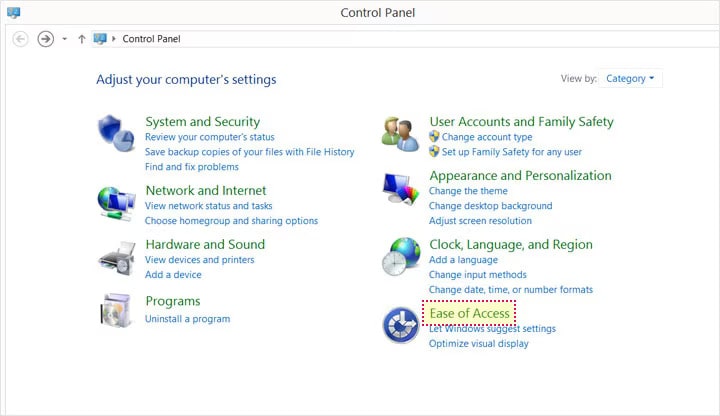
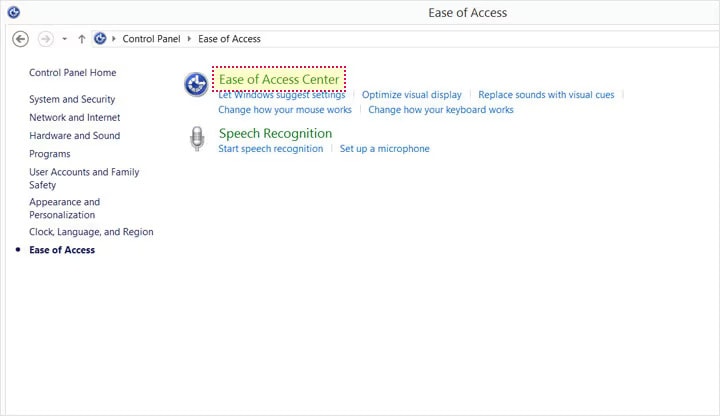
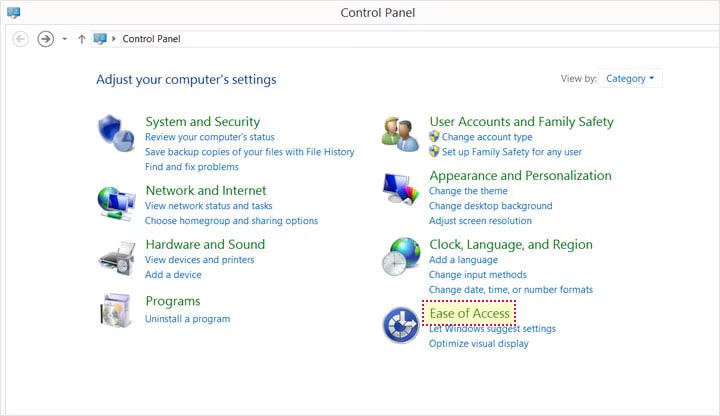
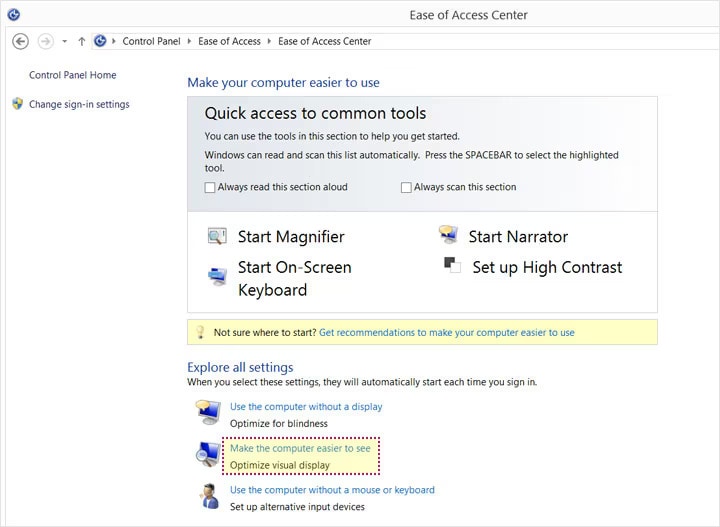
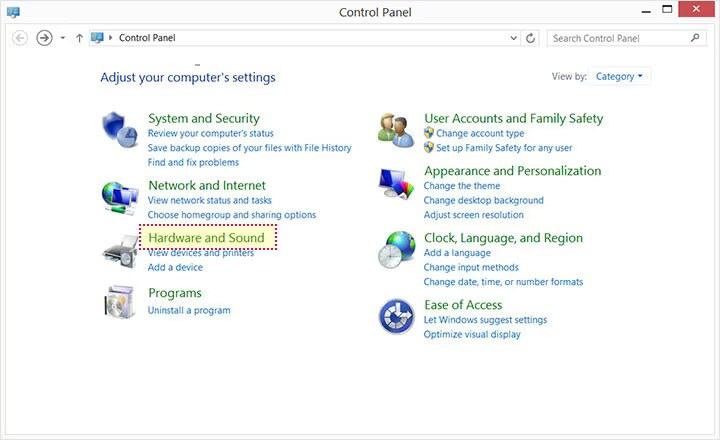
01.Select 'Ease of Access' in the
control panel.
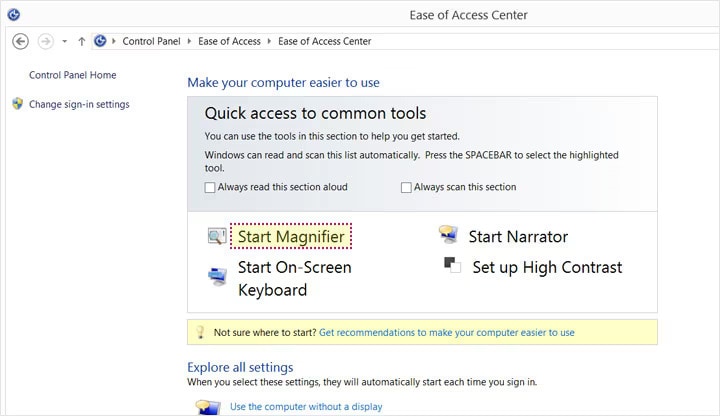
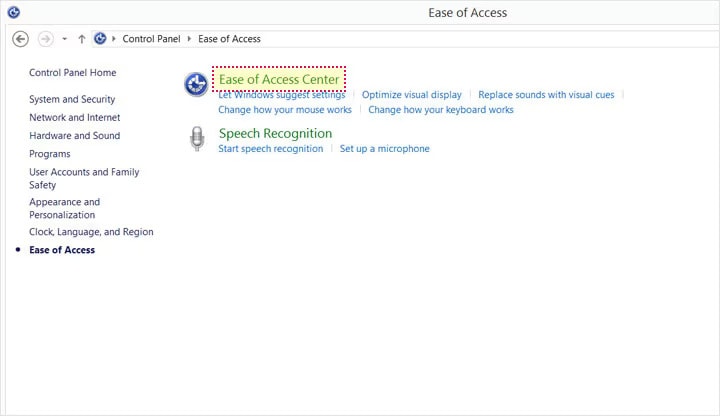
02.Select 'Ease of Access Center'.
03.Under Quick access to common tools, click on Start Magnifier. This will start the magnifier for
current use.
Set Magnifier to Start Automatically
01.Select 'Ease of Access' in the
control panel.
02.Select 'Ease of Access Center'.
03.Under Explore all settings, click on Make the computer easier to see.
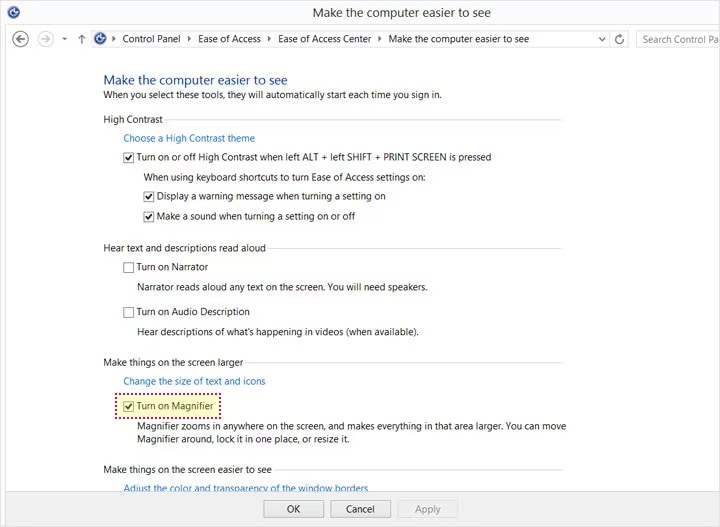
- 04.Under Make
things on the screen larger, select the check box next to
Turn on Magnifier.
- 05.Click on the OK button below to save your changes.
The following keyboard shortcuts are available when using the Magnifier:
- Press Windows key and + to zoom in.
- Press Windows key and - to zoom out.
- Press Ctrl, Alt and F
to switch to 'Full-screen' mode.
- Press Ctrl, Alt and Spacebar to preview the desktop in full-screen
mode.
- Press Ctrl, Alt and L
to switch to 'Lens' mode.
- Press Ctrl, Alt and R
to resize the lens.
- Press Ctrl, Alt and D
to switch to 'Docked' mode.
- Press Ctrl, Alt and I
to invert the colors in the magnification window.
- Press Ctrl, Alt and Arrow
keys to move the focus in the direction chosen.
- Press Windows key and Esc to exit Magnifier.
Change Background and Text Colors in Internet Explorer (version 10.0 or later)
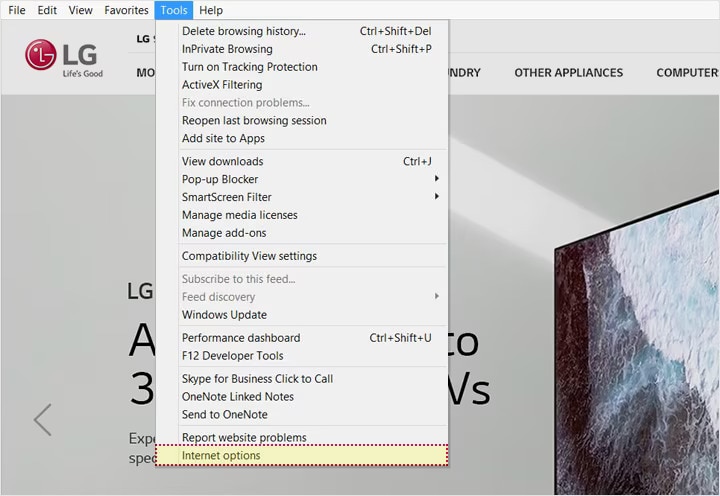
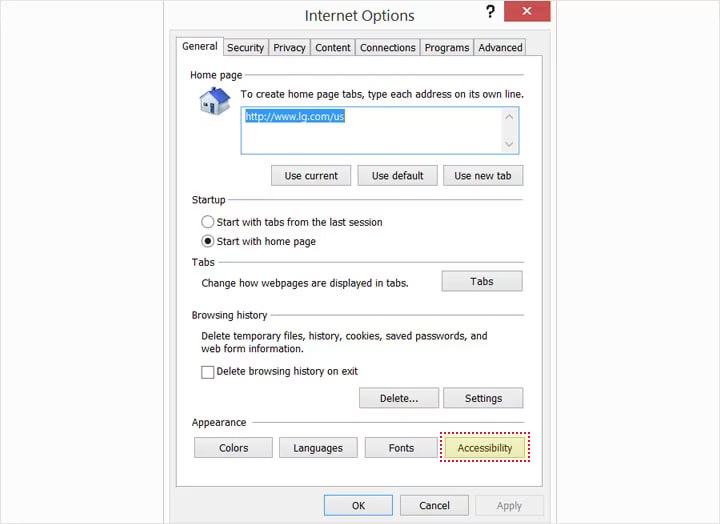
01.Select Tools on the browser menu and then select Internet options.
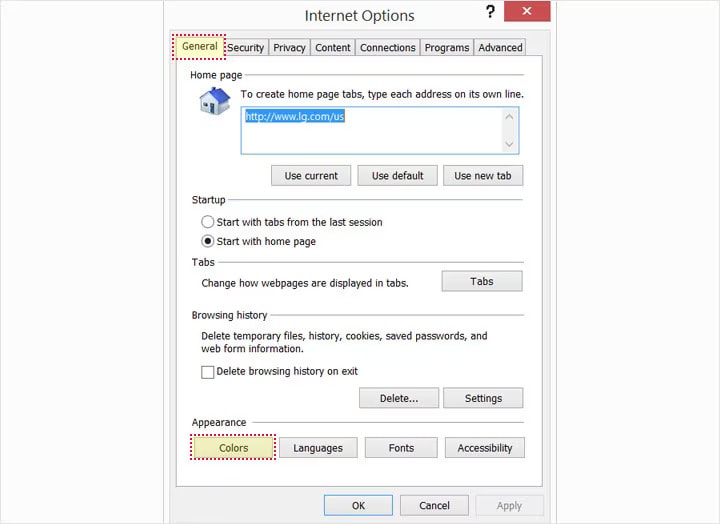
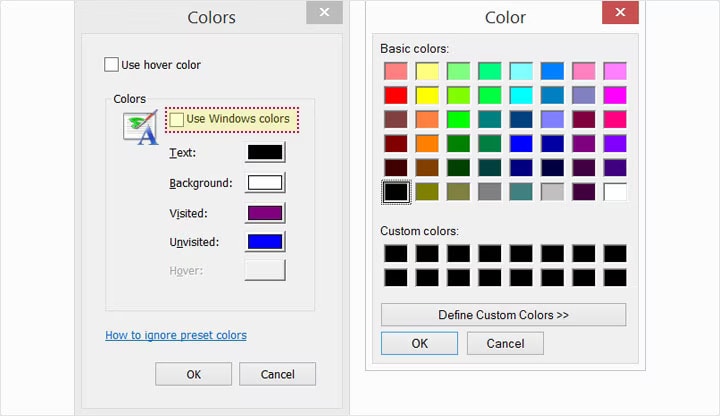
02.Select the General tab, and then, under Appearance, select Colors.
- 03.Uncheck the Use
Windows colors check box and then select the background and
text colors of your choice.
- 04.Click OK to exit the dialog box.
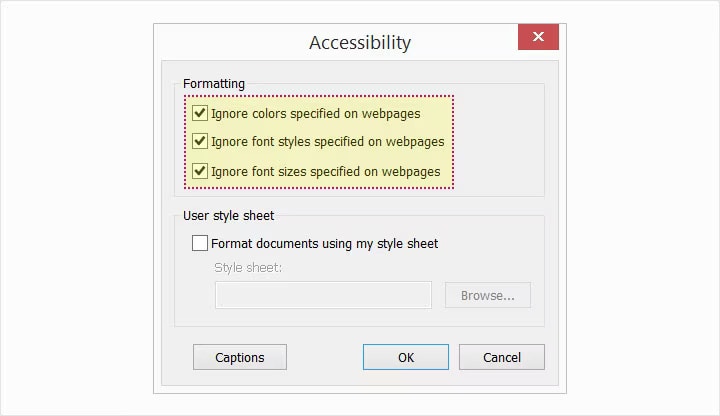
05.Click on the Accessibility button.
- 06.Select all Formatting checkboxes to override the
system colors.
- 07.Click OK to save your changes.
Change Background and Text Colors in Firefox (Current –1)
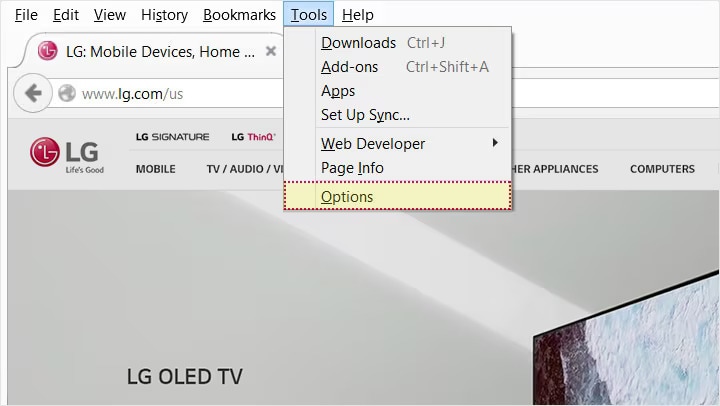
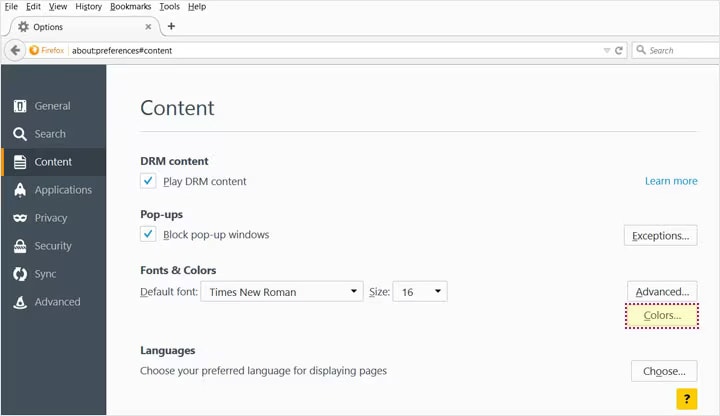
01. Select Tools on the browser menu and then select Options.
- 02.Select the Content tab, and then, under
Font & Colors, select Colors.
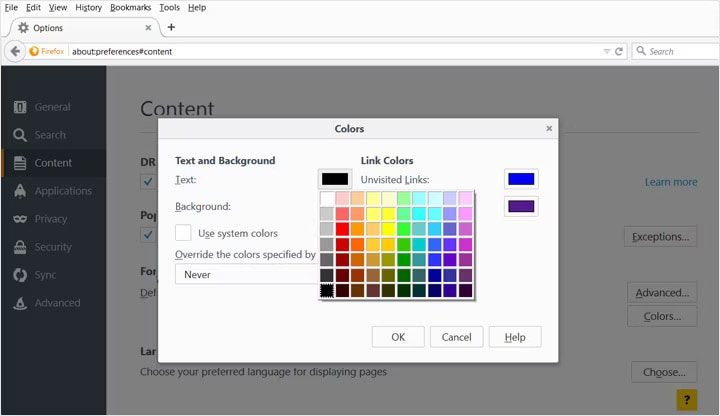
03.Select the background and text
colors of your choice by clicking one of the colored rectangles.
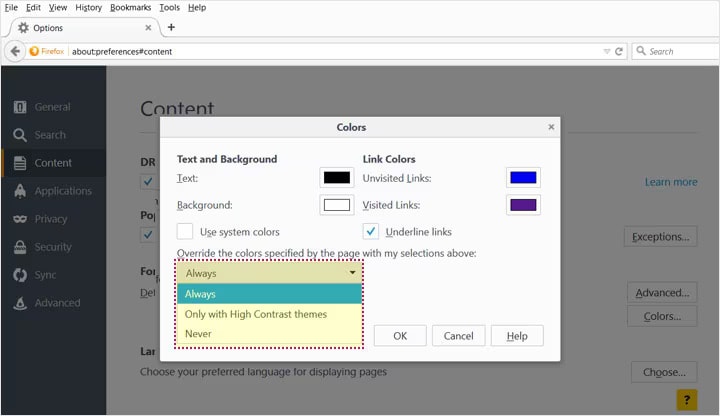
- 04.Select your option to override from the
dropdown menu.
- 05.Click OK to save your changes.
Change Background and Text Colors in Chrome (Current –1)