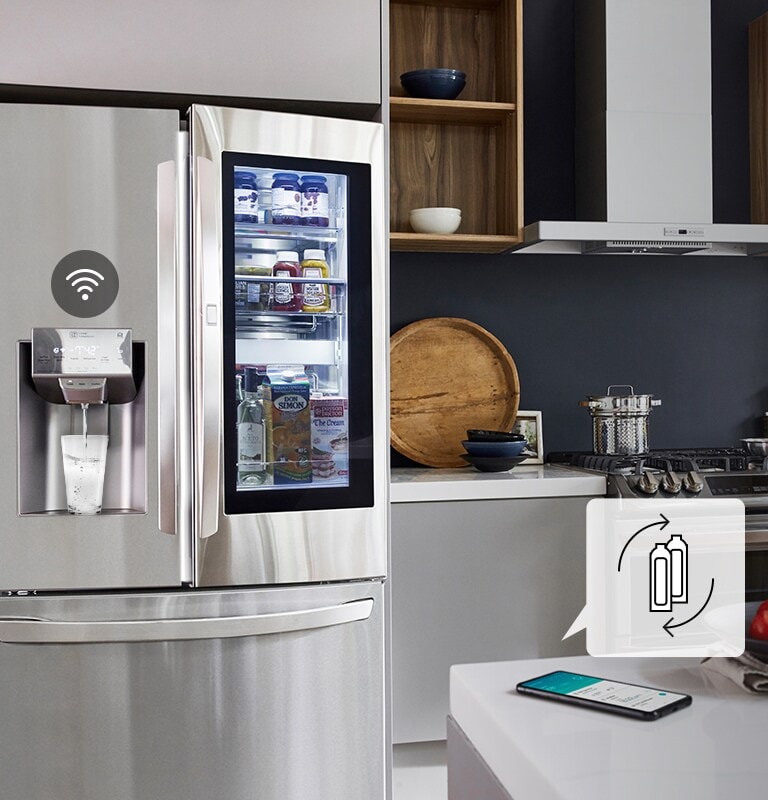
A video opens with a hand falls off the side of a couch and the shadows move across it. The shot moves out to show a woman laying on a couch taking a nap. Switch to a shot of the LG Dual Inverter air conditioner as it turns on. Video then  switches to the LG air purifier turning on across the room. Next the video shows a kitchen and zooms out from a focus on the LG dishwasher to the entire kitchen. The next shot shows an LG robot vacuum cleaner as it moves across the living room floor. The next shot shows the LG stove and oven installed in the kitchen and then the video shows the side angle of the LG Instaview refrigerator. The video switches to see the LG washer and dryer running. Next, a hand holds a phone with the LG ThinQ app open and a thumb hits the button to turn off the oven. Next a woman can be seen laying down talking into an AI speaker. The shot switches to a TV and in the upper right corner a message pops up to let the viewer know the refrigerator door has been left open. The video ends with the same woman sleeping on a bed with cereal scattered around her and on the floor and the robot vacuum comes into view to clean up.

Smart living begins with LG ThinQ

Enjoy smart home life with AI-powered appliances.

Extra convenience with connected smart home

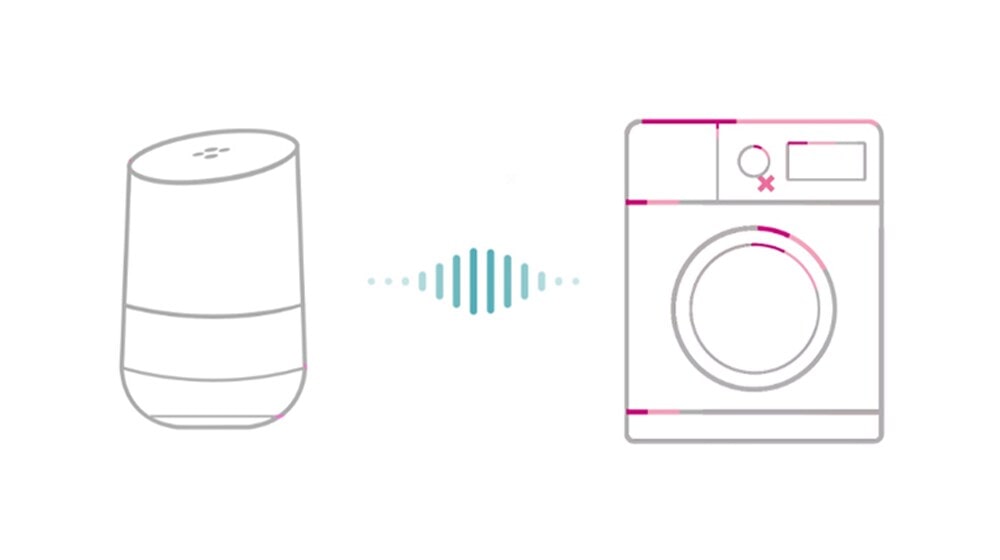
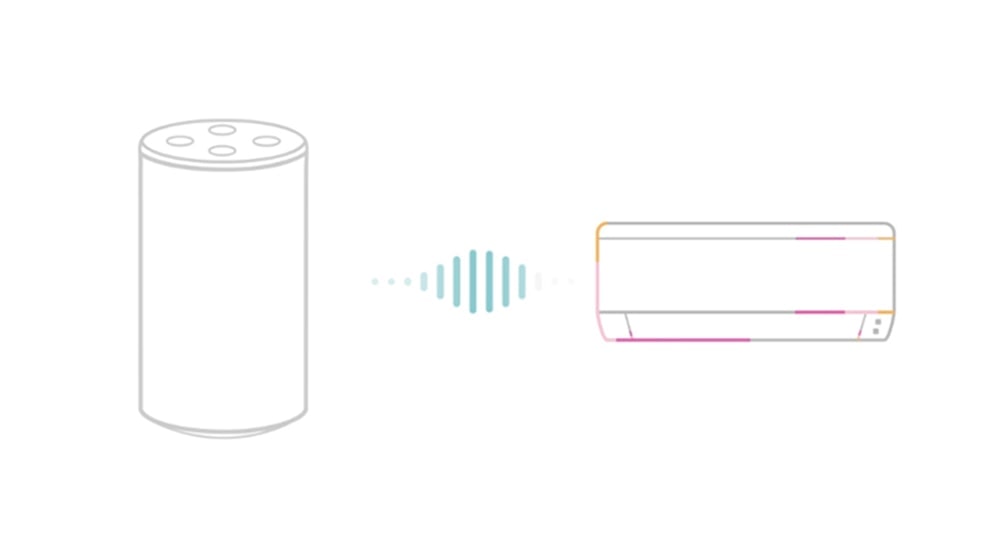
Meet your connected home assistant

Getting started

ThinQ app is packed with intelligent features so you can get the most out of your connected living. Find out how to install the app by pressing the plus button.


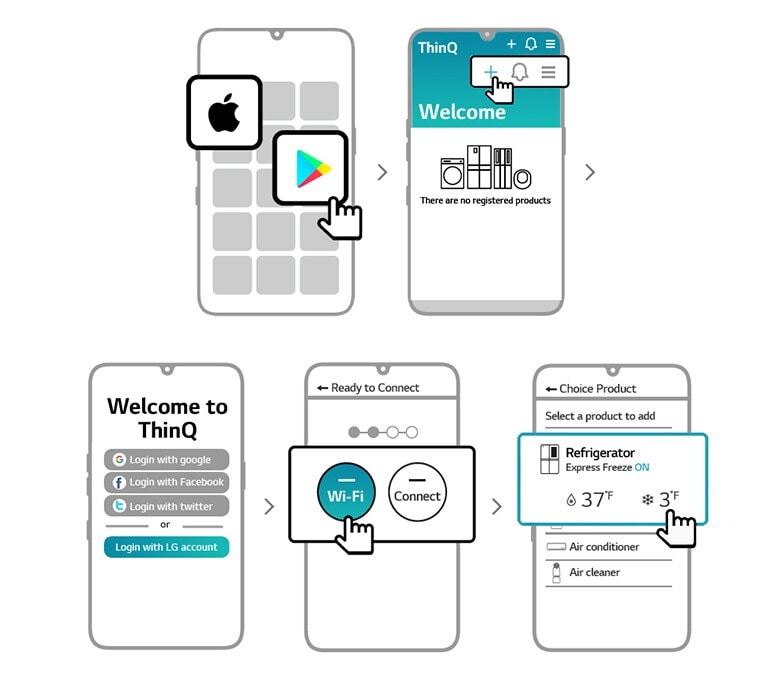
There are five line drawings of the screen of a phone showing the steps to download and get started with the LG ThinQ app. The first drawing shows the Apple logo and the Google Play logo with a pointing hand icon on the Google Play logo. The second drawing shows the welcome screen of the ThinQ app with the log in options and the Google logo, the Facebook log, and the Twitter logo. The third drawing shows the welcome screen of the ThinQ app after logging in. There is an icon representing a washer, refrigerator, robot vacuum and air purifier with a plus sign indicating the user can register their products. A hand icon hovers over the plus icon. The fourth drawing says "Ready to Connect" at the top and shows four dots with the first two highlighted indicating the user is going through the process to connect their appliances. The hand icon hovers over the Wi-Fi button. The fifth drawing is labelled "Choice Product" at the top and the hand icon hovers over the "Refrigerator" which shows the current temperature status and indicates the "Express Freeze" is on. There are other appliances in a list below the refrigerator.

Step 1. ThinQ app download
Search for the LG ThinQ application from the Google Play or Apple App Store on a smart phone.

Step 2. Log-in
Log in with your LG account if you have one.

Step 3. Add a device
You made it to LG ThinQ app’s main page! Now time to connect your LG device(s).

Step 4. Select a device
Select which device you want to connect to.

Step 5. Go ahead!
Access your device(s) using the ThinQ app.

The process of installing the LG ThinQ app is explained in order on the six cell phone screens

Optional AI speaker connection - connect Google home

1. Open Google home app and press ‘Add’.
2. Touch + to add your appliances.
3. Search LG ThinQ & Log in with ThinQ account.

Connect Google Home

Optional AI Speaker connection - Connect amazon alexa

1. Open Amazon Alexa app and go to menu.
2. Press “Skills & Games”.
3. Search LG ThinQ & Log in with ThinQ account.

Connect Amazon Alexa

*Google, Google play and the Google home logo are trademarks of Google Inc. *Apple and the Apple logo are trademarks of Apple Inc., registered in the U.S. and other countries. *App Store is a service mark of Apple Inc., registered in the U.S. and other countries. *Amazon, Alexa, Echo and all related logos and motions marks are trademarks of Amazon.com, Inc or its affiliates. *LG SmartThinQ is now renamed to LG ThinQ. *LG ThinQ service availability and 3rd party AI speaker compatibility may vary depending on the product model and region.

*Please note that Alexa is not compatible with ThinQ devices for users in Hong Kong and Macau.

Discover smart products

Frequently asked QUESTIONS

Press the plus button to see the answers.


Q. Which LG appliances and TV work with LG ThinQ App, Google Assistant and Alexa?

A. All LG appliances and TV with Wi-Fi embedded are compatible with LG ThinQ App, Google Assistant and Alexa.(voice assistant service differ by country)

Q. How do I connect LG appliances to LG ThinQ App?

A. Note that 5 GHz networks may not be supported.
Ensure the appliance is located close to the router with no obstacles between them.
Ensure the Wi-Fi network name does not contain Non-English or special characters e.g "[!@#$%^&*()_+?}{|\]".
Set the "SWITCH TO MOBILE DATA" option to OFF on your mobile phone before adding your appliance.

Q. Can I use my product nicknames to control LG appliances with LG ThinQ App, Google Assistant or Alexa?

A. Yes. You can use nicknames of your LG appliances.
To use voice command(where available), if you named air conditioner “Living Room AC” in LG ThinQ App,
say “Ok Google, turn on Living Room AC” to Google Assistant or "Alexa, ask LG to turn on Living Room AC".
Make sure that you set up product nickname with the space where it is located,
such as Bedroom Purifier and Hallway Dryer so that it can be easily memorized and called.
For TV, you can set nickname when you register TV from the Set Up TV for the Google Assistant app on your TV.
You can register multiple TVs with the same LG account, but each TV should have a different nickname.

Q. What does "Sorry, I can’t find the right product. Please launch LG ThinQ app and check your device list and product nickname?” mean?

A. This occurs when Google Assistant or Alexa is not able to understand product nickname or device type.
Check if your product nickname is appropriate for voice assistant service.

Q. What does "Sorry, that device is either not registered or is not compatible with LG ThinQ.” mean?

A. Your product is not supported by LG ThinQ or is not registered in the app.

Q. What does "Sorry, this function is not supported by the action for range" mean?

A. Your product is not supported by LG ThinQ or is not registered in the app.