We use cookies, including cookies from third parties, to enhance your user experience and the effectiveness of our marketing activities. These cookies are performance, analytics and advertising cookies, please see our Privacy and Cookie policy for further information. If you agree to all of our cookies select “Accept all” or select “Cookie Settings” to see which cookies we use and choose which ones you would like to accept.
LG Image Retention Mini Page
LG OLED TV Reliability
LG OLED TV’s premier picture quality is widely recognized
by world-renowned tech media such as CNET, What Hi-Fi and TechRadar.
LG OLED TVs even address any risk of Image Retention
that may occur
when consumers are using
the technology out of normal viewing conditions.
when a static image is displayed for an extended period.
LG OLED TV Technology
for
Image Retention
Prevention and Recovery
Retention Prevention
To prevent and reduce the occurrence of
Image Retention,
LG OLED TVs provide a variety
of technologies as listed below.
Screen Shift
This technology reduces the potential of retention
when the screen image is
fixed for a long time.
Screen Shift moves the pixels of the static area.
Logo Luminance Adjustment
This technology detects on-screen logos and reduces
the luminance in the affected areas.
Screen Shift
LG OLED TVs have technology to detect which
stationary images
pose a high risk of retention and adjust the pixel luminance accordingly.
Retention Prevention
LG OLED TVs also support recovery technology
for Image Retention
that may occur
when consumers are using the display
out of normal viewing conditions.
when a static image is displayed for an extended period.
Pixel Refresher
The Pixel Refresher feature, built into LG OLED TVs,
automatically detects
pixel deterioration through periodic scanning, compensating for it as needed.
It also senses any TFT (Thin Film Transistor) voltage changes during power off
to detect and correct pixel degradation by comparing it with
a set reference value.
How is Image Retention
Recovery Technology activated?
Automatic Pixel Refresher —
For Effortless Image Retention Recovery
After every four hours of cumulative use
Pixel Refresher is automatically operated when you turn off the TV after watching it
for more than four hours in total. For example, if you watched TV for two hours yesterday
and three hours today (more than four hours in total), Pixel Refresher will automatically run,
deal with potential image retention issues
and reset its operation time.
After 2,000 hours of cumulative use
After watching for a total of 2,000 hours or more
(five hours per day for a period of one year)
the Pixel Refresher is automatically operated, and the function runs for about an hour
once you turn off the TV.
You may see some vetrtical lines on the screen during
this process,
however, this is not a malfunction.
It is designed to remove Image Retention by
scrolling
a horizontal bar down the screen.
The Pixel Refresher automatically runs
according to your TV’s
condition
or you can run it manually whenever you need.
Manual Pixel Refresher —
For Control of Image Retention Recovery
Manual Pixel Refresher is also available in case you notice
any image retention or when you get a
reminder
to run it after 2,000 hours of watching. Follow these steps for manual start:
First, long press the setting button on the remote control to enter the settings menu
[Setting] → [Picture] → [OLED Panel Setting]
→ [Pixel Refresher]
if the TV is turned on while it is in operation.

Proactive Ways
to Minimize the Risk of
Image Retention
Image Retention does not occur under most normal
viewing conditions.
Generally, Image Retention may
result when consumers use
the display
out of normal viewing conditions.
Avoid using images
like those below that can cause Image Retention.
when a static image is displayed for an extended period.
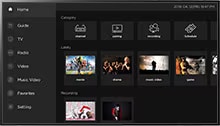
A film that contains a static picture/
element or object that is consistently
visible in a still state.
(Ex. channel number, TV station logo,
program title, news and movie
captions, etc.)
A film/image that contains a fixed
menu, icon display for games or
set-top box display.
Film ratio, such as 4:3 or 21:9,
in which black bars appears on
the left/right or top/bottom
of
the screen.
You can reduce the risk of
Image Retention
by manually changing
certain settings on your TV.
Eco Mode Settings
When you are watching the same contents for a long time, set the display to Eco mode
and adjust the OLED light to low level in the Picture Mode Settings.
Logo Luminance Settings
Set Logo Luminance Adjustment to high
from the OLED Panel Settings in the Picture Menu.
Menu Display Settings
To avoid an external device’s setting menu from appearing
for a long time on the screen,
refer to the manual
of the connected device and turn off the setting menu.
Aspect Ratio Settings
If there is a black background (letter box) on the left/right
or top/bottom while watching contents on the TV,
it is recommended that you
adjust the contents to fit the screen size as follows:
[Picture] → [Aspect Ratio Settings] →
[Aspect Ratio] → [Vertical Zoom] or [All-Direction Zoom]