We use cookies, including cookies from third parties, to enhance your user experience and the effectiveness of our marketing activities. These cookies are performance, analytics and advertising cookies, please see our Privacy and Cookie policy for further information. If you agree to all of our cookies select “Accept all” or select “Cookie Settings” to see which cookies we use and choose which ones you would like to accept.

Official setup and usage guide for LG Sound Suite
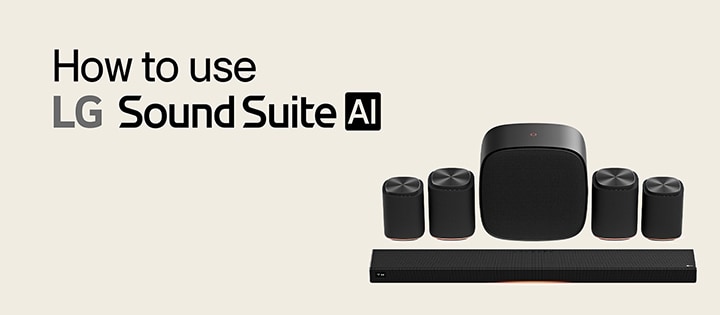
This official guide provides clear instructions and answers for using LG Sound Suite. Watch How-to videos and browse FAQs to learn about connections, Dolby Atmos FlexConnect, calibration features, and streaming—based on accurate information provided by LG.
Step-by-step guides for LG Sound Suite
Learn how to connect devices, register in the ThinQ app, use Dolby Atmos FlexConnect, and adjust key settings through clear, guided videos.
Q&A
Does LG Sound Suite support Spotify lossless playback?
Lossless playback is available via Spotify Connect. A paid subscription may be required depending on Spotify’s service policy.
How can I play Dolby Atmos audio on LG Sound Suite products?
Dolby Atmos audio can be played through Tidal Connect, and other music streaming services which . For iPhone users, Dolby Atmos playback is possible via AirPlay. To play Dolby Atmos, the content must be in Dolby Atmos format. Additionally, the H7 model can play Dolby Atmos via HDMI when connected to a TV. If a TV plays Dolby Atmos content through streaming services (e.g., Netflix) or external devices (e.g., Blu‑ray player), the audio can be passed to H7 via ARC/eARC.
If two LG Sound Suite M5 speakers are paired in stereo mode and I unplug them to move them, will they automatically reconnect in stereo mode?
If the same Sound Suite M5 or M7 speakers were previously paired in stereo mode, unplugging them and reconnecting power after moving them will allow automatic stereo reconnection because the speakers retain the previous pairing information.
I want to use only one DAFC-configured LG Sound Suite speaker for music listening. How do I do that?
To use one speaker independently from a DAFC configuration, change its input mode to Wi‑Fi or Bluetooth using the external input button. Then connect your smartphone to use it as a standalone speaker. If the speaker has not been moved, switching the external input button back to DAFC mode will automatically reconnect it to the DAFC configuration.
Which input modes support stereo mode for LG Sound Suite M7/M5 speakers?
Stereo mode is supported in Wi‑Fi mode.
What is the difference between Bluetooth and USB Audio when connecting a laptop to an LG Sound Suite M7 speaker?
Bluetooth enables wireless connection but transmits lossy audio depending on the PC’s codec. USB Audio allows playback at up to 24bit/96kHz, enabling lossless high‑quality reproduction.
How do I set up Wi‑Fi connection for LG Sound Suite products?
Wi‑Fi setup is available through the ThinQ app. Install ThinQ, register the Sound Suite product, and it will connect to the Wi‑Fi network linked to the ThinQ app. Please refer to the manual for detailed instructions.
What wireless communication is used between LG Sound Suite products?
LG’s proprietary wireless technology based on Wi‑Fi Direct is used for DAFC connections between LG DAFC‑supported TVs and Sound Suite M7/M5, and between Sound Suite H7/M7/M5. The 5GHz frequency band is used.
LG Sound Suite M7/M5 UAC (USB Audio Class) connection is not recognized.
Use a **USB‑C data cable (USB 2.0/3.0)**. Cables without data lines (power‑only cables) do not support USB Audio Class.
What drive/format is supported for USB playback (local files)?
Supported USB formats are FAT16/FAT32/NTFS. exFAT is not supported. (Note: Testing shows H7 (O26) supports exFAT, but current H7 manual lists FAT16/FAT32/NTFS same as M7/M5.)
Which wireless connection methods do LG Sound Suite products support (Wi‑Fi, Bluetooth, etc.)?
Dual‑band Wi‑Fi (2.4GHz/5GHz) and Bluetooth are supported. Wi‑Fi is optimized for high‑quality streaming; Bluetooth is suitable for simple pairing. (Recommended: Use Wi‑Fi for music listening.)
What Wi‑Fi frequency bands are supported?
Supports both **2.4GHz (long range, better obstacle handling)** and **5GHz (lower latency, less interference)**. 5GHz is recommended in environments with many wireless devices.
What is the audio playback resolution of LG Sound Suite products?
LG Sound Suite products can playback audio resolution up to 24bit/96kHz.
Which streaming protocols are supported (AirPlay 2, Google Cast, Spotify Connect, etc.)?
Supported protocols: AirPlay 2 / Google Cast / Spotify Connect / TIDAL Connect.
Do LG Sound Suite products support multi‑room?
Supports multi‑room playback via AirPlay 2 and Google Cast. Requires connection to the same wireless network.
Are LG Sound Suite products controllable through an app? Which OS is supported?
ThinQ app is available on iOS and Android OS.
Are there wired connection options for LG Sound Suite products?
Supports USB Audio using USB‑C to C or USB‑A to C data cables (M7/M5). H7 supports HDMI cable connection to receive TV audio via ARC/eARC.
Is firmware updated automatically?
Sound Suite products support OTA (Over‑the‑Air) automatic updates once network setup is completed through the ThinQ app.
Which audio formats are supported for USB playback?
Supported audio formats for USB playback: MP3 / AAC / OGG / FLAC / WAV.
Do LG Sound Suite products support Dolby Atmos?
Sound Suite H7/M7 support Dolby Atmos independently. M5 supports Dolby Atmos when two units are connected in stereo mode.
Do LG Sound Suite products have EQ adjustment?
Preset EQ and user EQ adjustments are available in the ThinQ app.
What is the speaker unit configuration (tweeters, woofers, etc.)?
H7: Front 3 full‑range units, left/right 2 side full‑range units, 3 up‑firing full‑range units, 4 top woofers, and 8 passive radiators (front and back). M7: 2 front full‑range units, 1 woofer, 1 up‑firing full‑range unit. M5: 1 front tweeter, 1 woofer, and 1 up‑firing tweeter.
Can LG Sound Suite M7/M5 be stereo paired?
Yes, two speakers of the same model can be paired in stereo mode, improving spatial audio with left/right channel separation.
Do LG Sound Suite products support automatic room tuning?
Room Calibration Pro is available through the ThinQ app using the built‑in microphone.
Which streaming protocols are supported over Wi‑Fi?
Supports AirPlay 2, Google Cast, Spotify Connect, and TIDAL Connect.
Do LG Sound Suite products support Bluetooth multipoint (two devices simultaneously)?
Bluetooth multipoint is not supported.
Can Wi‑Fi input and Bluetooth input be used at the same time?
LG Sound Suite products support both Wi‑Fi and Bluetooth, but cannot use them simultaneously.
Do LG Sound Suite products support lossless audio streaming?
Supports lossless playback through Spotify Connect and Tidal Connect. AirPlay 2 supports lossless up to 16bit/44.1kHz; Google Cast supports lossless up to 24bit/96kHz (depending on streaming service). USB Audio also supports lossless playback.
Is lossless audio maintained when playing via AirPlay 2?
Supports CD‑quality (16bit/44.1kHz) lossless (ALAC) via AirPlay 2. Behavior may vary by streaming service.
Is Hi‑Res playback possible with Google Cast?
Google Cast supports FLAC up to 24bit/96kHz, but behavior depends on streaming service.
Is network configuration easy in the app?
Yes, network configuration is easily done via the ThinQ app.
What is the maximum supported audio resolution (sample rate/bit depth)?
USB Audio: up to 24bit/96kHz (except H7). Google Cast: up to 24bit/96kHz. AirPlay 2: 16bit/44.1kHz. Bluetooth: H7 supports SBC; M7/M5 support SBC/AAC.
Is Bluetooth connection "lossless" in LG Sound Suite?
Bluetooth uses SBC/AAC, which are compressed codecs → not lossless. Use Wi‑Fi, USB Audio, or USB file playback for lossless quality.
Can LG Sound Suite products be used without an iOS/Android app?
Bluetooth and USB Audio playback work without the ThinQ app. Wi‑Fi features require the ThinQ app.
LG Sound Suite product cannot cast on the company's Wi‑Fi network.
Corporate networks may block casting due to MAC filtering or wireless restrictions. Consult IT admin.
Does LG Sound Suite products support power delivery (charging) via USB‑C?
Sound Suite uses a power cord . USB‑C input is only for USB Audio and USB storage playback.
Are LG Sound Suite products waterproof for outdoor use?
Sound Suite products do not provide water or dust resistance.
Scanning songs from a USB storage device on the LG Sound Suite product takes a long time.
Reduce folder/file count and try again. Supports up to 2000 tracks. USB storage supports FAT16/FAT32/NTFS (exFAT not supported).
How to deal with error messages?
There was a problem connecting to [Sound Suite Model]. Would you like to continue using the current speaker? If you want to try connecting again, please press the 'Retry' button.
This message appears when a connection error occurs during the wireless speaker group setup process.
Button Information
YES: Keep the current connection and proceed with calibration.
Retry: Reset the current wireless speaker group and start again.
To use DAFC (Dolby Atmos Flexconnect), select at least two M5 speakers or one M7 speaker.
Do you want to set up your speaker again? If 'NO' is selected, sound will only be output through the TV (Soundbar)
This message appears when you try to connect only one M5 speaker to the leader device.
M5 supports DAFC (Dolby Atmos FlexConnect) only when at least two units are connected.
Button Information
YES: To use DAFC (Dolby Atmos FlexConnect),
→ Select at least two M5 speakers or at least one M7 speaker.
NO: If only one M5 speaker is available,
→ DAFC (Dolby Atmos FlexConnect) is not supported. Press NO to exit the DAFC (Dolby Atmos FlexConnect) connection.
The selected wireless speaker setup doesn't support Dolby Atmos FlexConnect. Listen using only the [TV device] and the subwoofer? If 'NO' is selected, you can connect additional wireless speakers.
This message appears when you try to connect only the W7 (subwoofer) by itself.
Connecting the subwoofer (W7) alone is possible, but DAFC (Dolby Atmos FlexConnect) is not supported.
Button Information
YES: If you want to connect only one W7 subwoofer to the TV, press YES to proceed with the wireless connection.
NO: If you want to connect other Sound Suite speakers in addition to the subwoofer (W7), press NO to return to the product search/group setup step.
A problem occurred while connecting the subwoofer. If you want to try connecting again, please press the 'Retry' button.
This message appears when an issue occurs while connecting the W7 (subwoofer).
Button Information
YES: Press YES to return to the search/connection step and try again.
NO: Press NO to stop and end the connection process.
The network is unstable or a group connection failed.
If you want to try connecting again, please press the 'Retry' button.
This message appears when the network connection issues occur or the group setup fails during the grouping process.
How to fix it?
Check the wireless environment
Make sure the environment is not subject to heavy wireless interference.
Ensure the devices you want to connect are not placed too far apart.
Button Information
Retry: Return to the grouping step and try connecting again.
Exit: Exit the grouping process.
Connection with ThinQ has been lost.
Would you like to try again? If 'NO' is selected, sound will only be output through the TV.
This message appears when the connection between the TV and ThinQ is lost during the calibration process.
Button Information
YES: Press YES to re-establish the connection and enter QR scan mode.
NO: Press NO to stop the connection, exit the TV DAFC (Dolby Atmos FlexConnect) setup, and switch sound output to the TV.
Only some speakers were calibrated.
Would you like to continue using the current speaker?
If you want to try connecting again, please press the 'Retry' button.
This message appears when only some of the wireless speakers in the group have successfully completed calibration.
This can often occur in environments with unstable wireless connections or excessive noise.
For a successful connection, we recommend trying again in a stable wireless environment and a quiet setting.
Button Information
YES: Press YES to complete calibration and use DAFC (Dolby Atmos FlexConnect) with the speakers that were successfully calibrated.
Retry: Press Retry to attempt calibration again.
To use Dolby Atmos FlexConnect, at least two [Sound Suite] speakers are required.
Do you want to set up your speaker again?
If 'NO' is selected, sound will only be output through the TV.
This message appears when only one M5 speaker in the group has successfully completed calibration.
This usually happens in environments with unstable wireless connections or excessive noise.
For a successful connection, we recommend trying again in a stable wireless environment and a quiet setting.
Button Information
YES: Press YES to continue with the DAFC (Dolby Atmos FlexConnect) connection and restart the speaker connection process.
NO: Press NO to end the DAFC (Dolby Atmos FlexConnect) connection and switch sound output to the TV.
The network is unstable or a group connection failed. If you want to try connecting again, please press the 'Retry' button.
This error usually occurs in environments with unstable wireless networks or excessive noise. Here’s how to resolve it:
Check Network Status
Use a stable 2.4GHz or 5GHz Wi-Fi connection.
Connections may be limited when using DFS channels.
Improve Environment
For a successful Sound Suite DAFC (Dolby Atmos FlexConnect) connection, try again in a stable wireless environment and a quiet setting.
Button Information
Retry: Press Retry to attempt calibration again.
Exit: Press Exit to end the calibration process.
The TV microphone is turned off. Please turn on the mic switch for calibration.”
This error occurs when the TV microphone is turned off. To proceed with calibration correctly, check the following:
Check the microphone switch location
Refer to the TV user manual or the settings menu for the switch location (varies by model).
Turn the microphone switch ON
Switching it ON will clear the error message and allow calibration to continue.
[Sound Suite Device Name] is connected. Sound will be automatically output after calibration.
When a speaker with a previous DAFC (Dolby Atmos FlexConnect) connection history reconnects to the TV, the system automatically calculates and applies the optimal calibration values based on the existing calibration data and the currently connected speakers, ensuring the best sound quality.
This notification will disappear after a few seconds.
[Sound Suite Device Name] is disconnected.
Sound will be automatically output after calibration.
When some speakers are disconnected from DAFC (Dolby Atmos FlexConnect) , the system automatically updates and applies the optimal calibration values based on the existing calibration data and the currently connected speakers, ensuring the best sound quality.
This notification will disappear after a few seconds.
The wireless speaker is disconnected or experiencing poor signal reception. Would you like to search for the device again? If 'NO' is selected, sound will only be output through the TV.
This message appears when the speakers connected via DAFC (Dolby Atmos FlexConnect) are disconnected or when the current combination does not support DAFC (Dolby Atmos FlexConnect) mode. Here’s how to resolve it:
Check Speaker Connection Status
If the LED under a previously connected speaker is blinking green, the connection has been lost.
Check whether all speakers are disconnected or if only one M5 or one W7 speaker is connected.
Check Wireless Environment
Make sure the router is working properly.
Ensure the environment is not subject to heavy wireless interference.
Button Information
YES: Retry product search.
NO: Automatically switch to TV Sound Out mode and output sound through the TV only.
Switch output to the HDMI ARC-connected device. Exit features or apps in current use. Switching output to the newly selected HDMI ARC port. Exit any features or apps currently in use.
This message appears when an HDMI ARC/eARC connection is detected while using DAFC (Dolby Atmos FlexConnect) mode. Here’s how it works and how to resolve it:
Automatic Switching
When an HDMI ARC device is connected, the TV automatically switches audio output to HDMI ARC mode.
Sound will then be outputted through the HDMI ARC-connected device.
How to Keep DAFC (Dolby Atmos FlexConnect) Mode
If you want to continue listening in DAFC (Dolby Atmos FlexConnect) mode even after connecting an HDMI ARC device,
→ Change the TV’s [Sound Output Mode] back to DAFC (Dolby Atmos FlexConnect).
Path: [Settings] → [Sound Output] → Select DAFC (Dolby Atmos FlexConnect)
Popup
The notification will close automatically, and HDMI ARC mode will be activated.
Switching back to DAFC (Dolby Atmos FlexConnect) may require recalibration.
Exiting Dolby Atmos FlexConnect.
This message appears when the sound output is switched from DAFC (Dolby Atmos FlexConnect) mode to another output and does not return to DAFC (Dolby Atmos FlexConnect) mode within one minute. Here’s how it works and how to resolve it:
Cause
If the TV remains in a different output mode for more than one minute after leaving DAFC (Dolby Atmos FlexConnect) mode, DAFC (Dolby Atmos FlexConnect) mode will automatically end.
How to return to DAFC (Dolby Atmos FlexConnect) mode:
To use DAFC (Dolby Atmos FlexConnect) mode again, change the TV’s [Sound Output Mode] back to DAFC (Dolby Atmos FlexConnect).
Popup Behavior
The notification will close automatically, and the TV will continue playing sound through the selected output mode.
Dolby Atmos FlexConnect feature has been stopped due to network unavailability.
This message appears when the TV’s Wi-Fi connection to the router is lost. Since DAFC (Dolby Atmos FlexConnect) requires a stable network connection, please check the following:
Check Wi-Fi Connection Status
Make sure the TV is properly connected to the router.
Go to [Settings] → [Network] → [Wi-Fi Connection] to check the status.
Check Network Environment
Ensure the router is working normally.
Avoid environments with heavy wireless interference (e.g., microwave ovens, Bluetooth devices).
Restore DAFC (Dolby Atmos FlexConnect) Mode After Reconnection
After restoring the Wi-Fi connection, change the TV’s sound output mode back to DAFC (Dolby Atmos FlexConnect).
Path: [Settings] → [Sound Output] → Select DAFC (Dolby Atmos FlexConnect)
When ending the Dolby Atmos FlexConnect connection, Miracast will also be disconnected. Would you like to disconnect?
This message appears when you try to disconnect DAFC (Dolby Atmos FlexConnect) after Miracast has been connected while DAFC (Dolby Atmos FlexConnect) is in use. Here’s how it works and how to resolve it:
Cause
DAFC (Dolby Atmos FlexConnect) and Miracast share the same wireless connection, so disconnecting DAFC (Dolby Atmos FlexConnect) will also disconnect Miracast.
User Options
Selecting YES will disconnect both DAFC (Dolby Atmos FlexConnect) and Miracast.
Selecting NO will cancel the disconnection process and keep both DAFC (Dolby Atmos FlexConnect) and Miracast connected.
Popup Behavior
The notification will close automatically after selection, and the chosen action will be applied immediately.
When ending the Dolby Atmos FlexConnect connection, Miracast will also be disconnected. Would you like to disconnect?
This message occurs when Dolby Atmos FlexConnect (DAFC) and Miracast are used at the same time, and DAFC is disabled.
In this case, the message “Ending Dolby Atmos FlexConnect.” is displayed, and both DAFC and Miracast will be disconnected.
Try connecting a 2.4GHz or 5GHz Wi-Fi network to connect Dolby Atmos Flex Connect devices. This function is not available when using DFS channels on your wireless router. Please check the network status and try again. Exiting Dolby Atmos FlexConnect.
This message appears when the TV is connected to a router using DFS channels or the 6GHz band. Since Sound Suite does not currently support DFS channels or 6GHz, please check the following:
Switch to a Supported Channel
Connect the TV to a 2.4GHz or standard 5GHz channel.
DFS channels and the 6GHz band are not supported at this time.
Restore DAFC (Dolby Atmos FlexConnect) Mode
After changing the network, set the TV’s sound output mode back to DAFC (Dolby Atmos FlexConnect) .
To connect [Sound Suite] devices, switch to a 5GHz Wi-Fi Network and try again. This function is not available when using DFS Channels on your wireless router. Please check the network status and try again. Exit Dolby Atmos FlexConnect.
This message appears when the TV is connected to a router using DFS channels, 2.4GHz, or the 6GHz band. The DAFC (Dolby Atmos FlexConnect) feature requires a stable 5GHz Wi-Fi connection, so please check the following:
Switch to a Supported Channel
Check your router settings and connect the TV to the 5GHz band.
DFS channels and the 6GHz band are not supported by Sound Suite at this time.
Retry DAFC (Dolby Atmos FlexConnect) Connection
After confirming that the TV is connected to 5GHz Wi-Fi, try reconnecting in DAFC (Dolby Atmos FlexConnect) mode.
Try connecting a 2.4GHz or 5GHz Wi-Fi network to connect Dolby Atmos Flex Connect devices. This function is not available when using DFS channels on your wireless router. Please check the network status and try again.
This message appears when the TV with a previous DAFC (Dolby Atmos FlexConnect) connection history is turned on and the router connection status has changed.
Sound Out remains in DAFC (Dolby Atmos FlexConnect) mode and will automatically attempt to reconnect shortly.
When you disconnect Dolby Atmos FlexConnect, Wi-Fi Direct will also be turned off. Would you like to disconnect?
This message appears when you try to disconnect DAFC (Dolby Atmos FlexConnect) while Wi-Fi Direct is also connected. Here’s how it works and what to do:
Cause
DAFC (Dolby Atmos FlexConnect) and Wi-Fi Direct share the same wireless connection, so disconnecting DAFC (Dolby Atmos FlexConnect) will also disconnect Wi-Fi Direct.
Button Information
YES: Both DAFC (Dolby Atmos FlexConnect) and Wi-Fi Direct connections will be disconnected.
NO: The disconnection process will be canceled, and both features will remain active.
The issue has been resolved and the Dolby Atmos FlexConnect device is now connected.
This message appears when the DAFC (Dolby Atmos FlexConnect) connection was disconnected due to a Wi-Fi issue, but the network has recovered and DAFC (Dolby Atmos FlexConnect) has successfully reconnected. Here’s what you need to know:
Cause
The Wi-Fi connection between the TV and the router was temporarily lost, causing DAFC (Dolby Atmos FlexConnect) to disconnect. Once the network stabilized, the system automatically reconnected.
Is user action required? No action is needed.
DAFC (Dolby Atmos FlexConnect) mode has been restored, and sound output will continue through DAFC (Dolby Atmos FlexConnect).
Additional Check
If network instability occurs repeatedly, check the router status and use a stable 2.4GHz or 5GHz Wi-Fi band.
DFS channels and the 6GHz band are not supported.
The connection to the Dolby Atmos FlexConnect device has been disconnected, and the output speaker is now the TV speaker. To use the Dolby Atmos FlexConnect device smoothly, ensure that the router's power is always on. Check if it's working properly with the wireless speaker, then try reconnecting.
This message appears when a DAFC (Dolby Atmos FlexConnect) device is disconnected during DAFC (Dolby Atmos FlexConnect) operation. Here’s how it works and what to do:
Cause
Occurs when the Wi-Fi connection is lost or communication with the DAFC (Dolby Atmos FlexConnect) device becomes unstable.
If the TV loses its network connection, DAFC (Dolby Atmos FlexConnect) mode is disabled and sound is output through the TV speakers.
Automatic Recovery Conditions
If Wi-Fi is restored within 150 seconds, the popup will automatically disappear and DAFC (Dolby Atmos FlexConnect) will reconnect.
If reconnection fails, sound will continue to play through the TV speakers.
User Actions
Check that the router is powered on.
Ensure the wireless speakers are functioning properly, then try reconnecting DAFC (Dolby Atmos FlexConnect).
Reconnecting due to disconnection of the wireless router. There may be no sound until the connection is completed.
This message appears when the connection between the TV and the wireless router is lost and the TV is attempting to reconnect. Here’s what you need to know:
Cause
Occurs when the Wi-Fi connection between the TV and the router is temporarily interrupted.
DAFC (Dolby Atmos FlexConnect) requires a stable network connection.
Automatic Recovery Conditions
If Wi-Fi is restored within 150 seconds, the popup will automatically close and DAFC (Dolby Atmos FlexConnect) will reconnect.
Until recovery, sound may not be available.
User Actions
Check that the router is powered on.
Verify the network status and, if necessary, reconnect the TV to Wi-Fi.
There is an issue with Dolby Atmos FlexConnect connection attempting to reconnect. The output speaker has been changed to the TV speaker.
This message appears when the TV with a previous DAFC (Dolby Atmos FlexConnect) connection history is turned on and the Wi-Fi setting has changed during the power cycle. Here’s how it works and what to do:
Cause
If the Wi-Fi network setting changes while the TV is rebooting, the previous DAFC (Dolby Atmos FlexConnect) connection cannot be maintained.
DAFC (Dolby Atmos FlexConnect) will reset the previous connection and attempt to reconnect using the updated network information.
Operation
During the reconnection attempt, sound will be output through the TV speakers.
Once the connection is successfully restored, DAFC (Dolby Atmos FlexConnect) mode will be reactivated.
User Actions
Ensure the Wi-Fi network is properly configured and stable.
If the router settings have changed, reconnect the TV to Wi-Fi and retry DAFC (Dolby Atmos FlexConnect) mode.
The issue has been resolved and the Dolby Atmos FlexConnect device is now connected. The output speaker has been changed to Dolby Atmos Flex Connect.
This message appears when the DAFC (Dolby Atmos FlexConnect) connection is successfully restored after the TV’s Wi-Fi setting has changed, and the output mode has switched back to DAFC (Dolby Atmos FlexConnect). Here’s what you need to know:
Cause
When the TV is powered off and on, if the Wi-Fi v changes or the network is reset, the previous DAFC (Dolby Atmos FlexConnect) connection is disconnected.
Once DAFC (Dolby Atmos FlexConnect) reconnects using the updated network information, this message is displayed.
Operation
When this message appears, the TV’s sound output is switched to DAFC (Dolby Atmos FlexConnect) mode.
No additional settings are required; DAFC (Dolby Atmos FlexConnect) can be used normally.
Failed to reconnect the Dolby Atmos FlexConnect device, keeping the output speaker as the TV speaker. For smooth use of the Dolby Atmos FlexConnect device, please check if the wireless router and wireless speaker are working properly, then try reconnecting.
This message appears when the TV attempts to automatically reconnect DAFC (Dolby Atmos FlexConnect) after the Wi-Fi connection setting has changed, but all speakers fail to reconnect. Here’s what you need to know:
Cause
When the TV is powered off and on, if the Wi-Fi setting changes, the previous DAFC (Dolby Atmos FlexConnect) connection is disconnected.
If the automatic reconnection using the updated network information fails, this message is displayed.
Current Status
All speakers are disconnected from DAFC (Dolby Atmos FlexConnect).
The TV’s sound output setting remains in DAFC (Dolby Atmos FlexConnect) mode, but sound is currently played through the TV speakers.
User Actions
Check the connection status between the TV and the wireless router.
Ensure the router and wireless speakers are functioning properly, then try reconnecting DAFC (Dolby Atmos FlexConnect).
[Sound Suite Device] of [Sound Suite Device] devices are connected to Dolby Atmos FlexConnect. For smooth use of the Dolby Atmos FlexConnect device, please check if the wireless router and wireless speaker are working properly, then try reconnecting.
This message appears when the TV attempts to reconnect DAFC (Dolby Atmos FlexConnect) after the Wi-Fi setting has changed, but only some of the previously connected speakers successfully reconnect. Here’s what you need to know:
Cause
DAFC (Dolby Atmos FlexConnect) connection was reset due to the Wi-Fi setting change, and only a few speakers were able to reconnect.
Current Status
Sound output in DAFC (Dolby Atmos FlexConnect) mode is available, but the optimal sound experience cannot be provided because some speakers are not connected.
User Actions
Check that the wireless router and speakers are functioning properly.
Retry DAFC (Dolby Atmos FlexConnect) connection to ensure all speakers are successfully connected.
There is an issue with Dolby Atmos FlexConnect connection attempting to reconnect. The output speaker has been changed to the TV speaker.
This message appears when the DAFC (Dolby Atmos FlexConnect) connection fails. The guidance is as follows:
Cause
An unknown internal TV issue has occurred.
Current Status
The TV’s sound output is set to DAFC (Dolby Atmos FlexConnect), but audio is currently playing through the TV speakers.
Automatic Recovery
The TV will automatically attempt to reconfigure DAFC (Dolby Atmos FlexConnect).
If the connection is successfully restored, DAFC (Dolby Atmos FlexConnect) mode will be reactivated.
User Actions
Check your network status and ensure that the router and wireless speakers are functioning properly.
Failed to reconnect the Dolby Atmos FlexConnect device, keeping the TV speaker as the output device.
This message appears when the DAFC (Dolby Atmos FlexConnect) connection fails due to an internal TV issue and, after attempting reconnection, only some speakers were successfully reconnected.
Cause
The DAFC (Dolby Atmos FlexConnect) connection could not be maintained due to network issues, Wi-Fi change, or communication errors with the speakers.
Current Status
The TV automatically attempts to reconfigure DAFC (Dolby Atmos FlexConnect), but the speaker reconnection process has failed.
Audio output has been switched to the TV speakers.
User Actions
To use DAFC (Dolby Atmos FlexConnect) mode with the same speaker combination as before, please proceed with DAFC (Dolby Atmos FlexConnect) reconfiguration.
Failed to reconnect the Dolby Atmos FlexConnect device, keeping the output speaker as the TV speaker.
This message appears when the DAFC (Dolby Atmos FlexConnect) connection fails due to an internal TV issue and, after attempting reconnection, only some speakers were successfully reconnected.
Cause
The DAFC (Dolby Atmos FlexConnect) connection could not be maintained due to network issues, Wi-Fi network change, or communication errors with the speakers.
Current Status
The TV automatically attempts to reconfigure DAFC (Dolby Atmos FlexConnect), but only some speakers were reconnected during this process.
When only some speakers are connected, DAFC (Dolby Atmos FlexConnect) output will proceed using the connected speakers after this message is displayed.
User Actions
To use DAFC (Dolby Atmos FlexConnect) mode with the same speaker combination as before, please proceed with DAFC (Dolby Atmos FlexConnect) reconfiguration.