We use cookies, including cookies from third parties, to enhance your user experience and the effectiveness of our marketing activities. These cookies are performance, analytics and advertising cookies, please see our Privacy and Cookie policy for further information. If you agree to all of our cookies select “Accept all” or select “Cookie Settings” to see which cookies we use and choose which ones you would like to accept.
Cookies Setting
Absolutely Necessary Cookies
These are cookies that are absolutely essential to running a website. This category of cookies cannot be disabled.
Functional Cookies
These cookies are used to provide you with convenient functions, such as product reviews and product video playback, during your web browsing, they also enable interaction with social media accounts.
Social media
Connect with your social channels to share LG Technology with friends for example on Facebook and Twitter.
Analytics Cookies
These cookies allow our website to keep improving functions through website traffic analysis and to suggest personalized content for you.
Advertising Cookies
These cookies enable us to show you ads and other content that we think is most attuned to your interests and digital behavior.
🚚⚡Order by 11AM for SAME-DAY Delivery! Get delivery & installation between 6PM - 10PM on weekdays* (except for public holiday). Sign in to enjoy member savings! T&Cs apply. Get Yours Today!
Enter your email and password to log
in. New users can
click ‘Sign Up’ to create an account.
Gradient circle background
for mobile app
UI
STEP 03
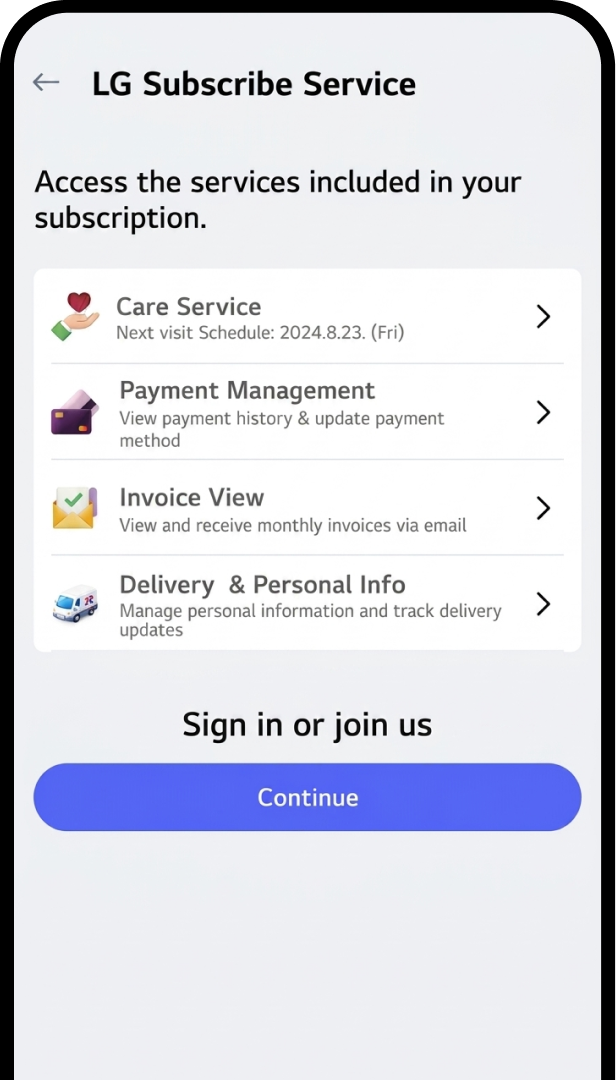
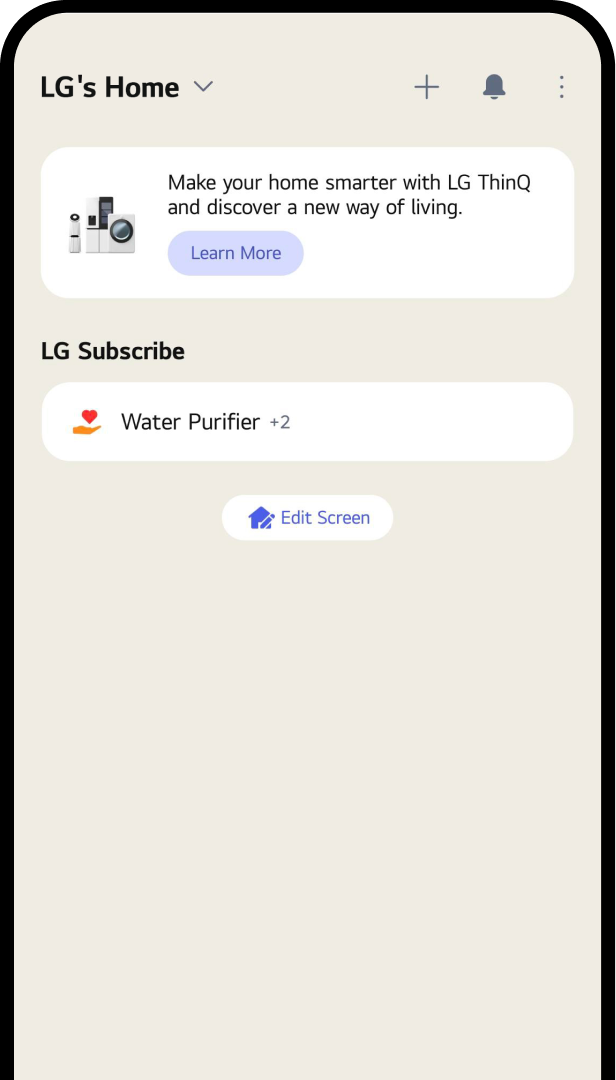
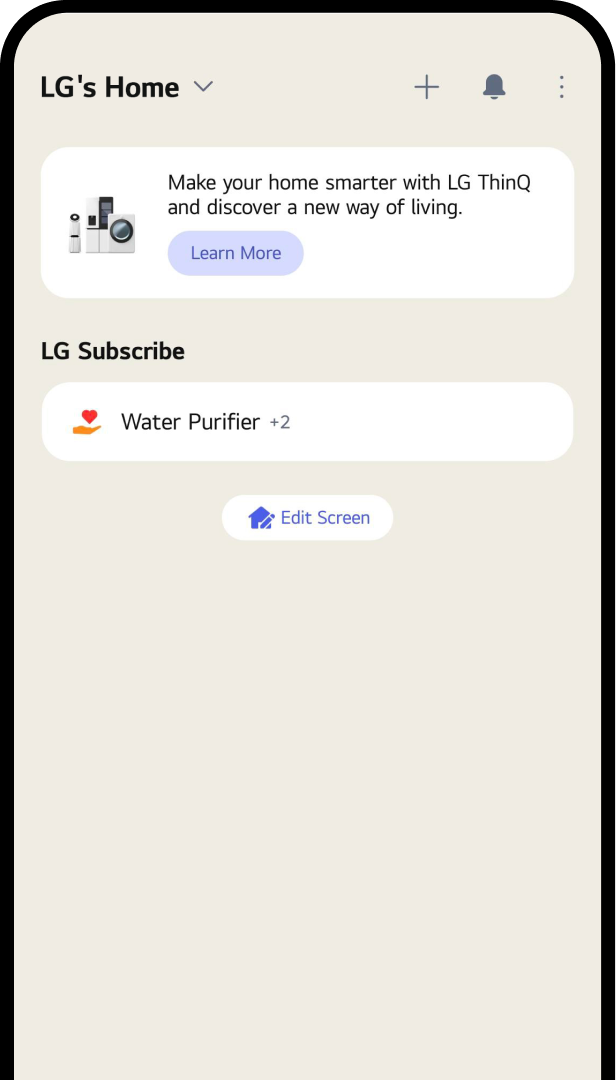
Access LG Subscribe
Click "Menu" and select "LG Subscribe."
Gradient circle background
for mobile app
UI
STEP 04
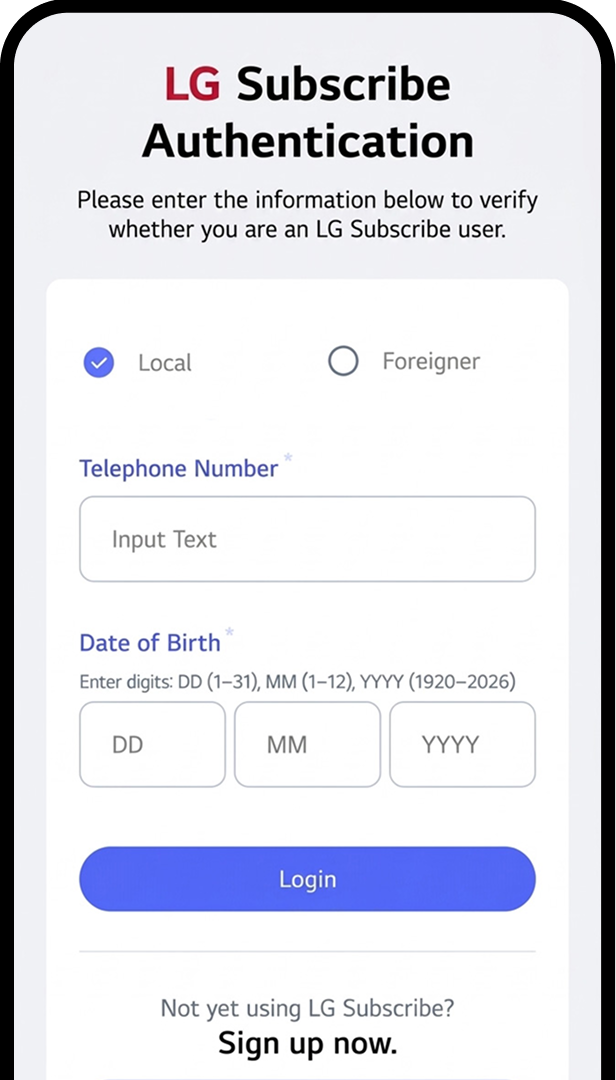
Authenticate LG Subscribe
Enter your registered details during
the order to authenticate.
1. If you Sign in, Click the Continue
Button.
2. Enter your registered details during
the order to authenticate.
Gradient circle background
for mobile app
UI
STEP 05
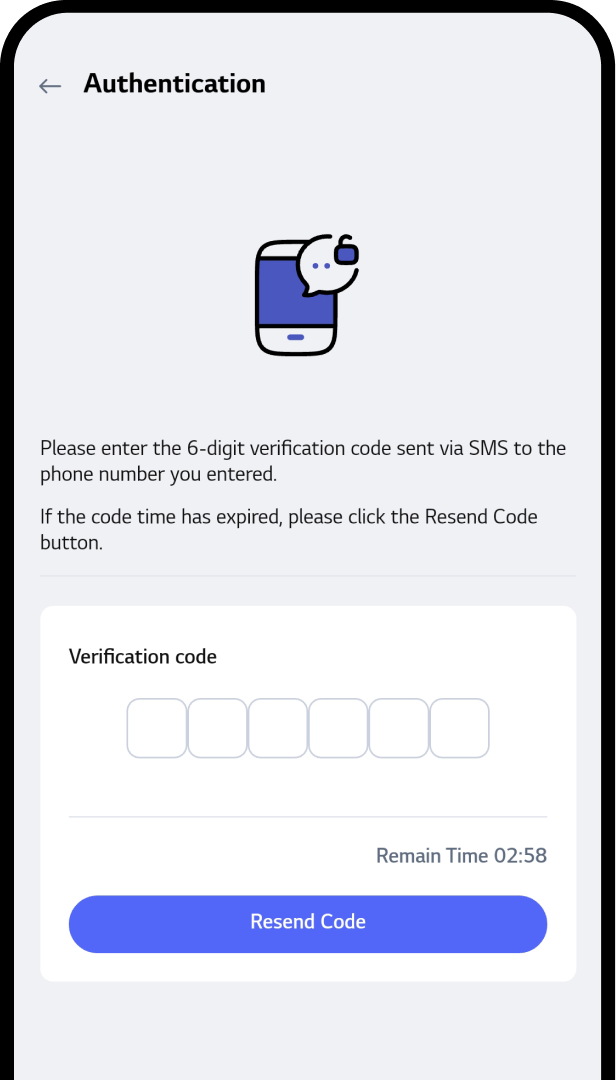
Verify Your Account
1. Check the 6-digit number delivered
to your
smartphone sms.
2. Enter a 6-digit number on the input
screen.
* Note :
Only customers with an order
can access LG
Subscribe.
Gradient circle background
for mobile app
UI
STEP 06
Use LG Subscribe
All done, the service is now available
on the main screen of LG Subscription.
Track Your Delivery & Installation
1
2
3
4
Gradient circle background
for mobile app
UI
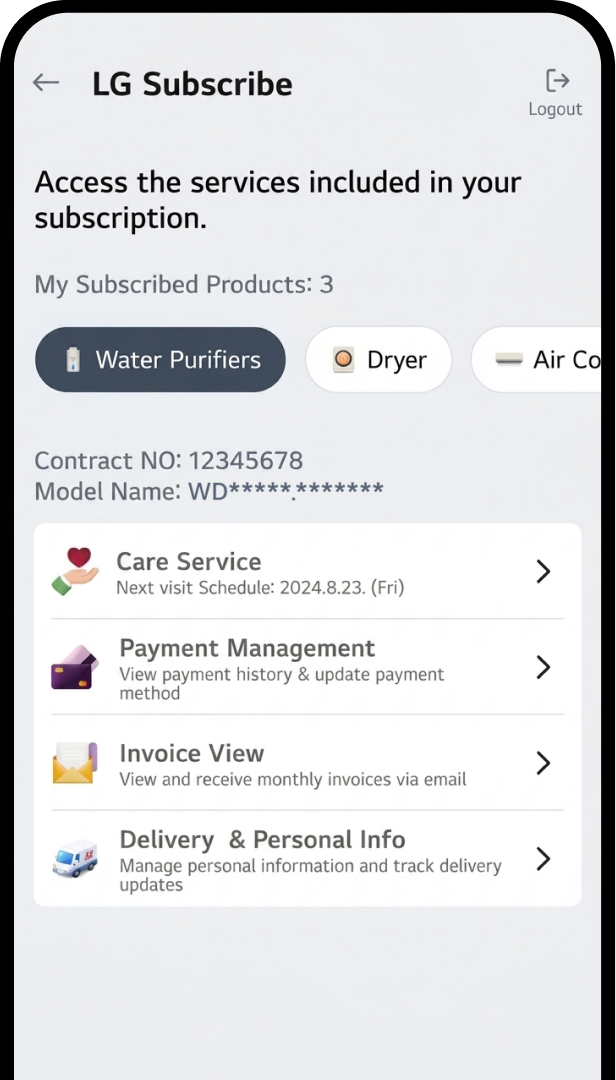
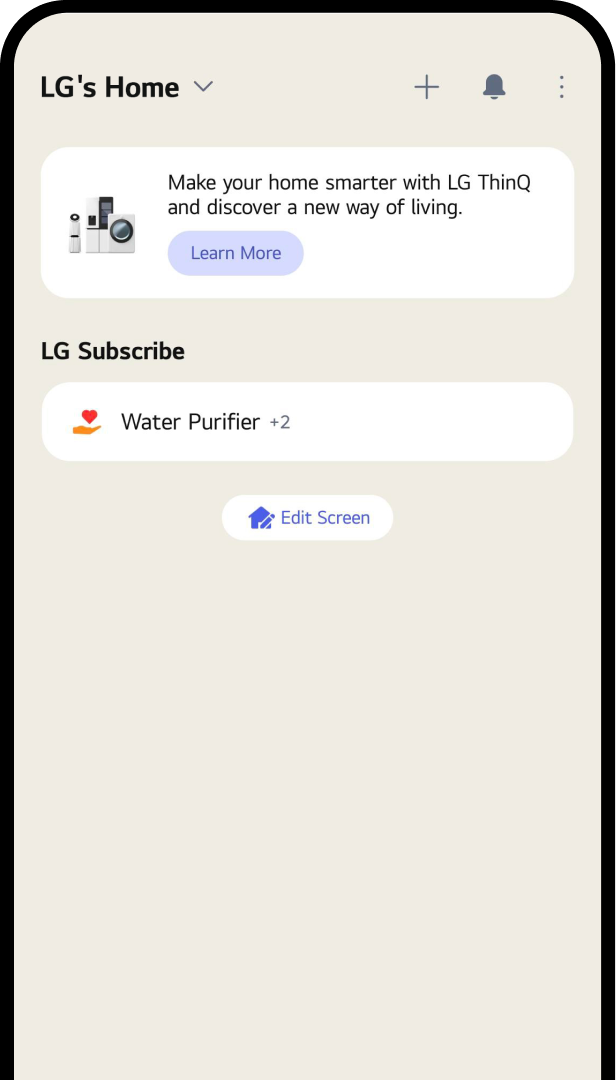
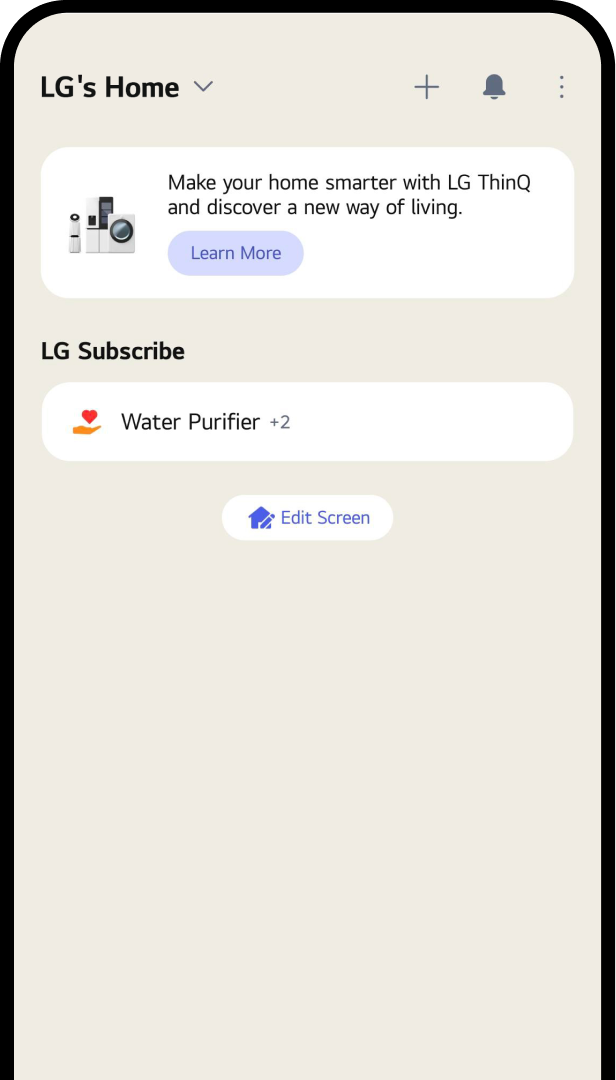
STEP 01
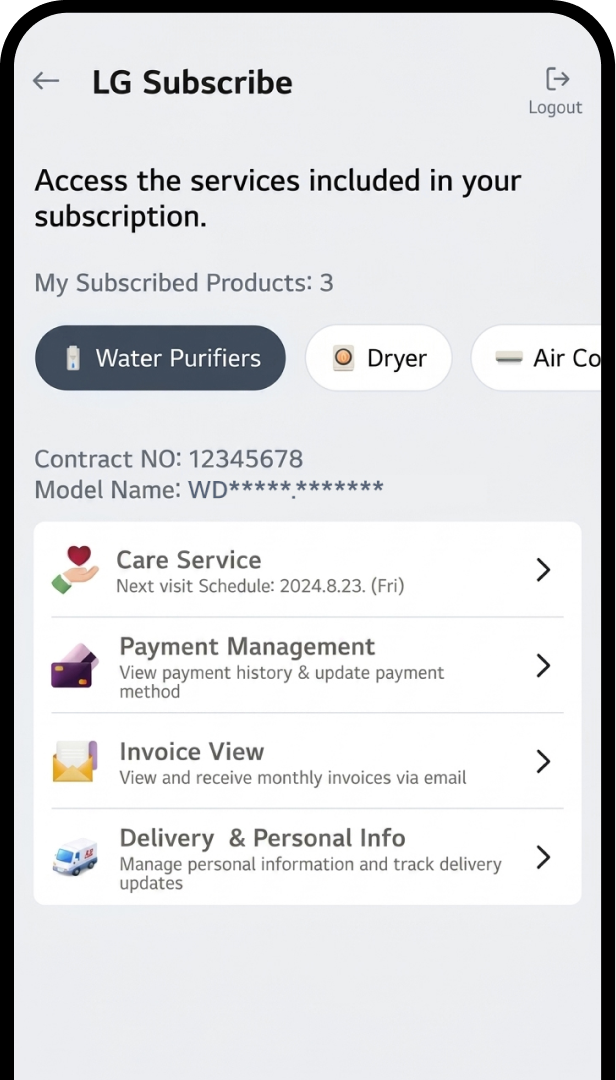
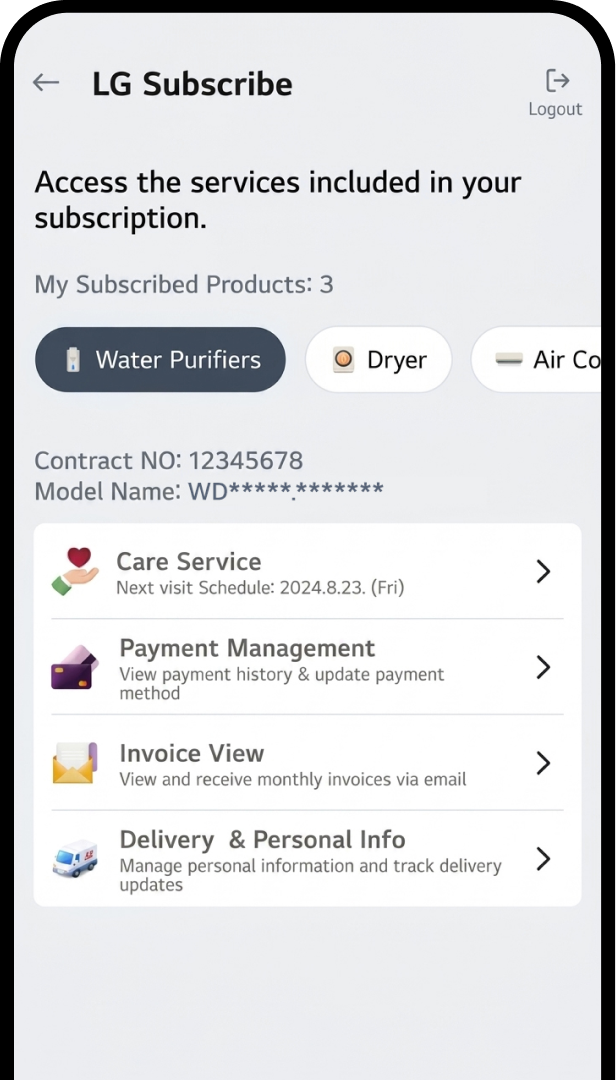
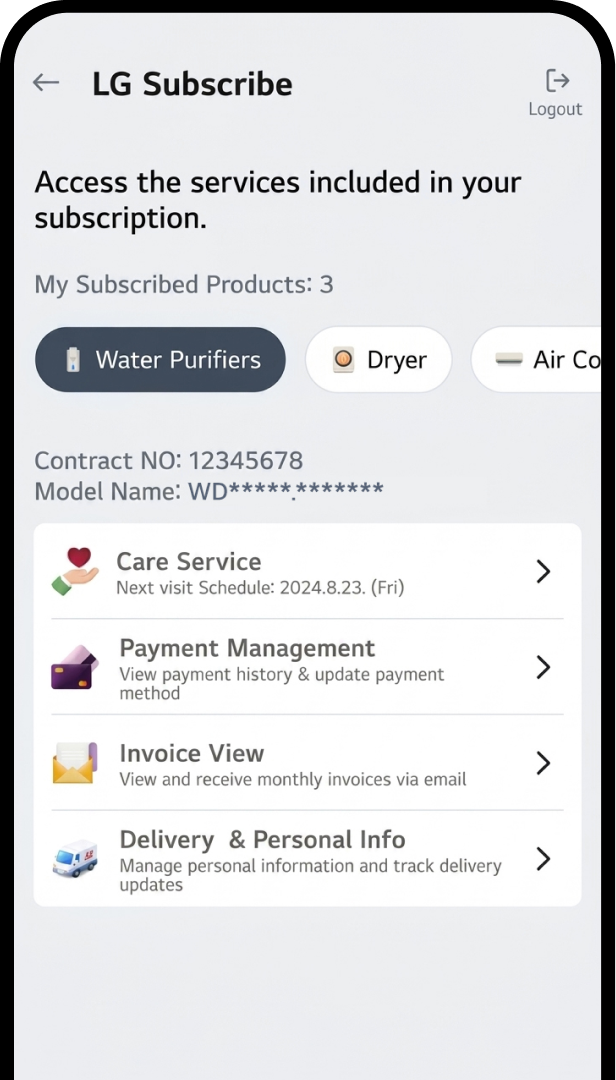
Check Subscriptions
After login, tap “LG Subscribe” section
to see delivery details.
Gradient circle background
for mobile app
UI
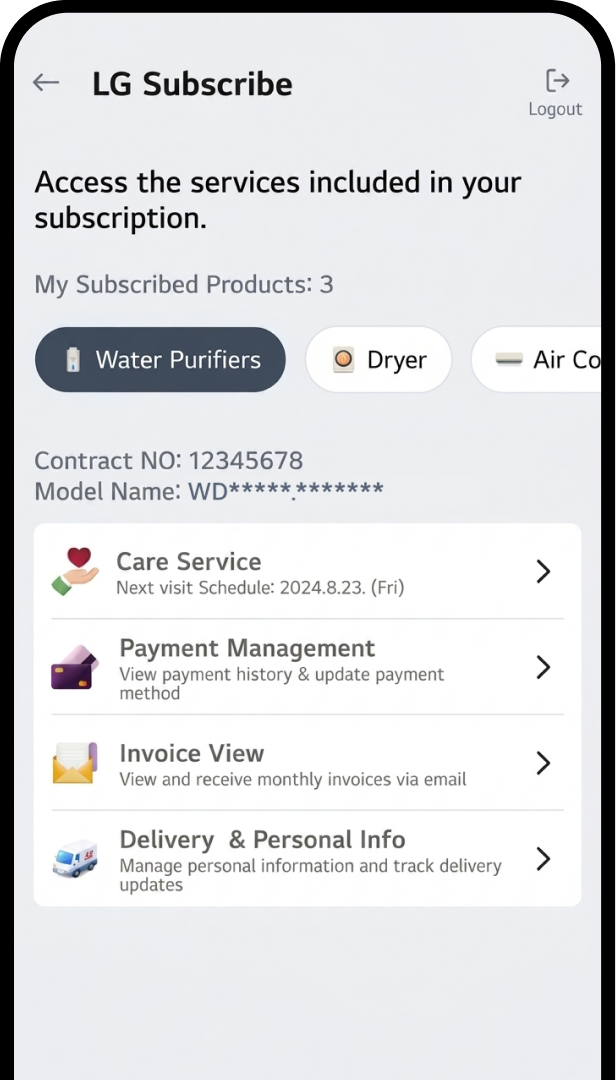
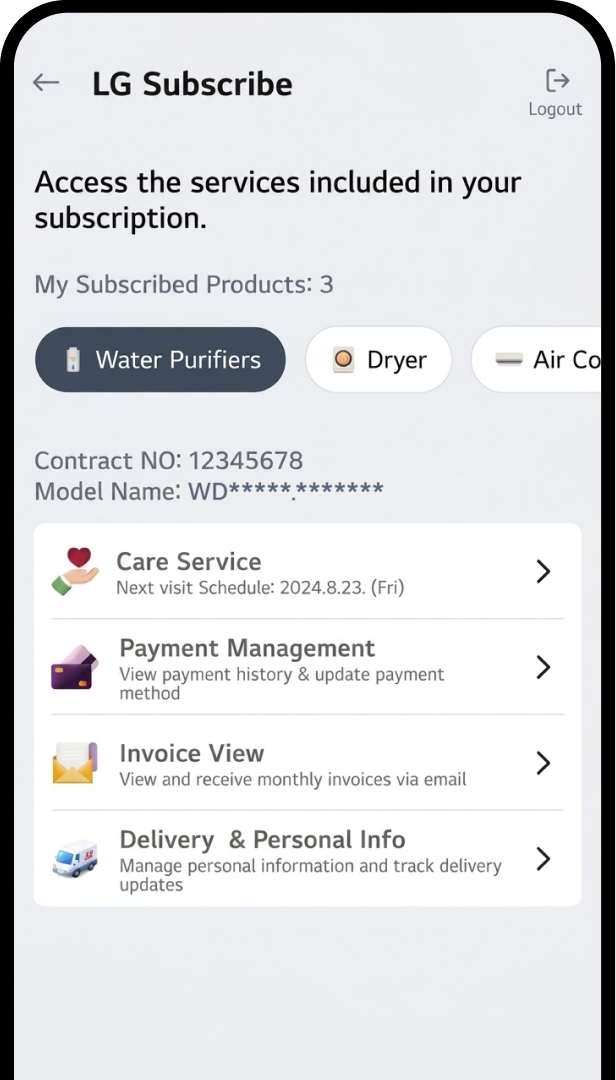
STEP 02
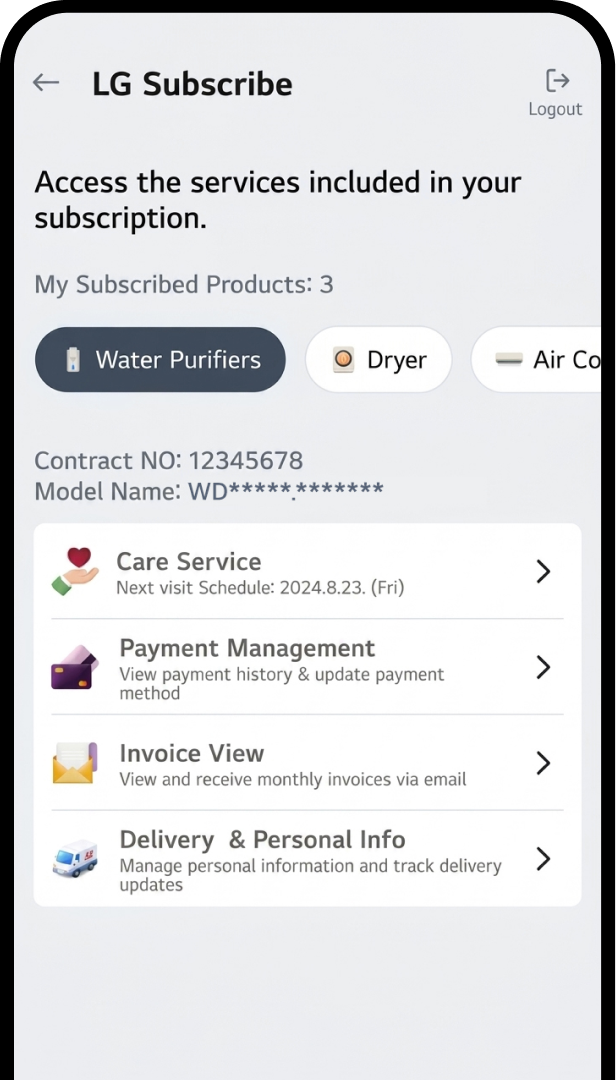
Choose Your Contract
Check the contract by selecting
the appliance icon button.
* Note :
All installed or
soon-to-be-installed products
will appear in the list.
Gradient circle background
for mobile app
UI
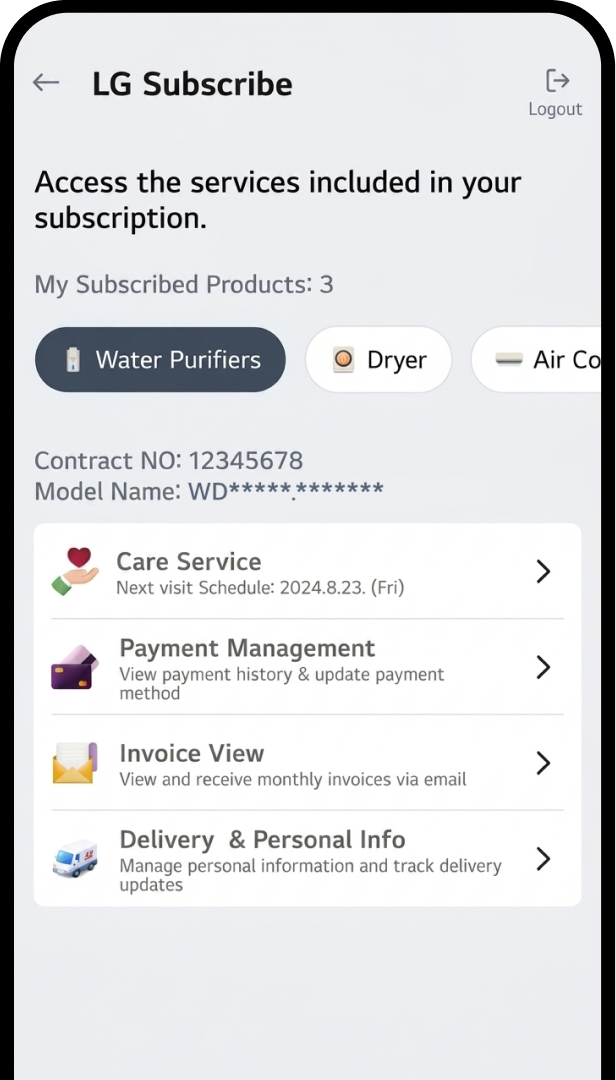
STEP 03
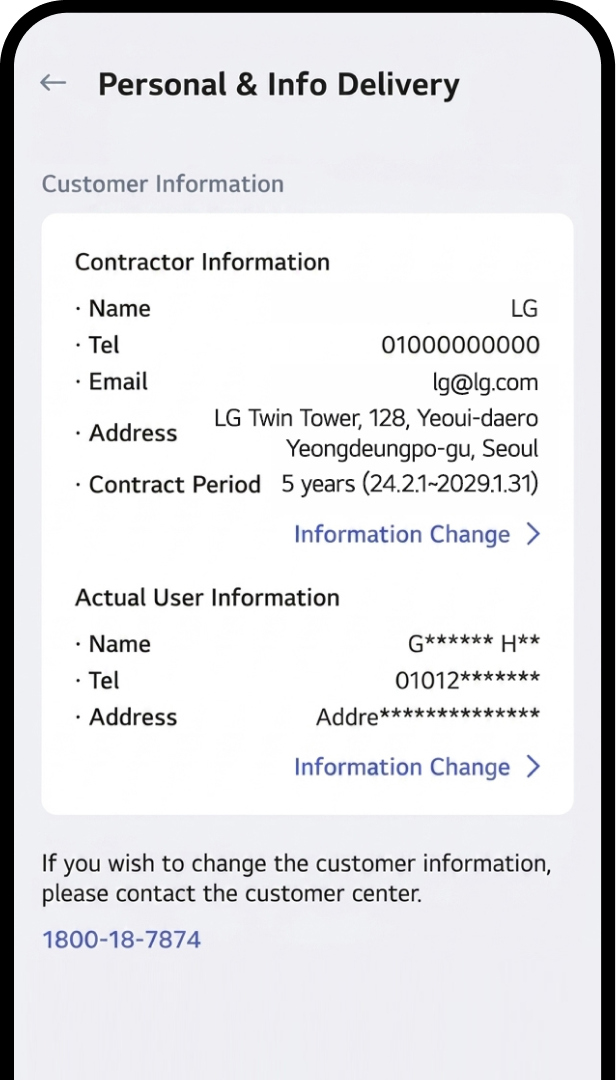
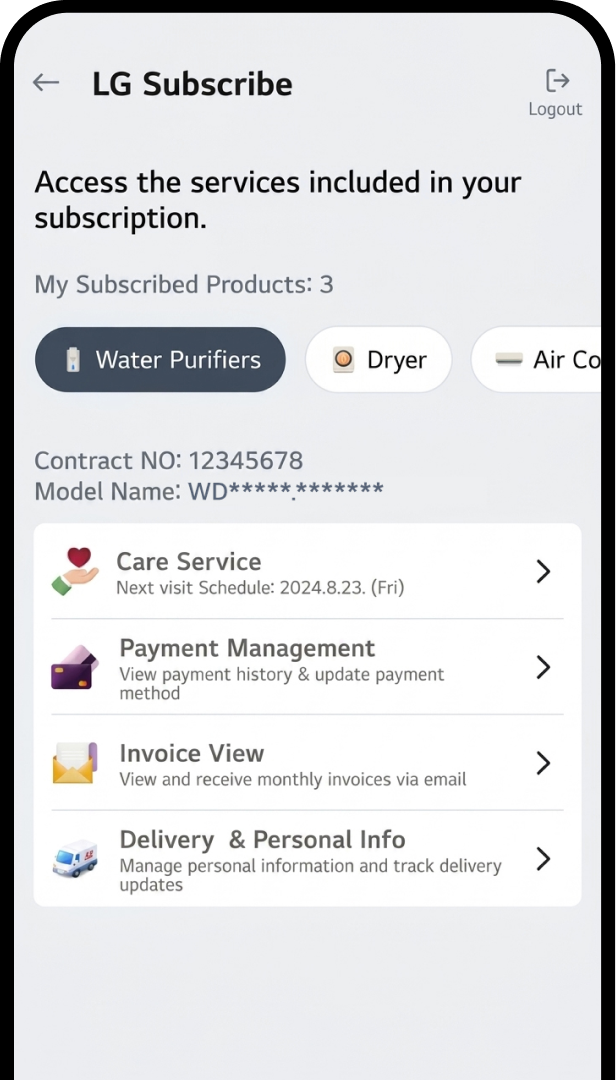
View Order Status
Tab the Delivery & Personal Info
on the screen.
Gradient circle background
for mobile app
UI
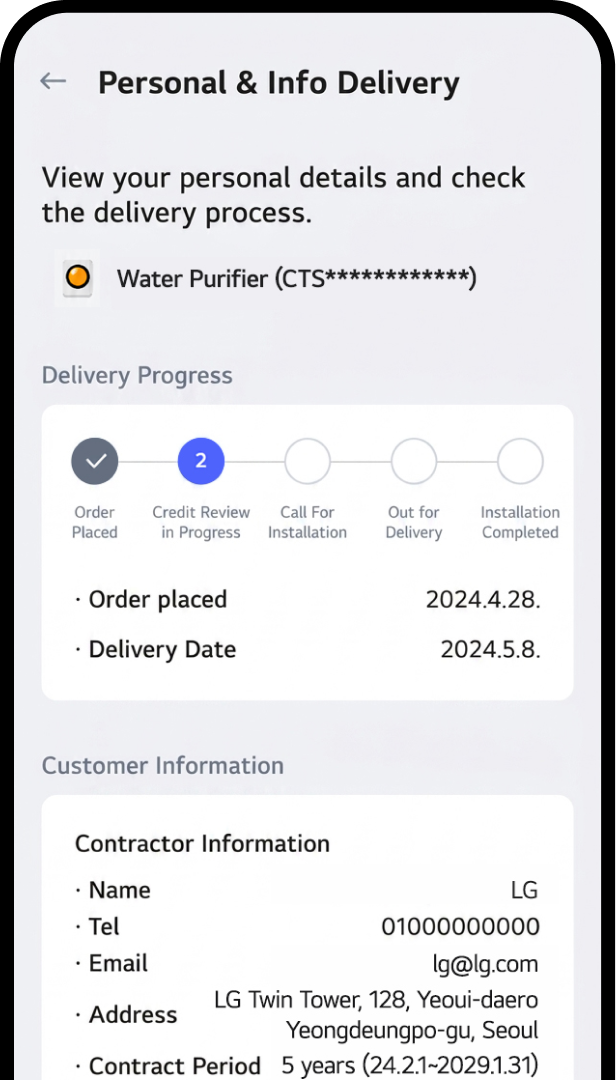
STEP 04
Check Delivery Progress
Now you can check the order status under
the “Delivery Progress” section
Manage Your Subscription Info
1
2
3
4
5
Gradient circle background
for mobile app
UI
STEP 01
Check Subscriptions
After login, tap “LG Subscribe” section
to see delivery details.
Gradient circle background
for mobile app
UI
STEP 02
Choose Your Contract
Check the contract by selecting
the appliance icon button.
* Note :
All installed or
soon-to-be-installed products
will appear in the list.
Gradient circle background
for mobile app
UI
STEP 03
View Order Status
Tab the Delivery & Personal Info
on the screen.
Gradient circle background
for mobile app
UI
STEP 04
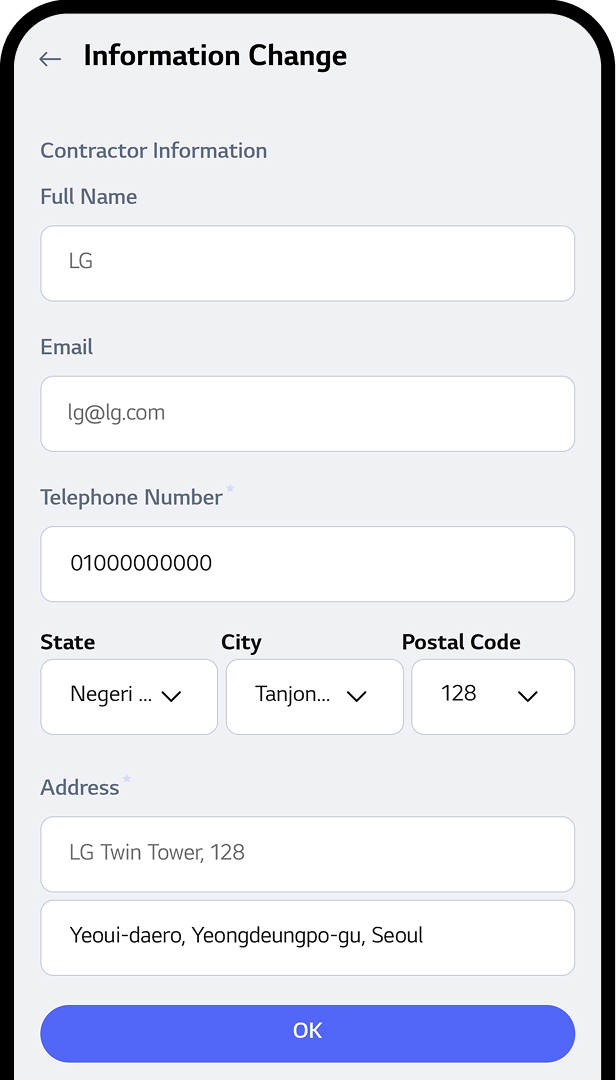
Update User Info
Click the "Information Change" button
to make the necessary updates
to your contractor details.
Gradient circle background
for mobile app
UI
STEP 05
Confirm User Info Changes
Click "OK" after modifying details.
* Note :
Only Telephone Number and
email address can be changed.
Customize Your Care Service
1
2
3
4
Gradient circle background
for mobile app
UI
STEP 01
Check Subscriptions
After login, tap “LG Subscribe” section
to see delivery details.
Gradient circle background
for mobile app
UI
STEP 02
Choose Your Contract
Check the contract by selecting
the appliance icon button.
* Note :
All installed or
soon-to-be-installed products
will appear in the list.
Gradient circle background
for mobile app
UI
STEP 03
View Order Status
Tab the Care Service on the screen.
Gradient circle background
for mobile app
UI
STEP 04
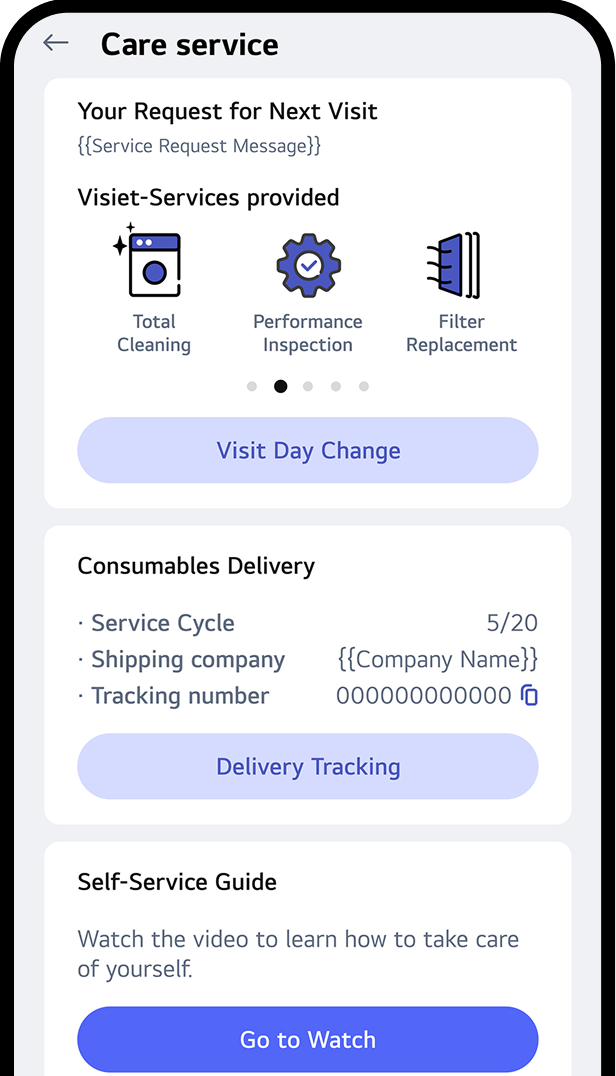
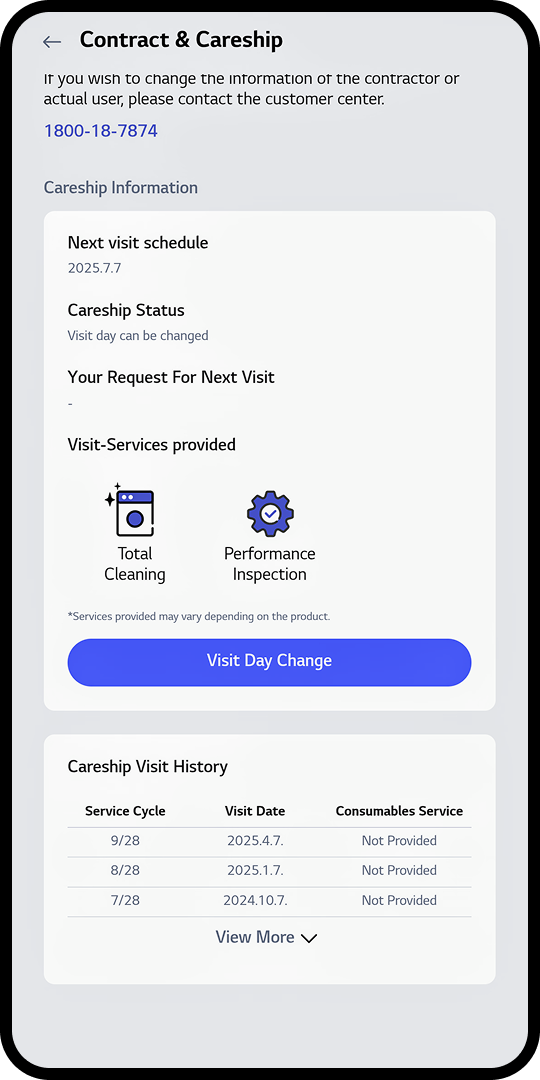
Check or Update Care Service Info
You can check or update your Care service
information in the
following ways:
• Visit Day Change :
Modify the day of your scheduled
visits.
• Track Delivery :
Monitor the progress and status of your deliveries.
• View Care service Guide :
Access and review the
Self-Care service guide
for additional information.
* The image shown
reflects the
interface for users enrolled in the
Combine Visit
Service (Self + Visit).
- If you’re a ‘Self-Service’
user, only the
‘Consumables Delivery’ section
will be
displayed.
- If you're a 'Regular Visit'
user, only the
‘Visit
Services Provided’ section will
be displayed.
* Note :
Click the red dot to learn more.
Check Your Payments & Invoices
1
2
3
4
5
Gradient circle background
for mobile app
UI
STEP 01
Check Subscriptions
After login, tap “LG Subscribe” section
to see delivery details.
Gradient circle background
for mobile app
UI
STEP 02
Choose Your Contract
Check the contract by selecting
the appliance icon button.
* Note :
All installed or soon-to-be-installed
products will appear in the list.
Gradient circle background
for mobile app
UI
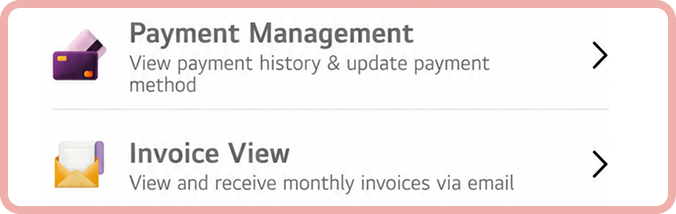
STEP 03
View Payments & Invoices status
Tab the Payment or invoice info
on the screen.
Gradient circle background
for mobile app
UI
STEP 04
Check the Payment
• View latest paid amount & your payment
method.
• Check the Payment & Method change history.
Gradient circle background
for mobile app
UI
STEP 05
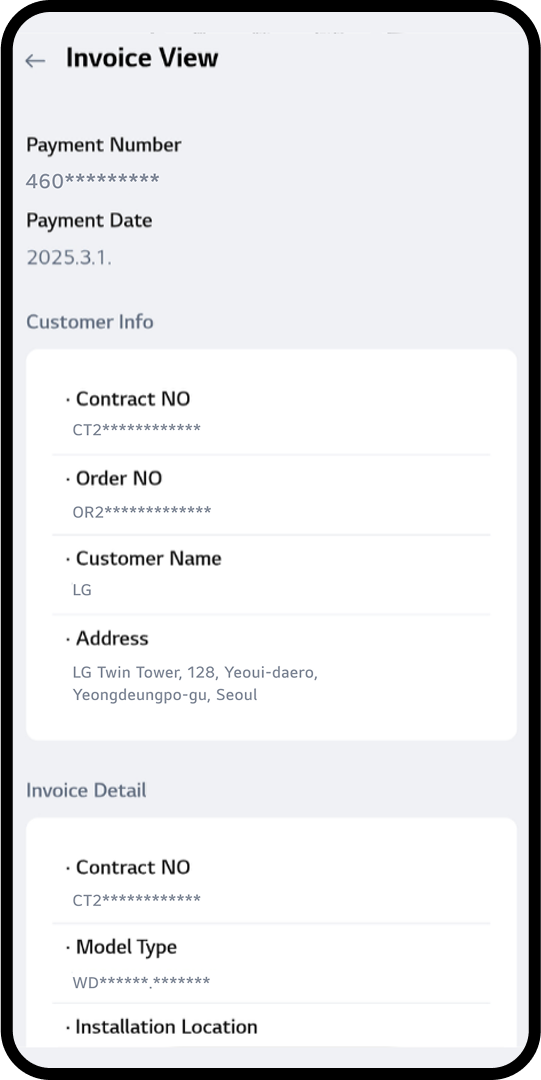
Check the Invoice
We track your payment history and generate
monthly invoices to send directly to your
email.
Order Placed
Credit Review in Progress
3Call For Installation
4Out for Delivery
5Installation Completed
Here's a breakdown of the stages you might encounter:
1
Order Placed: Your order submission
is
complete.
2
Credit Review In Progress: Your
credit verification
is
currently being processed.
3
Call For Installation: A call or
order verification
is in
progress.
4
Out for Delivery: A technician is
being
searched for or
has
been assigned to your order.
5
Installation Completed: The
installation process has
been
completed.
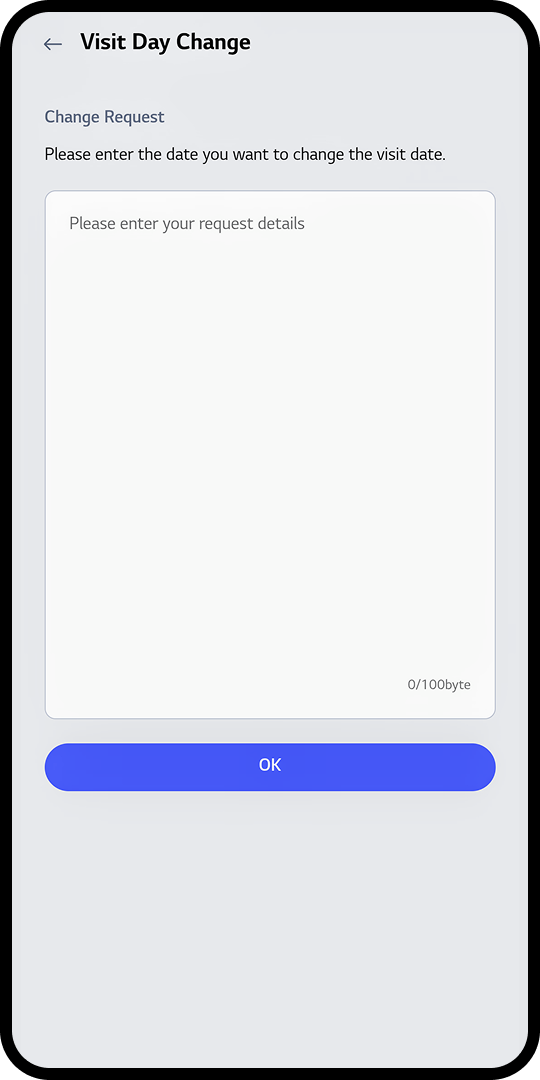
Visit Day Change
To reschedule the care expert’s visit, use the 'Visit Day Change' feature. Simply
enter your
preferred new date and click 'OK' to submit your request.
Track Visit Change
After submitting your visit day change request, you can monitor the status of
your request by
visiting the "Careship Status" section.
* “Careship Status Date” shows request status : ✓ Visit Day is Changing:
Your request is
being processed. ✓ Change Completed: Your visit day has been successfully
updated. ✓
Change Completed (Cannot Be Changed): Your visit day has been updated, and no
further changes
can be
made.
Gradient circle background for mobile app
UI
Gradient circle background for mobile app
UI
* Please note that date changes are subject to availability and confirmation by
our service
team.
Submitting a request does not guarantee immediate rescheduling.
Track Your Delivery
To monitor the status of your consumable delivery, simply click on the "Delivery Tracking" icon. This will
show you the delivery progress and delivery date of your item.
Gradient circle background for mobile app UI
* This feauture will be redirected to an external courier service website.
Please note that
delivery
status information is provided by the courier and may vary depending on their
system updates.
View Careship Guide
To access a step-by-step video guide on how to replace your filter or other
equipment, simply
click
the "Go to Watch" button. This video will provide you with a clear and concise
tutorial to
ensure a
smooth replacement process.
Gradient circle background for mobile app UI
*This guide is for illustrative purposes only. Services and procedures may vary
depending on the
product.
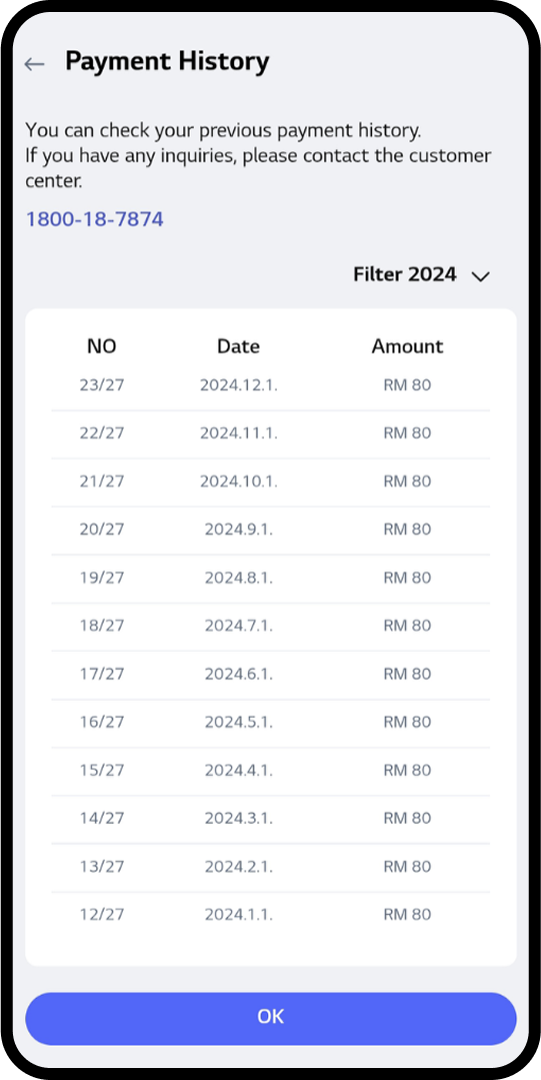
View Payment History
Click “View More History” to check past payments.
Gradient circle background for mobile app UI
View Monthly Invoices
Select “YYYY.M” and click “Invoice View” to view invoices for the month.
Gradient circle background for mobile app UI
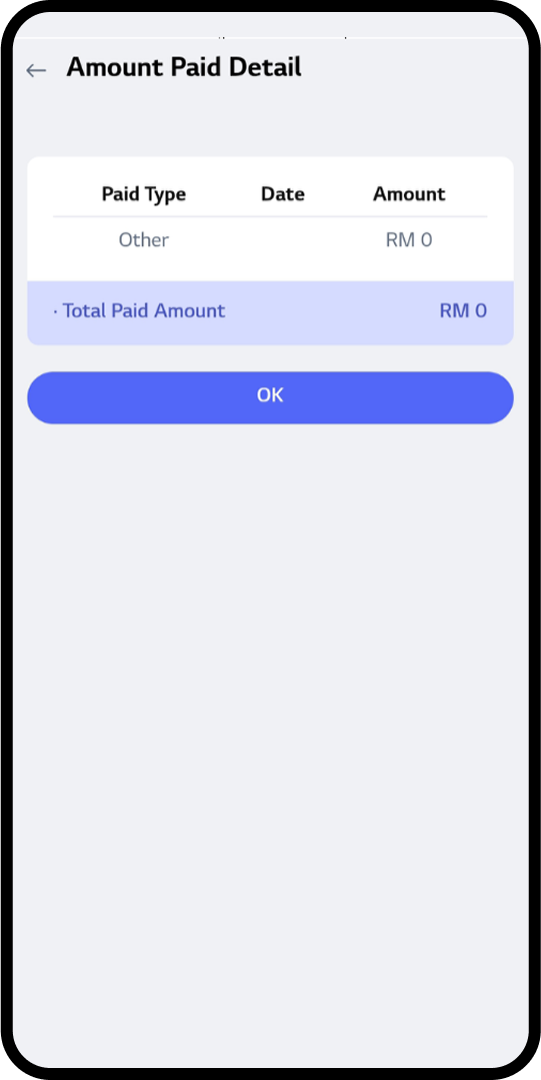
Review Your Payment History
Your complete payment history is available for review. This section provides a
comprehensive
overview of your previous transactions, helping you track and manage your
financial records
effectively.
Gradient circle background for mobile app UI
*The payment history displayed is based on records available at the time of
access.
Your email has been successfully registered.
The restocking notification has already been updated.
Environmental Handing Fee (EHF)
EHFs vary by product and province. The final fee will be calculated after you enter your postal code at checkout. Click here for more information (FAQ) at Frequently Asked Questions - Support & Help | LG CA
Sign in to create your wishlist
Add items to your wishlist so you can easily find them when you return to LG.com. It is an easy way to keep track of that special something You've had your eye on or save gift ideas for friends and family.