Choosing a monitor for your home, office, or gaming setup involves considering factors like screen size, resolution, and refresh rate. Understanding refresh rate helps you choose a monitor that delivers smooth visuals and fulfills your specific usage.

What is refresh rate and how does it work?


Refresh rate is how many times a monitor updates the image on the screen per second. It is measured in Hertz (Hz). For example, a 60Hz monitor can refresh the image up to 60 times per second, while a 180Hz monitor can refresh it up to 180 times per second.

A higher refresh rate can make scrolling, animations, and fast-moving scenes appear smoother. This is especially useful for gaming and other content involving frequent movement.

Why does refresh rate matter?


Refresh rate influences how smoothly content and movement appear on a monitor. You may notice it while scrolling through webpages, switching between applications, watching videos, working with visual content, or playing games.

  1. Smoother scrolling: Higher refresh rates can make scrolling through webpages, documents, and applications appear more fluid.
  2. Fluid on-screen movement: Frequent screen updates can make animations, transitions, and moving content appear smoother.
  3. Comfortable viewing: Smoother motion adds up to a comfortable viewing experience during extended screen use.
  4. Versatile usage: A suitable refresh rate can enhance everyday computing, entertainment, content creation, and gaming experiences.

LG India offers monitors with different refresh-rate options to suit varied requirements, from everyday computing and entertainment to higher-refresh-rate UltraGear gaming monitors.

What are the benefits of a higher refresh rate monitor?


A higher refresh rate can make on-screen movement appear smoother by updating the display image more often. Benefits can vary depending on the content, connected device, and overall system configuration.

  1. Smoother gaming: Higher refresh rates allow the display to update more often to make fast-paced gameplay feel smoother.
  2. Improved viewing experience: Fast-moving scenes in videos, sports, and other visual content can appear smoother on a higher-refresh-rate display.
  3. Fluid content creation: When working with animations, video timelines, or other motion-based content, a higher refresh rate can provide a smoother on-screen experience.
  4. Responsive interaction: More frequent screen updates can make cursor movement, scrolling, and other on-screen interactions appear more fluid.
  5. Enhanced gaming experience: Higher refresh rates can also provide smoother visuals during gaming, especially when the computer can produce sufficiently high frame rates.

LG India's UltraGear range includes gaming monitors with different refresh-rate options depending on the model.

How do you choose the right refresh rate?


The right refresh rate depends on your usage, computer hardware, and the type of content you view.

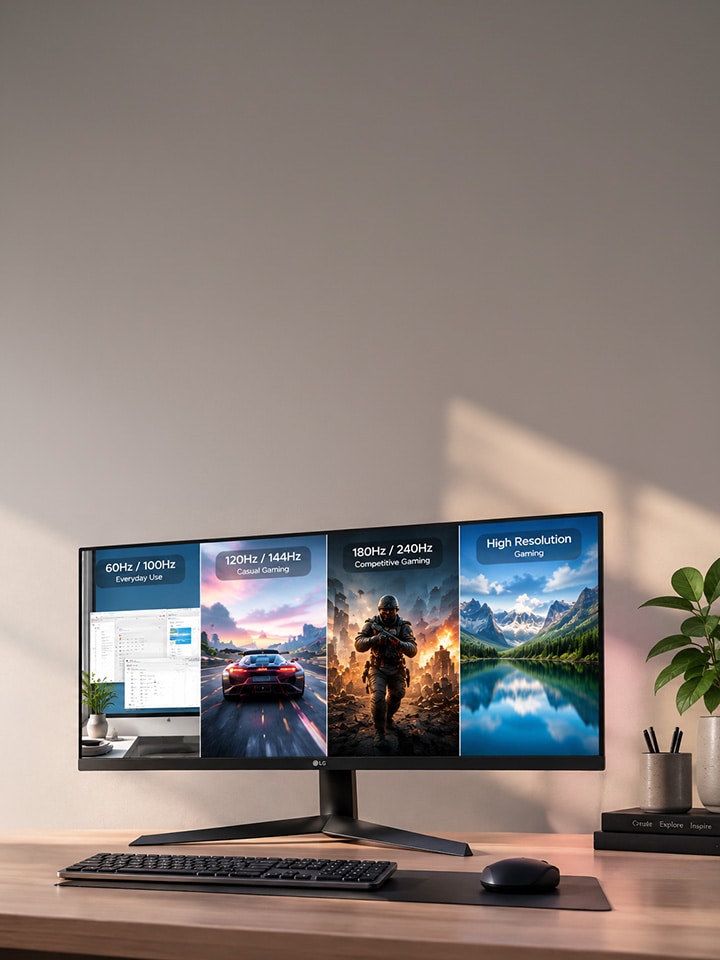
  1. For everyday use: A 60Hz or 100Hz monitor is suitable for browsing, office work, online meetings, and general entertainment.
  2. For casual gaming: A 120Hz or 144Hz monitor provides smoother gameplay, depending on your system.
  3. For competitive gaming: High refresh rates such as 180Hz or 240Hz are ideal for fast-paced games.
  4. For high-resolution gaming: Consider refresh rate together with resolution, graphics performance, and connectivity.

Your graphics card should also produce enough frame rates to take advantage of a higher-refresh-rate monitor.

What should you know about compatibility and setup?


A monitor's refresh rate depends on more than the display itself. Graphics card, resolution, connection, and monitor specifications can all affect the available refresh rate.

Before selecting a higher refresh rate:

  1. Check whether your graphics card supports the required resolution and frame rate.
  2. Use a suitable cable and connection supported by your monitor and computer.
  3. Check the monitor specifications for supported refresh rates at different resolutions.
  4. Select the required refresh rate through your computer's display settings.
  5. Keep graphics drivers updated.
  6. Enable adaptive-sync features when supported by your monitor and graphics hardware.

Selected LG UltraGear monitors support technologies such as AMD FreeSync™ and NVIDIA G-SYNC® Compatible to help provide smoother gaming.

Pro tips for maximising your monitor's refresh rate


Getting the most from your monitor's refresh rate includes configuring the display and connected system correctly. These simple practices can help maintain smooth and consistent on-screen performance:

  1. Update graphics drivers regularly to help maintain compatibility and display performance.
  2. Select the appropriate refresh rate from your computer's display settings based on your monitor's specifications.
  3. Use a resolution and refresh-rate combination supported by both your monitor and connected system.
  4. Ensure the cable and connection support the selected resolution and refresh rate.
  5. Adjust display or application settings according to your usage and system capabilities.
  6. Check the monitor's available display settings to configure supported refresh-rate options and other features.

Care tips for maintaining monitor performance


Regular care can help maintain your monitor's performance over time.

  1. Gently clean the screen with a suitable microfibre cloth.
  2. Avoid applying cleaning liquid directly to the display.
  3. Keep ventilation areas clear.
  4. Protect the monitor from moisture and excessive heat.
  5. Use suitable power protection where required.
  6. Keep the monitor and connected system updated when updates are available.
  7. Turn off the monitor when it is not required for extended periods.

FAQs


A. Monitor refresh rate is the number of times a display can update its image in one second, measured in Hertz (Hz). A higher refresh rate can make motion, scrolling, and fast-changing visuals appear smoother, especially during gaming and other fast-paced activities.

A. Yes, higher refresh rates can make scrolling and on-screen movement feel smoother. However, the difference can be more noticeable during gaming and other fast-moving content than during activities like reading or working with documents.

A. On a Windows PC, right-click the desktop and select Display settings. Open Advanced display to view the available refresh-rate options. Available settings depend on the monitor, graphics hardware, resolution, and connection.

A. Yes, it is suitable for gaming. A 180Hz monitor can provide more frequent screen updates than a standard 60Hz display, making fast-moving gameplay appear smoother. The experience also depends on the graphics card, game settings, and frame rate.

A. The graphics card should be capable of producing the required frame rate at the selected resolution. A high-refresh-rate monitor supports frequent screen updates, but the overall experience also depends on computer hardware and content.

A. Yes, a monitor may support different maximum refresh rates at different resolutions. Check the monitor's specifications before selecting a particular resolution and refresh-rate combination.

A. LG India offers monitors with different refresh-rate options depending on the model and category. These include monitors for general use and higher-refresh-rate UltraGear gaming monitors. Specifications can vary by model.