We use cookies, including cookies from third parties, to enhance your user experience and the effectiveness of our marketing activities. These cookies are performance, analytics and advertising cookies, please see our Privacy and Cookie policy for further information. If you agree to all of our cookies select “Accept all” or select “Cookie Settings” to see which cookies we use and choose which ones you would like to accept.
To protect the screen and ensure your safety,
Follow the unpacking instructions for your TV size, and make sure at least two people work together.
For assembly, please refer to the provided video. Afterward, use the Magic Remote and follow the on-screen instructions to complete the setup for your webOS version.
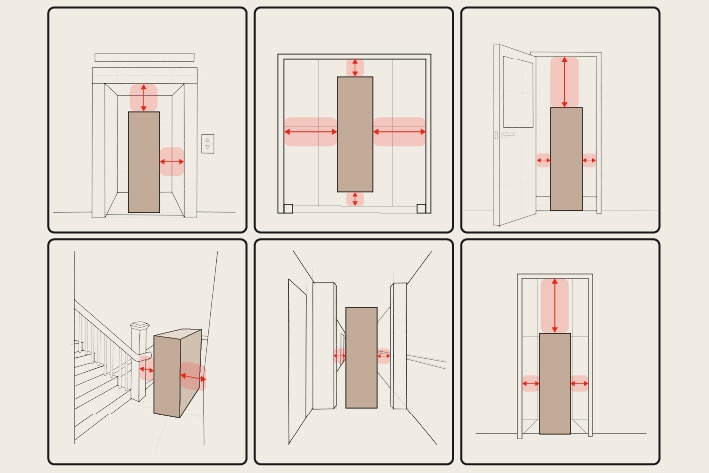
Move the Box to the Installation Area
To safely move the product, there should be a clearance of between the product (packaging box) and the moving route.
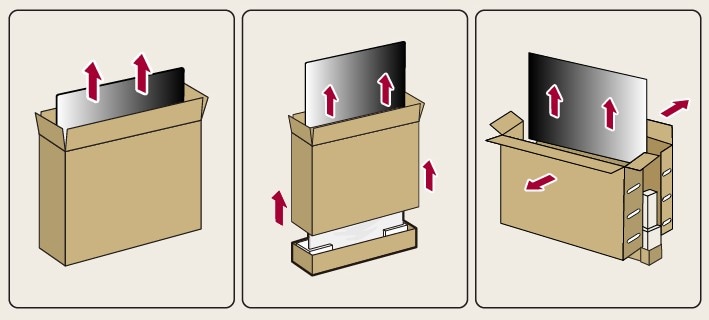
Unbox the TV
There are three types of packaging, and the unboxing method may vary depending on your TV model.
Checkthe packaging carefully to ensure you unbox the TV safely.
Check if your wall is suitable for installation
Wall mounting may be difficult in the following conditions:
unsecured partition walls, faux brick walls, HDMI or coaxial (antenna) cables thicker than 8 mm, uneven or sloped walls, brick or block walls, uneven decorative wall panels, or walls with a power outlet or junction box located in the center of the installation area.
Types of TV Wall-Mount Brackets
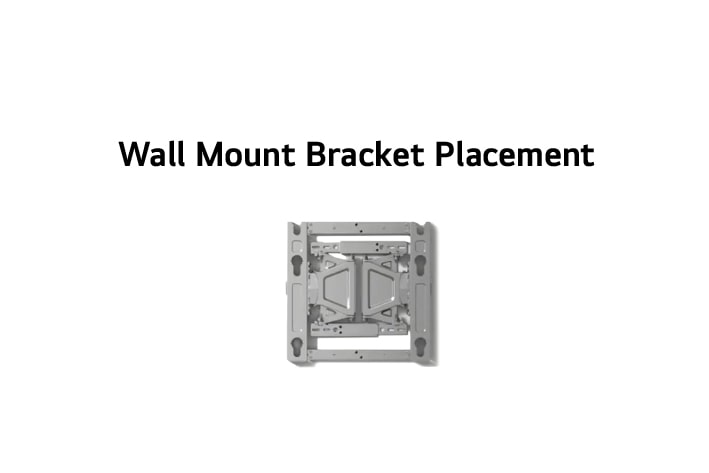
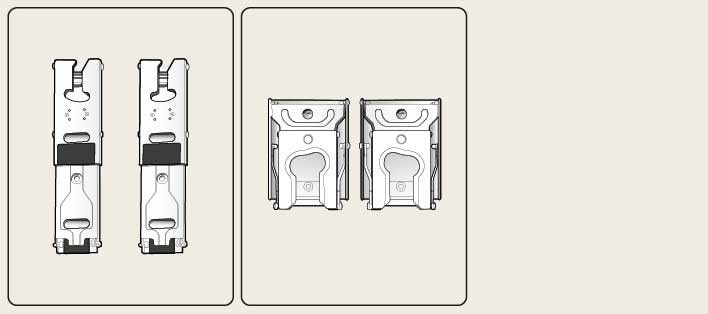
Depending on your model, the wall-mount bracket comes in one or two pieces.
If your TV uses a two-piece bracket, check the Quick Setup Guide included with your TV before you install it.
Frequently Asked Questions About Initial Setup
After connecting the power cable, press the Power button on the Magic Remote.
Follow the on-screen instructions to select your language, Wi-Fi network, and viewing preferences.
When you connect a set-top box to an HDMI port on the TV, Universal Control is set up automatically.
If you skipped the initial setup or want to change an individual setting, refer to the instructions for your webOS version below.
How Do I Check My webOS Version?
On your TV remote, press the [Settings] (gear icon) or [Mute] button three times in a row.
How Do I Set the Language and Location?
When the setup screen appears, use the directional buttons on the remote to select your preferred language and yourlocation.
webOS26 TV: Press the Settings button on the remote > All Settings > System > Language and Location
webOS25 TV: Press the Settings button on the remote > All Settings > General > System > Language and Location
How Do I Connect to the Internet?
A network connection is required to access apps and content. Connect the TV to your home network using Wi-Fi or an Ethernet cable.
webOS26 TV: Press the Settings button on the remote > All Settings > System > Network > Wi-Fi Connection
webOS25 TV: Press the Settings button on the remote > All Settings > General > Network > Wi-Fi Connection
How Do I Accept the Terms of Use?
Review and accept the required terms to use LG services.
webOS TV: Press the Settings button on the remote > All Settings > Support > Terms and Policies > User Agreements
How Do I Sign In to My LG Account?
Signin to receive personalized content recommendations.
Use your existing LG account or create a new one.
webOS TV: Press the Home button on the remote > LG Account Management (profile icon)
How Do I Set the TV Installation Type?
Select whether the TV is on a stand or mounted on a wall. The TV will automatically optimize the sound for your installation type.
webOS TV: Press the Settings button on the remote > All Settings > Sound > Advanced Settings > TV Installation Type
How Do I Set Up Universal Control?
With Universal Control, you can use the Magic Remote to operate connected external devices, such as a set-top box.
webOS26 TV: Press the Settings button on the remote > All Settings > System > External Devices > Universal Control Settings > Settings Management > Start Setting > Select the connected device (e.g., set-top box) > Select your address > Select the service provider or manufacturer > Follow the on-screen instructions to complete the setup
webOS25 TV: Press the Settings button on the remote > All Settings > General > External Devices > Universal Control Settings > Settings Management > Start Setting > Select the connected device (e.g., set-top box) > Select your address > Select the service provider or manufacturer > Follow the on-screen instructions to complete the setup
What Is the Accessibility Menu?
This provides troubleshooting guides to help you resolve issues on your own (e.g., the screen is too dark or the brightness changes automatically).
Home Screen > Accessibility > Quick Help > Help Library
What Is the TV Chatbot?
The Chatbot helps you check device information and resolve issues quickly and easily.
You can also use it to go directly to specific settings menus.
Press the Settings button on the remote > Chatbot icon