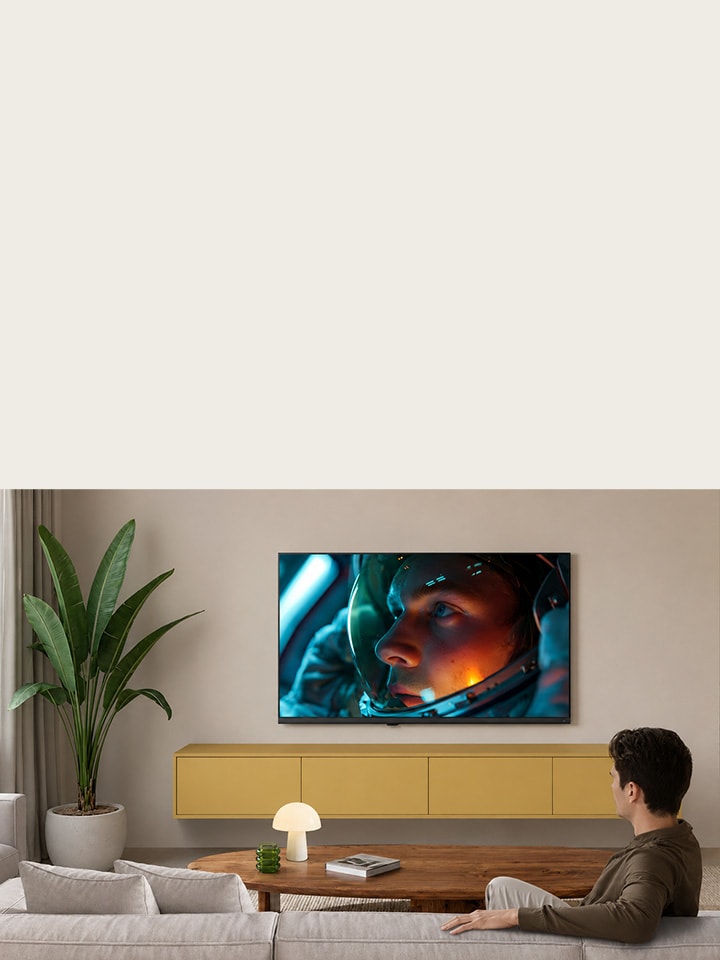
Watching television is no longer limited to traditional cable and satellite services. With an LG Smart TV, you can enjoy free streaming content, live TV broadcasts, OTT platforms, and connected devices- all from one screen. Whether you love to watch movies on your favourite streaming app or live sports through a DTH connection, LG Smart TVs offer multiple ways to access entertainment.

However, many users often confuse LG Channels with cable or satellite television. While both allow you to watch TV content, they work differently and require different setups. This LG Smart TV channels guide explains how to watch LG Channels, LG TV channel setup, connect a set-top box to LG TV, access regional channels on LG TV, and troubleshoot common issues like no signal on LG TV. By understanding these options, you can select the viewing method that best suits your entertainment preferences.

Ways to Watch Content


Your LG Smart TV provides various ways to watch content, making it easy to switch between live television, streaming platforms, and connected devices. As per your viewing preferences, you can choose the option that suits you best.

Viewing Option Internet Required Subscription Required Examples
LG Channels Yes No LG Channels
DTH / Satellite TV No Yes Tata Play, Airtel Digital TV, Dish TV, d2h, Sun Direct
Cable TV No Yes Local Cable Operator
OTT Apps Yes Usually Netflix, Prime Video, YouTube
HDMI Devices Depends Depends Fire TV Stick, Chromecast

Each viewing option offers a different entertainment experience. LG TV free channels are perfect for users who want internet-based streaming without paying for an additional subscription. DTH and cable services are the preferred choice for live TV broadcasts, while OTT apps provide access to movies, web series, and exclusive content. You can also connect HDMI devices like streaming sticks or gaming consoles to expand your entertainment options.

What are LG Channels?


If you're wondering how to watch LG Channels, here’s another simple way to enjoy free entertainment on your compatible LG Smart TV.

LG Channels is a built-in streaming service that comes pre-installed on supported LG Smart TVs and offers access to a wide range of internet-based content. Rather than relying on a satellite dish or cable connection, it uses your Wi-Fi or wired internet connection to stream entertainment directly to your TV.

Benefits of LG Channels

  1. Free streaming service on supported LG Smart TVs.
  2. No additional subscription required.
  3. Easy access from the LG Smart TV home screen.
  4. Regularly updated entertainment content.
  5. No external hardware required.

Content Categories

Depending on your country and region, LG Channels offers a variety of content that includes:

  1. News
  2. Movies
  3. Kids' Entertainment
  4. Lifestyle
  5. Sports Highlights
  6. Music
  7. Documentaries

Since channel availability varies by region, the list of LG TV free channels may differ based on your location and supported services.

Read the complete LG Channels Guide

LG Channels vs Set-Top Box


The LG Convertible Oven's Air Fry menu covers 60 preset menu — a thoughtfully curated list that reads like it was written by someone who actually eats Indian food daily. Here is a snapshot of what is possible, drawn directly from LG’s official Microwave oven Air Fry Menu Booklet:

Frozen Snacks — Ready in Minutes, Without the Kadhai

The Air Fry Low Calorie menu handles a wide range of frozen snacks with preset modes. This means no guessing temperatures or timings, just select and cook.

LG Channels Set-Top Box
Internet-based streaming Satellite/cable-based
Free streaming content Subscription required
No dish required Dish or cable connection required
Built into supported LG TVs External hardware required

For internet broadcasting, LG Channels seems like an ideal choice, but a set-top box is necessary to access live television broadcasts provided by DTH and cable operators.

If you regularly watch news channels, sports events, or regional broadcasts, you'll still need to connect a set-top box to LG TV. However, combining LG Channels with your DTH service gives you access to both free streaming content and traditional television, creating a more complete entertainment experience.

How to Connect a Set-Top Box to LG Smart TV?


Connecting a set-top box to an LG TV is easy and fast. It is worth noting that most modern DTH and cable boxes use an HDMI cable to connect, which offers high-quality picture and sound.

  1. Step 1: Connect the HDMI Cable


    Connect one end of the HDMI cable to your set-top box and the other end to an available HDMI port on your LG Smart TV.

  2. Step 2: Select the Correct Input


    Turn on both devices and press the Input or Home button on your remote. Select the HDMI port connected to your set-top box.

  3. Step 3: Adjust Picture and Audio


    Once the connection is established, you can fine-tune your picture mode, sound settings, and display preferences for a better viewing experience.

Supported Providers

LG Smart TVs support popular television service providers, including:

  1. Tata Play
  2. Airtel Digital TV
  3. Dish TV
  4. d2h
  5. Sun Direct
  6. JioFiber TV

If your TV doesn't detect the connected device, check the HDMI cable, ensure the correct input source is selected, and restart both the TV and the set-top box.

Read the complete Set-Top Box Setup Guide

Control Your Set-Top Box with LG Magic Remote


The LG Magic Remote set-top box feature lets you control both your LG Smart TV and compatible set-top boxes with a single remote. By using Universal Control, you can simplify your entertainment experience without switching between multiple remotes.

Universal Control

Universal Control lets your LG Magic Remote interact with supported external devices, allowing you to perform everyday functions directly from one remote. Once it is configured, you can:

  1. Change channels.
  2. Adjust the volume.
  3. Open menus.
  4. Access programme guides.
  5. Navigate content.
  6. Control playback functions on supported devices.

Device Pairing

To pair your set-top box with the LG Magic Remote:

  1. Connect your set-top box to the TV using an HDMI cable.
  2. Open the Universal Control settings on your LG Smart TV.
  3. Select your device type and service provider.
  4. Follow the on-screen instructions to complete the pairing process.
  5. Test the remote to ensure it responds correctly to your set-top box.

Supported Devices

The LG Magic Remote supports many popular set-top boxes and external devices, including:

  1. Tata Play
  2. Airtel Digital TV
  3. Dish TV
  4. d2h
  5. Sun Direct
  6. JioFiber TV
  7. Other compatible HDMI-connected devices*

*Device compatibility may vary depending on the TV model, software version, and region.

Troubleshooting Pairing Issues

If the LG Magic Remote isn't controlling your set-top box, try these troubleshooting steps:

  1. Verify that the HDMI cable is securely connected.
  2. Ensure the correct HDMI input is selected.
  3. Reconfigure Universal Control from the TV settings.
  4. Restart both the TV and the set-top box.
  5. Update your LG TV software to the latest version.
  6. Confirm that your device is supported by the LG Magic Remote.

Read the LG Magic Remote Guide to learn more.

Regional Channels on LG TV


One of the biggest advantages of a Smart TV is the flexibility to access content in your desired language. Whether you enjoy Tamil serials, Telugu movies, Malayalam news, Kannada entertainment, Hindi shows, Marathi dramas, Bengali cinema, or Punjabi music, there are several ways to watch regional channels on LG TV.

While LG Channels provides a growing collection of free streaming content, the availability of regional channels depends on content licensing and country-specific support. This means some regional TV channels may not be available through LG Channels.

If you cannot find your preferred regional channel, then try these alternatives:

  1. Connect your DTH or cable service to access regional broadcast channels.
  2. Stream content using popular OTT platforms that offer regional programming.
  3. Download official broadcaster apps from the LG Content Store, where available.
  4. Verify that your LG Services Country and region settings are correctly configured.

Using the right combination of LG Channels, DTH services, and OTT apps ensures uninterrupted access to regional entertainment.

Channel Setup & Scan


Auto Scan

Use Auto Scan to automatically detect digital channels, cable channels, or satellite channels based on your selected signal source.

Manual Scan

If specific channels are still unavailable, use manual scan and enter the frequency details provided by your cable or satellite service provider.

When to Rescan

Run an LG TV channel scan when:

  1. You install a new cable or DTH connection.
  2. Your service provider updates channel frequencies.
  3. New channels are added.
  4. Existing channels are missing.

Rescanning keeps your channel list updated and ensures uninterrupted access to your favourite TV channels.

Save & Manage Favourite Channels


Instead of scrolling through hundreds of channels every time you switch on the TV, you can organise your most-watched channels into a personalised favourites list.

Your LG Smart TV allows you to manage LG TV favourite channels by:

  1. Adding favourite channels
  2. Editing existing favourites
  3. Removing unwanted channels
  4. Reordering channels for quicker access

Why Do Favourite Channels Disappear?

Sometimes users notice that their LG TV favourite channels are no longer available after a channel scan or service update.

This usually happens because:

  1. Automatic channel updates have reordered the channel list.
  2. A fresh channel scan has reset saved preferences.
  3. The service provider has changed channel numbers.

To avoid this, review your automatic update settings and recreate your favourites list after major service updates.

Missing Channels or No Signal?


Experiencing missing channels or seeing no signal on LG TV can hamper your viewing experience. Fortunately, most issues can be resolved with a few simple checks.

If You're Using LG Channels

If LG Channels isn't loading properly:

  1. Check your internet connection.
  2. Restart the LG Channels application.
  3. Verify the LG Services Country setting.
  4. Update your TV software to the latest version.

If You're Using a Set-Top Box

If you've recently connected a set-top box to LG TV but it’s not displaying any picture:

  1. Ensure the HDMI cable is securely connected.
  2. Select the correct HDMI input.
  3. Restart the set-top box.
  4. Try another HDMI port if required.

If You're Using Cable or Satellite TV

For missing broadcast channels:

  1. Run an LG TV channel scan again.
  2. Check your antenna, cable, or satellite connection.
  3. Confirm there are no service outages with your provider.
  4. Contact your cable or DTH operator if channels remain unavailable.

Most no signal on LG TV issues are related to incorrect input selection, loose HDMI connections, or temporary service interruptions.

Quick Fix Hub

Problem Quick Fix Read More
LG Channels not working Check your internet connection LG Channels Guide
Missing regional channels Verify region availability and settings Regional Channels Guide
No Signal on LG TV Check HDMI cable and input source No Signal Guide
Set-top box not detected Reconnect HDMI cable Set-Top Box Guide
LG Magic Remote not working Configure Universal Control Magic Remote Guide
Missing TV channels Run an LG TV channel scan Channel Scan Guide

Conclusion


TYour LG Smart TV provides multiple ways to enjoy entertainment, whether you prefer LG TV free channels, live television through a DTH connection, OTT streaming apps, or HDMI-connected devices. Understanding the differences between LG Channels and traditional broadcast services helps you select the right viewing option as per your requirements.

From completing an LG TV channel setup and running an LG TV channel scan to managing LG TV favourite channels, accessing regional channels on LG TV, and resolving no signal on LG TV issues, this guide covers everything you need to make the most of your viewing experience. With the right setup and some simple troubleshooting steps, you can enjoy seamless entertainment on your LG Smart TV every day.

FAQs


A. LG Channels is a free internet-based streaming service available on supported LG Smart TVs.

A. Yes. LG Channels provides free streaming content without an extra subscription, although an internet connection is necessary.

A. Connect your LG Smart TV to the internet, open LG Channels from the home screen, and start streaming available content.

A. No, LG Channels uses an internet connection instead of a satellite or cable connection.

Connect the set-top box using an HDMI cable, switch to the correct HDMI input, and complete the initial setup.

LG Smart TVs work with Tata Play, Airtel Digital TV, Dish TV, d2h, Sun Direct, JioFiber TV, and many other compatible providers.

Yes. The LG Magic Remote set-top box compatibility feature supports many devices using Universal Control.