We use cookies, including cookies from third parties, to enhance your user experience and the effectiveness of our marketing activities. These cookies are performance, analytics and advertising cookies, please see our Privacy and Cookie policy for further information. If you agree to all of our cookies select “Accept all” or select “Cookie Settings” to see which cookies we use and choose which ones you would like to accept.

HELPFUL HINTS
How to use LG Channels on your Smart TV
- Learn what LG Channels are and how it works on LG Smart TVs
- Follow a simple guide on how to use the LG Channels app and access free content
- Explore the types of channels and entertainment available on the platform Understand why LG Channels can be a free alternative to traditional TV in many homes
Want to watch all your favourites without a separate subscription? LG’s 100% free streaming service LG Channels has all the variety—no tuner needed.
What is LG Channels, and how does the app work?
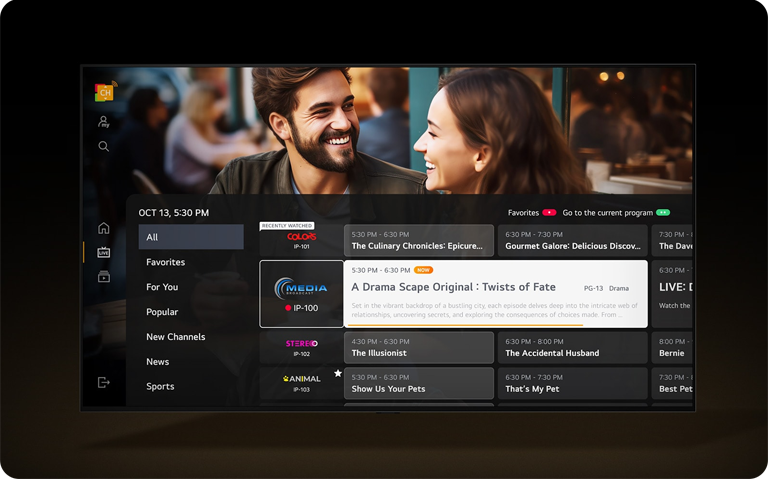
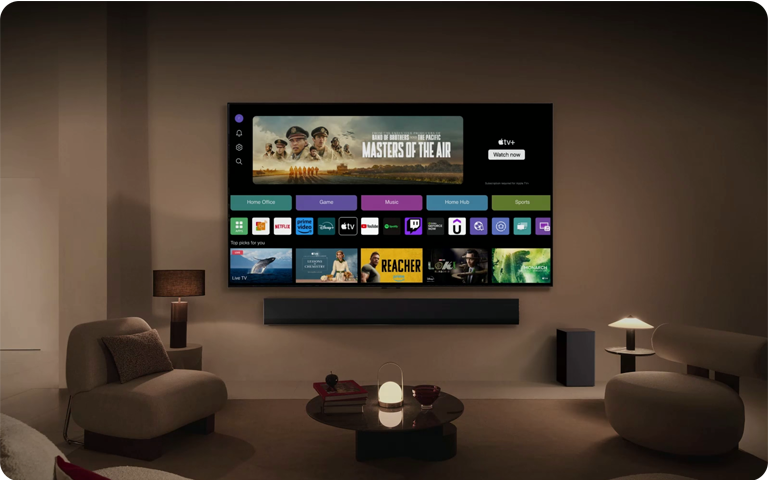
LG Channels is a free streaming service provided by LG, offering a vast range of TV channels with live and on-demand content.
This app is part of the webOS, LG’s own Smart TV operating system, so it’s already there as soon as you turn on your LG TV. Since the content is ready to view on demand, there’s no need to use the TV tuner.
What are the benefits of LG Channels?
Using the built-in LG Channels app on your LG TV comes with some perks, such as:
- Access is completely free with all LG TVs
- There is no monthly bill, and no subscription is needed
- Watching different types of content, including movies, sports, news, TV shows and live events
- Prevents the need for multiple subscriptions, as explained in this Trusted Reviews write-up that highlights the benefits of the app2,3
How to access LG Channels on your LG TV
To start watching LG Channels, all you need to do is follow these simple instructions:
1. Make sure your TV is connected to the internet
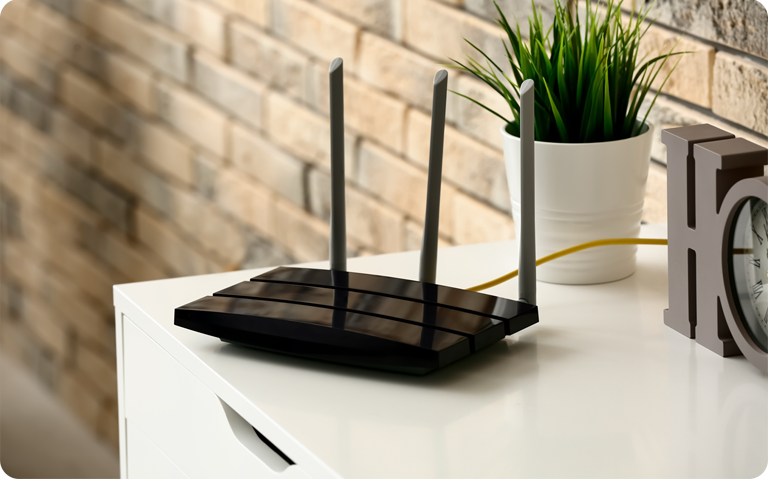
Use wi-fi or a cable to link your TV to your internet router and connect using the Settings menu.4
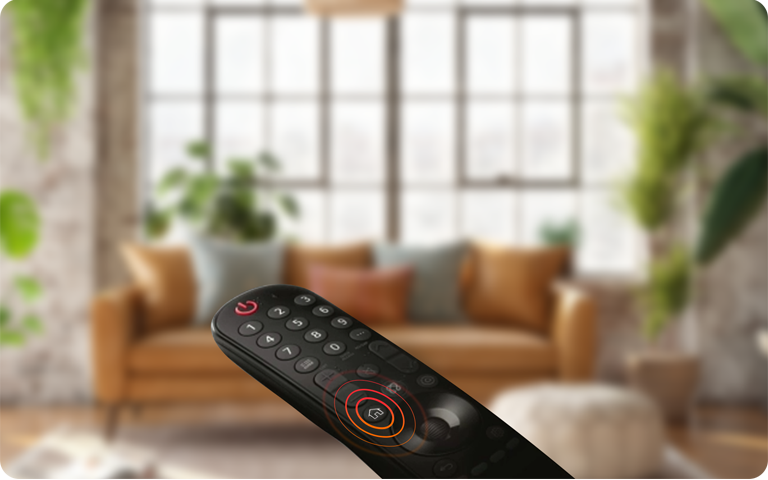
2. Press “Home” on your LG remote
This will open your TV’s Home Screen, which shows you various options and apps.5
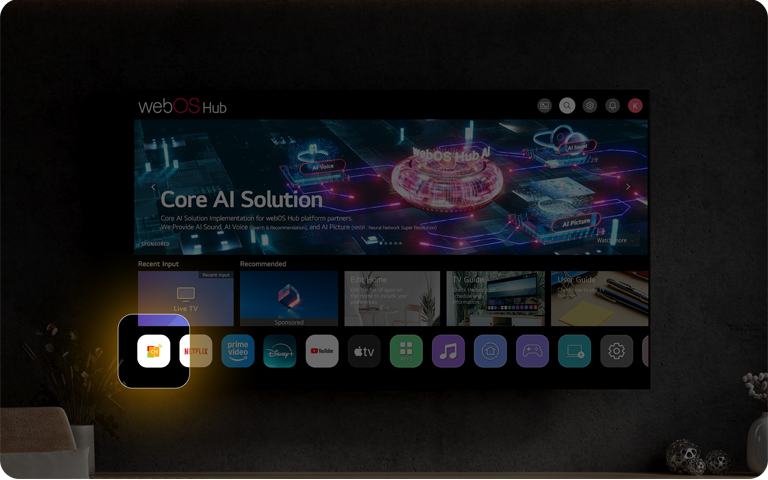
3. Navigate to the LG Channels app
To find LG channels on your Smart TV, look for a white app logo that has an orange icon with the letters CH in the middle and upward- and downward-pointing arrows.6
4. Select and start watching
On the screen that appears, select the channel you want to watch. Don’t forget to watch out for LG Channels content banners on your LG home screen too. Just click on them to go directly to the featured content.7
Which channels are available on LG Channels?
LG Channels brings you a wide variety of free, premium entertainment – starting with our very own flagship channel, LG1, which showcases a curated mix of the best TV and films. Alongside this, viewers can explore hundreds of channels from leading global and local partners, spanning drama, entertainment, news, sport, lifestyle, and more.7
What devices support LG Channels?
This is a TV-based platform with the comfort of a mobile app. At this time, LG Channels is available on all LG TVs produced in 2019 or later, including the OLED evo G5 and QNED evo MiniLED.8
How is LG Channels expanding globally?
LG Channels was born in Korea, but is now enjoyed by millions of LG TV users around the world. With 4,000 channels available globally, it’s a strong competitor for traditional TV.
Global viewing hours on LG Channels are increasing at 40% year on year and plans include further expansions and user interface upgrades so viewers are offered content tailored to their individual preferences.9
FAQs
Q: What countries is LG Channels available in?
A: LG Channels is available in 33 countries, including the UK, Ireland, Portugal, Spain, France, Italy, Switzerland, Belgium, Luxembourg, the Netherlands, Germany, Denmark, Sweden, Norway, Finland, the US, Canada, Mexico, Australia, Japan, South Korea, Brazil, Argentina, Colombia, Chile, and Peru.10 Singapore and New Zealand have been added this year.11
Q: Are LG Channels free?
A: There are no subscriptions or fees for LG Channels and you don’t need to make any payment. Nor do you need an expensive set-top box.12
Q: Why can’t I access LG Channels?
A: If you can’t access LG Channels there are several steps you can take. First, check your TV’s internet connection. If that’s working, try unplugging any devices connected to your television that might be causing a conflict. If that doesn’t solve the problem, try restarting your TV and updating the LG TV software. Failing that, check you’re properly signed into your account and that your location is correct. Finally, try a factory reset. If none of this works, LG’s customer support team is there to help.13
Q: Can I customise or hide LG Channels?
A: You can customise LG Channels by organising or editing the list of available channels or setting up a favourites list.14 And if you don’t want the app you can go to Settings > All Settings > Channels and toggle it off.15
LG Channels gives you a modern way of watching all kinds of live and on-demand content on your LG smart TV completely free, with no subscription and no set-top box. Just go to the pre-loaded app and you can wave goodbye to the restrictions of traditional television.
Life's Good!
1 LG Channels: Stream a variety of channels. Free.
2 Trusted Reviews: LG Channels is an easy way to stream free TV.
3 LG Channels: Stream a variety of channels. Free.
4 Lifewire: LG Channels – What you need to know.
5 Lifewire: LG Channels – What you need to know.
6 LG Channels List Guide 2025.
7 The exact line-up of channels varies by country, ensuring that every LG TV owner across Europe enjoys programming that is locally relevant and tailored to their tastes.
8 Trusted Reviews: LG Channels is an easy way to stream free TV.
9 LG Newsroom: LG Channels extends global footprint.
10 BB Media: LG Channels country availability.
11 LG Newsroom: LG Channels extends global footprint.
12 LG Newsroom: Cut the cord and enjoy 100+ free channels on your LG smart TV.
13 BoostVision: LG Channels not working?
14 LG UK: Make your TV experience yours.
15 Lifewire: LG Channels – what you need to know?