HELPFUL HINTS

How to set up a 4K projector


Smart Home
LG 4k projector

LG 4k projector

  • Discover how to identify your 4K projector type and plan the ideal placement for optimal throw distance and effortless installation.
  • Learn how to connect power and sources correctly, complete the on-screen setup wizard and ensure a smooth first-time configuration.
  • Optimise picture quality by adjusting alignment, selecting accurate picture modes and fine-tuning individual settings like brightness, contrast and resolution.
  • Enhance your home cinema experience by using AI-enabled smart features, setting up external audio and maintaining your projector for long-term performance.

Setting up a 4K projector for the first time can feel a little daunting, especially if you are switching from a traditional TV. With the right guidance and a clear understanding of the features included in modern European 4K projectors, the process becomes surprisingly straightforward. 

1. Identify your projector type and installation needs

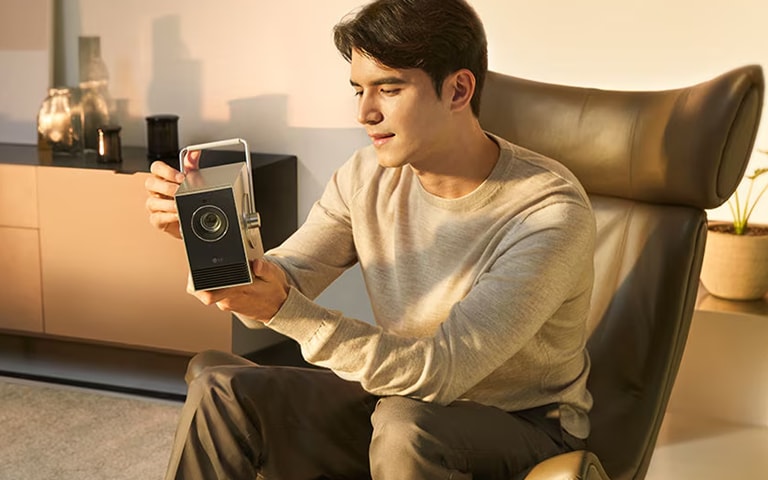
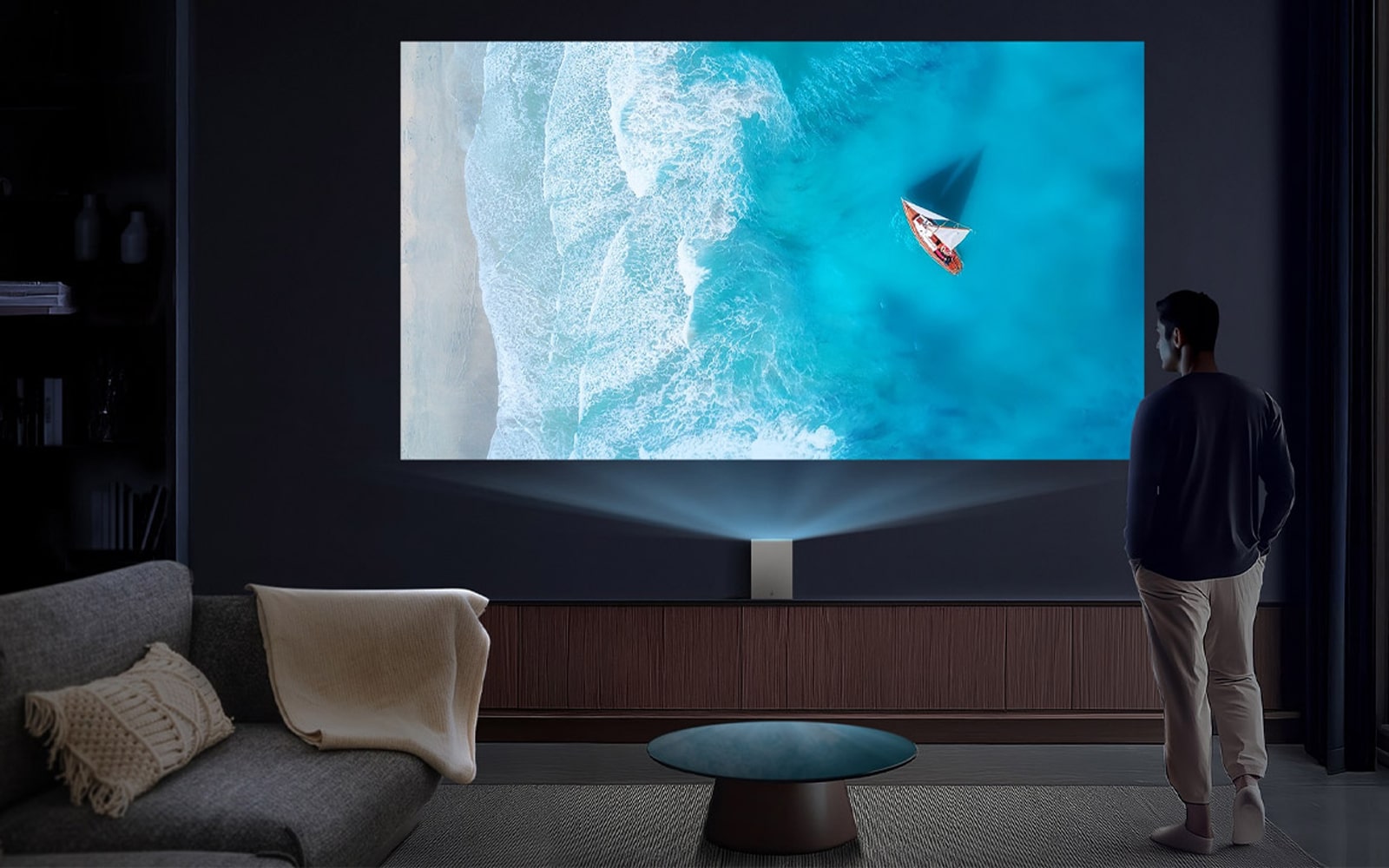
 man looking at an LG 4K projector

man looking at an LG 4K projector

1.1 See what you are working with

Before you begin, it helps to know what type of 4K projector you are using because different light sources and lens systems influence installation. You may have one of the following:

  • Many compact LED 4K home projectors come with remote focus features.
  • Hybrid laser and LED 4K projectors also features multi-point warping for more vibrancy.
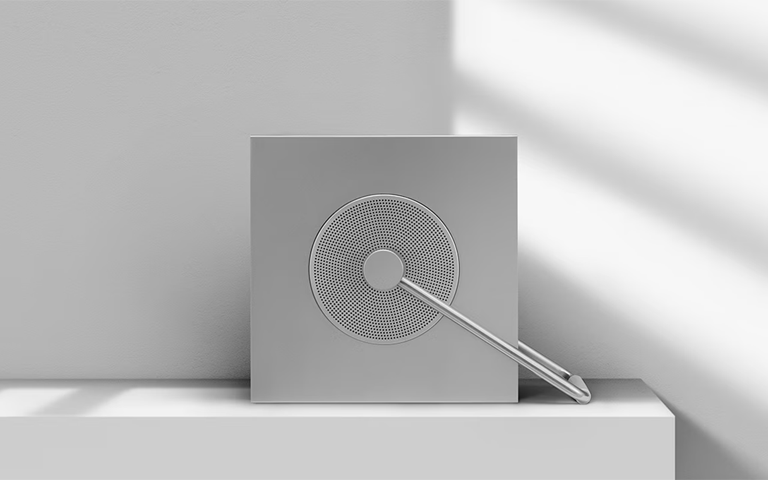
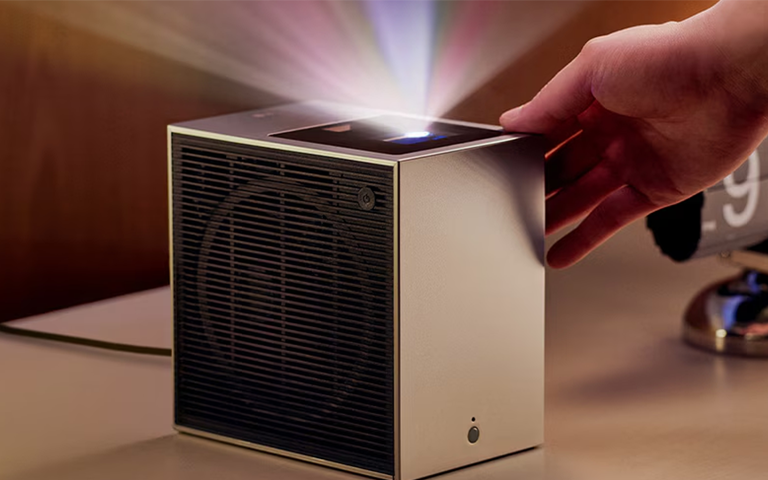
  • This Portable lifestyle 4K RGB laser projector comes with a foldable stand for added convenience.
  • Budget mini LED projectors offer lightweight practicality, for entertainment you can take anywhere.

1.2 Use a setup wizard or guide

Although the features vary, the core setup steps tend to be similar across most models. You’ll find that many newer LED or laser projectors are ready to go in seconds, compared to the less-efficient bulb-based options of the past.1 Plus, there are a ton of new smart features you might be surprised to see if this is the first projector you’re setting up. So, just like building a new piece of furniture, you might benefit from reading through this guide entirely before diving in.

2. Position the projector correctly

de view of the LG 4K projector

de view of the LG 4K projector

2.1 Measure the throw distance

Throw distance is the space between your projector and the screen. Getting this right is essential if you want a correctly sized and sharp image.

  • Standard long throw projectors usually require several metres of space.
  • Short-throw models need much less distance for a large picture.
  • Ultra-short-throw laser projectors can sit only a few centimetres from the wall.

Measure your room and check your projector’s recommended image size guide. Always leave a little room for adjustment.

2.2 Choose whether to mount or place on furniture

A suitable projector mount must be rated for the weight of your device. Shelf placement is common for LED and hybrid laser projectors because they are generally compact and quiet. Portable positioning works well for lifestyle 4K laser projectors that include built-in stands or hinge systems. Whichever you choose, ensure that the projector sits level to reduce the amount of digital correction required later.

3. Connect power and input devices

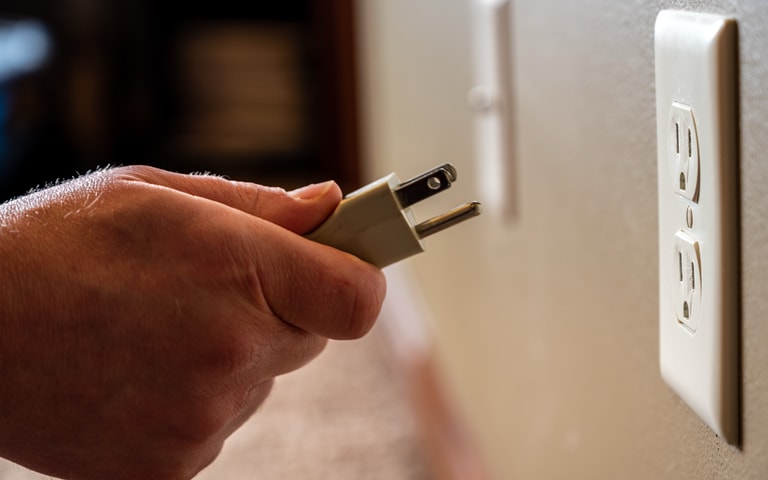
Hand plugging in

Hand plugging in

3.1 Power connection

Most 4K projectors support 100 to 240 volts. Ensure the power cord is firmly inserted, the cable has a little slack to prevent strain and that no air vents are blocked. Good ventilation helps maintain consistent brightness and supports long-term durability, which reduces the need for premature replacement and therefore the environmental footprint.

3.2 Connect your input sources

For the best possible 4K image quality, use HDMI 2.0 or HDMI 2.1 cables, depending on your projector’s capabilities. Some models also allow USB-C, USB-A or wireless casting such as AirPlay or Miracast. Connect your input before powering on the projector for the first time to streamline detection during the setup wizard.

4. Power on and complete the first-time setup

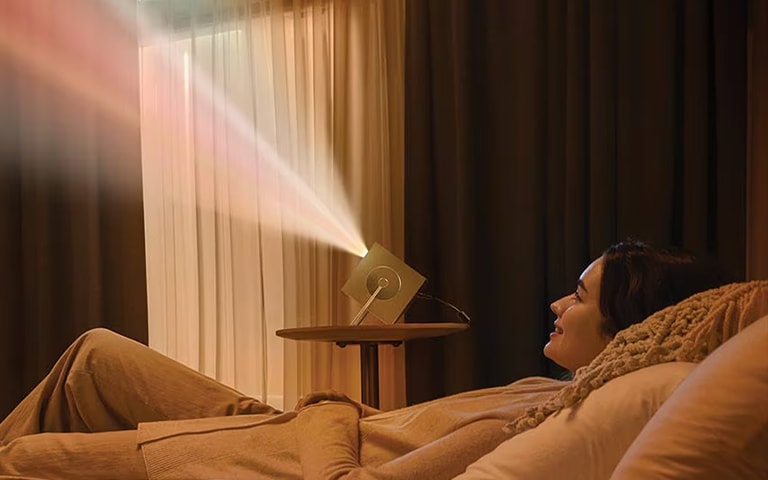
A woman lying down and watching a video projected on an LG 4K projector

A woman lying down and watching a video projected on an LG 4K projector

4.1 Align the projected image

Many projectors often combine traditional keystone correction with advanced multi-point warping, giving you precise control over image alignment. Multi-point warping lets you adjust output on a grid overlay, so you can fine-tune the image edges and corners for a perfectly rectangular result - even if the projector is placed at an angle to where it's projecting or is projecting on to an uneven surface.

Always start with physical alignment first, by levelling the projector and adjusting its position, before using digital warping. Physical adjustments preserve maximum image sharpness, while digital corrections should be used for fine-tuning.

4.2 Use zoom and lens shift if available

Mid-range and high-end 4K projectors frequently offer optical zoom and vertical or horizontal lens shift. These features allow you to move the picture up, down or sideways without altering the projector’s position. This is extremely useful in European homes where ceiling heights vary, and furniture layouts can be irregular.

5. Configure picture settings for optimal 4K performance

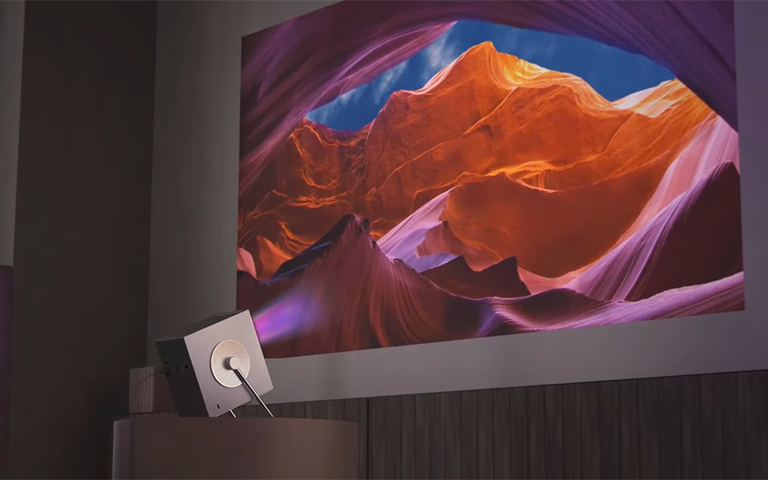
A stunning view of the Grand Canyon projected into the living room with an LG 4K projector.

A stunning view of the Grand Canyon projected into the living room with an LG 4K projector.

5.1 Set the correct resolution

Check that your connected device outputs 4K UHD at 3840 x 2160. Without this setting, you may not see the full detail your projector can deliver.

5.2 Select the right picture mode

Common picture presets include something specifically for film viewing in dim rooms. In LG smart projectors, Filmmaker Mode produces accurate images with minimal processing, and Game Mode is perfect for low-lag gaming.


Adjust brightness to prevent washed-out shadows and contrast to reveal subtle details. You may wish to alter colour temperature to create a warmer or cooler tone. For HDR content, you might also adjust dynamic contrast or laser brightness. These settings help you tailor the picture to your room while maintaining energy-efficient operation.

6. Set up smart features and connectivity

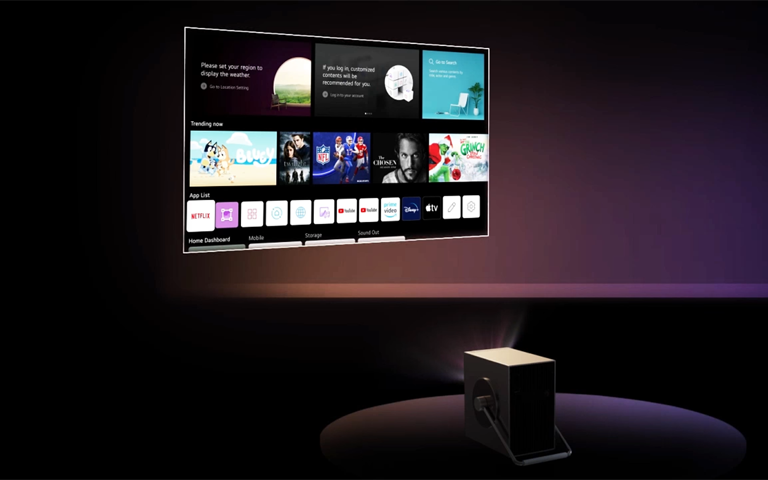
LG Channels on LG 4K projector

LG Channels on LG 4K projector

6.1 Wi-Fi and smart apps

If your 4K projector includes a smart operating system, such as LG’s webOS, connect to your home Wi-Fi and sign in to your streaming app of choice, such as Netflix or Amazon Prime.3 Install updates when prompted. Regular updates can improve app performance and support long-term software security, which is a growing priority in responsible technology design.

6.2 Screen sharing and casting

Most modern projectors allow casting from iOS devices through AirPlay or mirroring through Miracast and Screen Share. These features make group viewing and presentations simple and cable-free.

7. Configure your audio setup

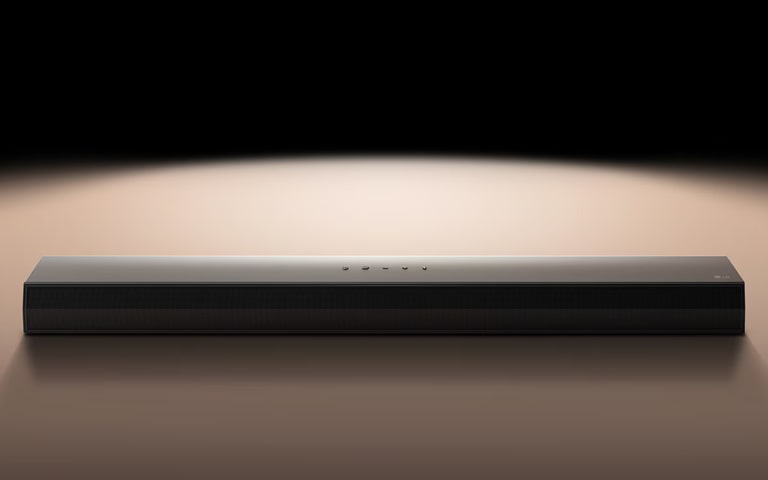
LG Soundbar

LG Soundbar

7.1 Use built-in speakers if suitable

Many compact and portable 4K projectors include small stereo speakers which are fine for casual viewing in smaller rooms.

7.2 Connect external speakers

For better sound, connect an HDMI ARC or eARC soundbar, Bluetooth speakers, an optical audio system or a full AV receiver with surround sound. External audio significantly enhances immersion for films, sport and games.

8. Optimise and maintain your projector

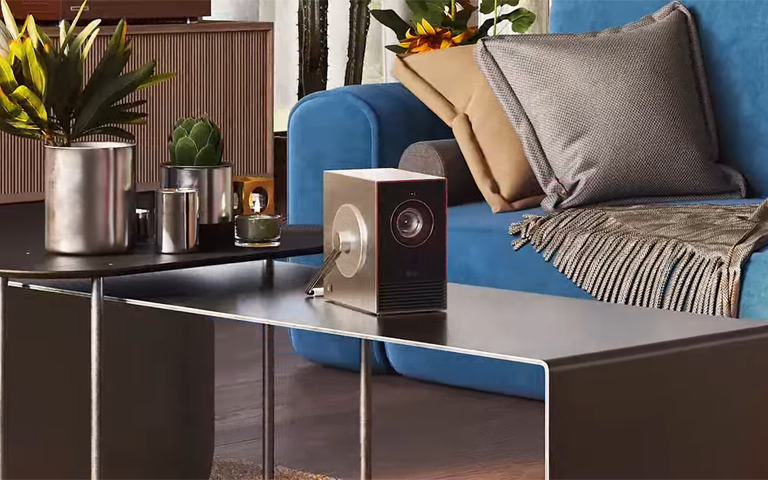
LG 4k projecter on the living room table

LG 4k projecter on the living room table

8.1 Install firmware updates

Firmware updates often improve image processing, reduce bugs and add new features. Keeping your projector updated supports sustainability by extending its useful lifespan.

8.2 Routine care

Keep air vents clear, dust the lens gently with a microfibre cloth, allow the projector to complete its shut down cycle before unplugging and maintain good airflow in the room. Proper care protects the hardware and reduces the need for early replacement.

FAQs for Optimising and Maintaining Your Projector

Q. How can I test whether my picture settings are correct across different content types?
A. Try a mix of 4K, HDR demonstration clips, live and cinematic content. This helps you check brightness, motion handling and colour accuracy in varied scenarios so you can fine tune settings until everything looks consistent.


Q. Do I need to install firmware updates on my 4K projector?
A. Yes. Firmware updates often improve picture processing, boost app compatibility and fix bugs. Regular updates can prolong your projector’s lifespan and support better long term performance.


Q. What routine maintenance should I perform to keep my projector operating well?
A. Keep all air vents clear, dust the lens using a soft microfibre cloth, allow the projector to complete its shut-down cycle and ensure your room has good ventilation. These steps help prevent overheating and preserve long-term image quality.


Q. Why does my projected image look stretched or uneven?
A. This usually happens when the projector is not physically aligned with the screen. Adjust the projector’s position first and then apply keystone correction or multi-point warping if needed.


Q. What causes a blurry picture on my 4K projector?
A. Blurriness often results from incorrect focus. Use the physical focus ring or remote focus controls if your model supports them until the image looks crisp.


Q. Why do the colours on my projector look dull?
A. Switch to Filmmaker Mode for more accurate colours and reduce ambient light in the room. Both steps help restore vibrancy and balance.


Q. How can I improve visibility during daytime viewing?
A. Increase brightness or laser output in the picture settings or use a dedicated projection screen, which significantly boosts clarity in bright environments.


Q. Why is there no sound coming from my projector or soundbar?
A. Check the audio output settings and ensure that HDMI ARC or eARC is enabled if you are using a compatible soundbar or audio system.

Life's Good!

Featured Product

Recommended Article