TV Favorite Channel Setup
A full channel scan on the television must be completed before Favorite channels can be set provided all TV network broadcasting channels are not being fed from your service provider's set-top-box whether cable, satellite or digital-to-analog converter set-top-box at which point exercise becomes futile.
An important thing to note is that the channel structure of an LG Television is broken down into 4 parts in this order (DTV, TV, CADTV, CATV). The channels will only be displayed together within the tuner the TV is currently on. For example:
- The TV tuner will first search for all digital channels via antenna reception (ATSC) then the analog channels (NTSC).
- Then, it will proceed to digital cable stations (CADTV) before proceeding to analog cable stations (CATV).
- This means that the television would scan channels 2-79 to the ATSC tuner, then NTSC then CADTV, returning to channel 2 to begin cycling the availability of channels to the cable tuner.
- It is important to know which tuner displays the respective channel. This can be determined by the "Info" or "Enter" button on the LG remote control.
Note
The TV will cycle through all CADTV stations before it begins to cycle through CATV stations. This means the TV could cycle through channels 2-79 on the CADTV tuner, then jump back to channel 2 to begin cycling through the CATV tuner. It is important to know which tuner the TV is currently using to display the channel. This can be determined by pressing the ‘Info” or ‘Enter’ button on the LG remote.
IMPORTANT NOTICE
Customers who have gone through the entire process of scanning available broadcast channels, then took the time to identify their favorite channels and are now seeking instructions on accessing channels ONLY listed in their favorites will find the requested information by scrolling all the way down to the end of this content article.
Check the connection type
In order for your TV to find any stations, you must first be using the TV’s tuner and not a cable box. If a cable box is in use you will need to contact your cable/satellite service provider for further assistance.
If you are using a coaxial connection directly from the wall to the television, ensure the cable is tightly and securely screwed into both the TV and the wall. You will also need to ensure the television is tuned to channel 3 or 4 to receive the stations.
Perform a Channel Scan
A channel scan is necessary when using antenna or basic cable from the wall. When a cable/satellite box is used, the TV’s tuner is not in use and will not locate any channels. Be sure the antenna or cable is connected directly to the back of the television.
On WebOS6, WebOS22 and more recent versions
Press the button (  ) on your remote control and select [All Settings] → [General] → [Programmes] → [Programme Tuning] → [Auto Tuning] .
On Netcast or earlier
Press the Home or Menu button on the remote and select → [Setup] → [Channel] → [Auto Tuning].
How to Set Favorite Channels
On WebOS 6.0 and more recent versions
*WebOS6, WebOS22, WebOS23 or later - Press the button ( ) on your remote control and select [All Settings] → [General] → [ Programmes] → [Programme Manager] → [Edit Favorites].
- After turning on the TV, press the [Settings] button on the remote control.
From [Settings], select [All Settings].
- Select [General].
- Select [Prorammes / Channels].
- Select [Programme / Channel Manager] → [Edit Favorites] and register a preferred channel.
On Netcast or earlier
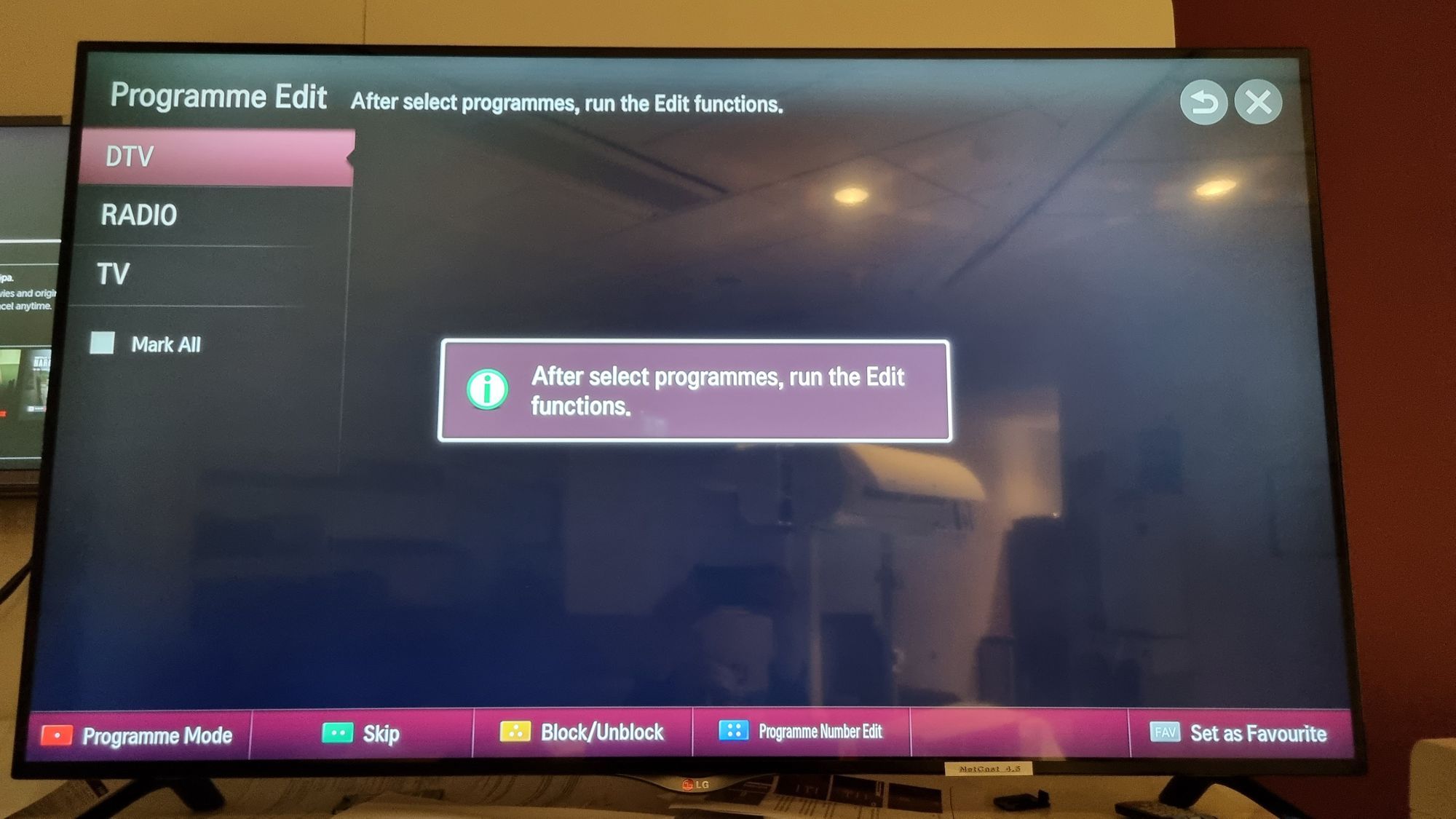
*Netcast or earlier - Press the button (  ) on your remote control and select [All Settings] → [Channels] → [Edit Channels].
- After turning on the TV, press the [Settings] button on the remote control.
From [Settings], select [All Settings].
- Select [Channels].
- Select [Edit Channels / Programme Edit].
- From within the channel editor you will be able to select channels to Set As Favorite.
Viewing Favorite Channels ONLY
How to limit broadcasting channel toggling strictly between list of favorites
Viewers wishing to limit the channel toggling to strictly their list of favorite channels need to follow these procedures:
- Press the GUIDE or LIST button on your remote controller to access the Channel Guide sub-menu.
- On the top left corner, click the Channel icon which is the one in the middle. Then, click the kebob menu icon to the right of the Channel pop-up window.
- Select the desired Favorite Channel option from the list of available favorite channel list by checkmarking it then click the DONE button at the bottom. Only channels from that list will populate your TV screen scan until you change it.
This guide was created for all home entertainment flat panel display television models featuring the magic motion remote controller. Some features may not apply to your TV model. Images or content presented herein may differ from your product.