Official setup and usage guide for LG Sound Suite

This official guide provides clear instructions and answers for using LG Sound Suite. Watch How-to videos and browse FAQs to learn about connections, Dolby Atmos FlexConnect, calibration features, and streaming—based on accurate information provided by LG.

Step-by-step guides for LG Sound Suite

Learn how to connect devices, register in the ThinQ app, use Dolby Atmos FlexConnect, and adjust key settings through clear, guided videos.

How to setup and usage guide for LG Sound Suite. This official guide provides clear instructions and answers for using LG Sound Suite. Watch How-to videos and browse FAQs to learn about connections, Dolby Atmos FlexConnect, calibration features, and streaming—based on accurate information provided by LG.

Router settings, firmware updates, or changes to the Wi‑Fi password can be performed through the configuration webpage or dedicated app provided by the router manufacturer. For more information, please refer to the router’s user manual or contact the manufacturer.

※ After changing the router settings, you may need to remove the saved network from devices that were previously connected to the network. When the devices reconnect, the router’s new settings will be applied.

Network name (SSID)

It is recommended to assign different network names to the 2.4GHz, 5GHz, and 6GHz bands.

An SSID (Service Set Identifier) is the name used to identify a network. Devices searching for Wi‑Fi networks recognize available networks by their SSIDs, which are displayed in the Wi‑Fi network list.

Please ensure that each frequency band supported by the routers connected to the network uses a unique SSID. It is recommended to configure separate SSIDs for the 2.4GHz, 5GHz, and 6GHz bands.

If the same SSID is used across all bands, the router’s operating channel may change dynamically during product use after connection, which can result in unstable connectivity.

Example: After registering the product in the ThinQ app, the product may suddenly appear offline, or the DAFC connection may be disconnected.

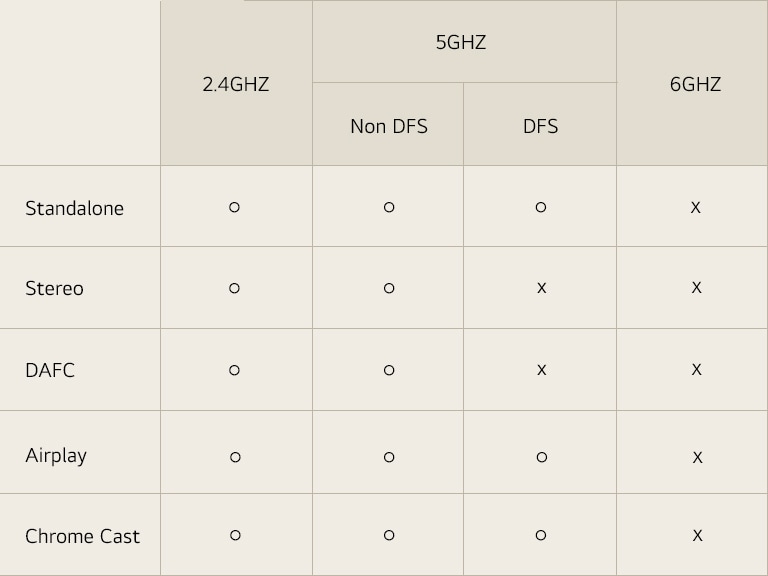
* Supported frequencies by playback mode

A table showing supported frequencies by playback mode

※ Non DFS : 36/40/44/48/149/153/157/161ch.

※ Note: 6GHz support will be added through a future software update.

* Dolby Atmos FlexConnect (DAFC) & Stereo Pairing: DFS Not Supported

Features that require device‑to‑device communication—such as DAFC mode or Stereo pairing (two-speaker pairing)—do not support DFS channels to ensure stable wireless performance.

Therefore, these features must be used while connected to the router’s non‑DFS 5GHz channels (36 / 40 / 44 / 48 / 149 / 153 / 157 / 161).

* Standalone Speaker, AirPlay, Google Cast: DFS Supported

When using the speaker in standalone mode, or when streaming audio via AirPlay or Google Cast, DFS channels are fully supported.

When there are two or more routers in the home

If the routers are not configured to operate in Mesh or Repeater mode, it is recommended to assign a different SSID to each router installed in the home.

When multiple networks share the same SSID, devices are more likely to detect and connect to a different network with the same name. In such cases, the device with the ThinQ app installed (such as a smartphone or tablet) may automatically attempt to connect to a router different from the one the product is connected to. As a result, if the product and the mobile device are connected to different routers, the product may appear offline in the ThinQ app.

Lossless streaming / Dolby Atmos

Q.

Can LG Sound Suite play lossless streaming music through Spotify?

A.

LG Sound Suite supports high‑resolution audio playback up to 24bit / 96kHz.

The conditions for lossless playback vary depending on the streaming service and the connection method.

Using Spotify Connect

Spotify supports Lossless Music up to 24bit / 44.1kHz, and lossless playback (24bit / 44.1kHz) is available through Spotify Connect.

Q.

Can LG Sound Suite play lossless streaming music through TIDAL?

A.

LG Sound Suite supports high‑resolution audio playback up to 24bit / 96kHz.

The conditions for lossless playback vary depending on the streaming service and the connection method..

Using TIDAL Connect

TIDAL offers music up to 24bit / 192kHz,and lossless playback (24bit / 96kHz) is available through TIDAL Connect.

Dolby Atmos spatial audio is also supported.

To enjoy lossless audio, the following conditions must be met:

  - High‑quality streaming must be enabled within the TIDAL app.

  - Playback must be done using TIDAL Connect.

Q.

Can LG Sound Suite play lossless streaming music through Apple Music?

A.

LG Sound Suite supports high‑resolution audio playback up to 24bit / 96kHz.

The conditions for lossless playback vary depending on the streaming service and the connection method.

Using AirPlay 2

Apple Music provides audio up to 24bit / 192kHz, and iOS users can enjoy high‑quality audio via AirPlay 2 when streaming to LG Sound Suite. Playback resolution follows the specifications of AirPlay 2.

Q.

Can LG Sound Suite play lossless streaming music through Amazon Music?

A.

LG Sound Suite supports high‑resolution audio playback up to 24bit / 96kHz.

The conditions for lossless playback vary depending on the streaming service and the connection method.

Using AirPlay 2

Amazon Music provides audio up to 24bit / 192kHz, and iOS users can enjoy high‑quality audio via AirPlay 2 when streaming to LG Sound Suite. Playback resolution follows the specifications of AirPlay 2. 

Q.

How can I enjoy Dolby Atmos music from a mobile music streaming app on LG Sound Suite?

A.

LG Sound Suite supports Dolby Atmos playback, and the availability of Dolby Atmos varies by speaker configuration:

∙ Dolby Atmos‑capable products

H7, M7: Support Dolby Atmos on their own

M5: Supports Dolby Atmos only when two units are paired in stereo (A single M5 does not support Dolby Atmos)

∙ Enjoying Dolby Atmos using mobile streaming apps

 Apple Music

After playing a Dolby Atmos track in Apple Music, select the LG Sound Suite device via AirPlay 2 to enjoy Dolby Atmos audio..

 Tidal Music

Dolby Atmos content can be enjoyed when played via TIDAL Connect.

 How to check if Dolby Atmos is currently playing

- Some streaming apps display a Dolby Atmos badge when Atmos content is being played.

- In the ThinQ App, the audio effect panel (top left) shows the current audio format.

- If this area displays Dolby Atmos, the content is being played in Dolby Atmos.

- When the H7 is playing Dolby Atmos content, the Dolby logo appears on the OLED display located on the left side of the product.

Q.

How can I enjoy Dolby Atmos content from a TV using LG Sound Suite?

A.

LG Sound Suite supports Dolby Atmos playback, and depending on the speaker configuration, Dolby Atmos content can be enjoyed as follows.

∙ Dolby Atmos‑supported devices

H7, M7: Support Dolby Atmos on their own

M5: Supports Dolby Atmos only when two units are paired in stereo (A single M5 does not support Dolby Atmos)

∙ Enjoying Dolby Atmos content from a TV

 Playing with only one H7

(1) Connect the TV and the H7 via HDMI eARC. 

(2) When Dolby Atmos content is played on the TV, you can enjoy Dolby Atmos sound through the H7.

 Playing using the H7 together with M‑series speakers

(1) Connect the TV and the H7 via HDMI eARC. 

(2) Connect the M‑series speakers to the H7 using Dolby Atmos FlexConnect.

(3) Play Dolby Atmos content on the TV.

This allows you to enjoy richer Dolby Atmos audio through the combined H7 + M‑series setup.

(At least two M5 units are required for Dolby Atmos FlexConnect.)

 Playing using only M‑series speakers

(1) Connect the TV and the M‑series speakers via Dolby Atmos FlexConnect. 

(2) When Dolby Atmos content is played on the TV, you can enjoy immersive Dolby Atmos audio through the M‑series speakers. (At least two M5 units are required for Dolby Atmos FlexConnect.)

TV setting

Q.

What is the “Digital Sound Out” setting on a TV?

A.

“Digital Sound Out” is a function used when the TV is connected to an external audio device (such as via ARC or eARC).

It allows you to set the audio output format that the TV sends to the connected audio device.

Available settings are:

PCM

Auto

Passthrough

(Default setting: Auto)

Please refer to your TV’s manual for details on audio output formats.

Q.

When connecting a TV to the M7 or M5 via DAFC (wireless), do I need to change the TV’s Digital Sound Out settings?

A.

No, you do not need to change any settings.

When the TV and M7 are connected wirelessly using DAFC, this connection path does not use the Digital Sound Out function.

Therefore, the Digital Sound Out menu becomes automatically disabled, and users cannot modify it.

This does not affect sound quality or functionality.

Q.

For a TV–H7 (eARC)–M7 or M5 (DAFC) configuration, which Digital Sound Out setting is recommended?

A.

It is recommended to use Auto or Passthrough.

With these settings, the TV can send multichannel and Dolby Atmos audio signals to the H7 via eARC, allowing the H7 and M7/M5 speakers to work together to produce optimal immersive sound.

The two options are mostly similar, but differ in the following ways:

∙ Differences between Auto and Passthrough

- Auto:

Mixes in TV sound effects

(e.g., Audio Guidance, system notification sounds)

- Passthrough:

Sends only the original audio signal with no added effects

In the H7–M7 or M5 DAFC configuration, Passthrough can reduce audio latency slightly, making it recommended for content like sports.

PCM is not recommended

Selecting PCM limits the TV→H7 output to 2‑channel PCM, which significantly reduces immersive audio performance.

Connectivity

What Wi‑Fi bands are supported when connecting the product to a router?

Current Sound Suite products (H7 / M7 / M5 / W7) support 2.4GHz and 5GHz Wi‑Fi bands only.

※ 6GHz (Wi‑Fi 6E) is not supported yet. 6GHz support is planned via a future software update.

If your mobile device is connected to a 6GHz network during product registration in the ThinQ App, a message will appear asking you to “switch to another network.” In this case, switch your mobile device to 2.4GHz or 5GHz and proceed with registration.

※ 5GHz is recommended.

After the product has been successfully connected to 2.4GHz or 5GHz, your mobile device may reconnect to 6GHz, and product control will still work, as long as the smartphone and product are connected to the same router.

※ Note: 6GHz support is planned via a future software update.

After changing the router: reconnection required via the ThinQ App

Please follow the steps below to reconnect the product to the new network using the ThinQ App:

 1) Turn on the product → ensure the LEDs/displays show normal status.

 2) Turn off the old router.

 3) Connect your smartphone to the new router’s 2.4GHz or 5GHz network.

 4) Open the ThinQ App → the product card will appear offline.

Tap the offline product card → Settings → Change Network

Follow the app instructions to update the SSID and password.

Why is the connection unstable even though the signal is strong on a multi‑band router (2.4G/5G or 2.4G/5G/6G)?

Even with a strong signal, if the router has features such as:

Band Steering

Smart Connect

Unified SSID across multiple bands 

enabled, devices may automatically switch between 2.4G ↔ 5G ↔ 6G, between nodes, or between channels.

This can cause the following issues:

∙ Only 1–2 devices connect when powered on; others fail to connect

∙ The connected devices change every time

∙ Intermittent dropouts/latency when forming or using a DAFC group


Recommended settings in this case

∙ Router settings

- Turn OFF Band Steering / Smart Connect / Unified SSID

- Separate SSIDs for each band (e.g., Home_24, Home_5G, Home_6G)

∙ Product / Mobile settings

- Connect H7 / M7 / M5 / W7 / TV all to the same SSID and same band (5GHz non‑DFS channels recommended) 

Can I use DFS channels (5GHz DFS)?

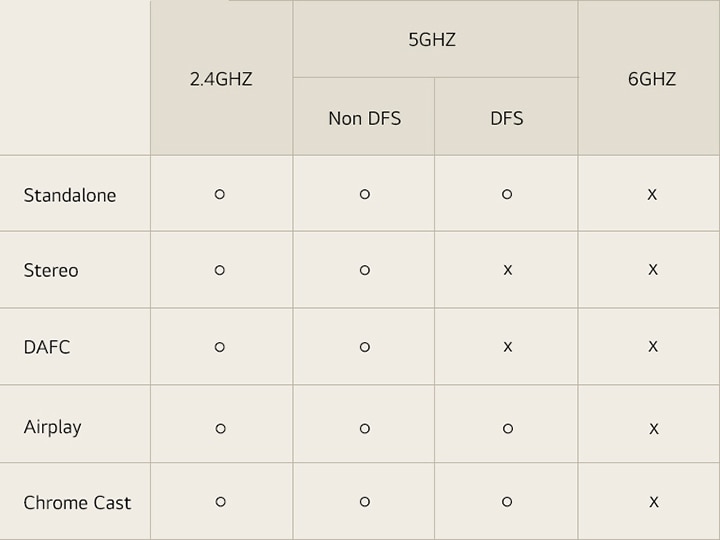
Depending on the Wi‑Fi frequency channel settings of your router, the supported scenarios differ. For the most stable performance of various Sound Suite features, we recommend connecting to the non‑DFS 5GHz channels.

* (Table) Supported Frequencies by Playback Mode

※ Non DFS : 36/40/44/48/149/153/157/161ch.

※ Note: 6GHz support will be added through a future software update.

* Dolby Atmos FlexConnect (DAFC) & Stereo Pairing: DFS Not Supported

Features that require device‑to‑device communication—such as DAFC mode or Stereo pairing (two-speaker pairing)—do not support DFS channels to ensure stable wireless performance.

Therefore, these features must be used while connected to the router’s non‑DFS 5GHz channels (36 / 40 / 44 / 48 / 149 / 153 / 157 / 161).

* Standalone Speaker, AirPlay, Google Cast: DFS Supported

When using the speaker in standalone mode, or when streaming audio via AirPlay or Google Cast, DFS channels are fully supported.

A table showing supported frequencies by playback mode

If the product cannot connect to Wi‑Fi, try the following steps.

∙ Restart the router and try again.

∙  Set the router’s Wi‑Fi to 2.4GHz or a standard 5GHz channel (36/40/44/48/149/153/157/161).

∙ If your router has Band Steering, Smart Connect, Unified SSID, or MLO (Multi‑Link Operation) enabled, turn these features OFF.

∙ Separate the 2.4G / 5G / 6G bands into individual SSIDs (e.g., Home_24, Home_5G, Home_6G).

∙ If the router is using a Hidden SSID setting, disable it.

∙ Reset the product (refer to the manual for the reset procedure).

∙ Reconnect the device to the network using the ThinQ App.

∙ Ensure that your smartphone and the product are connected to the same router..

Speaker settings

Can I change or turn off the LCD display and lighting on the Sound Suite H7?

The Sound Suite H7 includes:

1) an OLED display on the front left, and

2) an LED lighting bar on the lower center,

both of which indicate the device status. 

 Changing the front‑left OLED display settings

- Using the Remote Control 

Press and hold the Settings button on the remote until "Display" appears on the H7’s screen.

Use the Up/Down buttons to select one of the following:

Auto‑Display (automatic brightness)

Off‑Display (automatic off)

On‑Display (always on)

- Using the ThinQ App

Select the product in the app → tap the Settings icon (top right) →Other Settings → LED/Display.

Choose one of the following options:

Auto‑Display

Off‑Display

On‑Display

(Auto‑Display: dims after 20 seconds / On‑Display: stays bright / Off‑Display: turns off after 20 seconds)


 Changing the lower‑center LED lighting bar

 Lighting On/Off 

- Using the Remote Control

Press the lighting button (light‑bulb icon) briefly to toggle lighting On/Off.

- Using the ThinQ App

Select the product → tap Lighting at the bottom → Use the Ambient Lighting or Standby Lighting On/Off toggles.

 Changing the lighting color 

- Using the ThinQ App

Select the product → tap Lighting → Double‑tap one of the four default color options under Ambient Lighting.

A color palette / slider will appear, allowing you to adjust and choose your preferred lighting color.

Can I change or turn off the lighting color on the Sound Suite M7 / M5?

Changing the bottom LED lighting

- Using the ThinQ App

After selecting the product in the app, tap “Lighting” in the center of the main screen.

You can control Lighting On/Off and other lighting‑related options.

If you double‑tap one of the four default color options in the Lighting menu, a color palette/slider will appear, allowing you to choose the desired lighting color.

Even if the lighting is turned Off, lighting feedback such as volume adjustment or Wi‑Fi connection indicators will continue to operate.

What should I do when the Sound Suite H7 display shows “DEMO” and volume/playback/input controls don’t work?

If “DEMO” appears on the H7 display, the device has entered Demo Mode. In Demo Mode, certain functions and controls may be restricted. To exit Demo Mode, follow the instructions below.

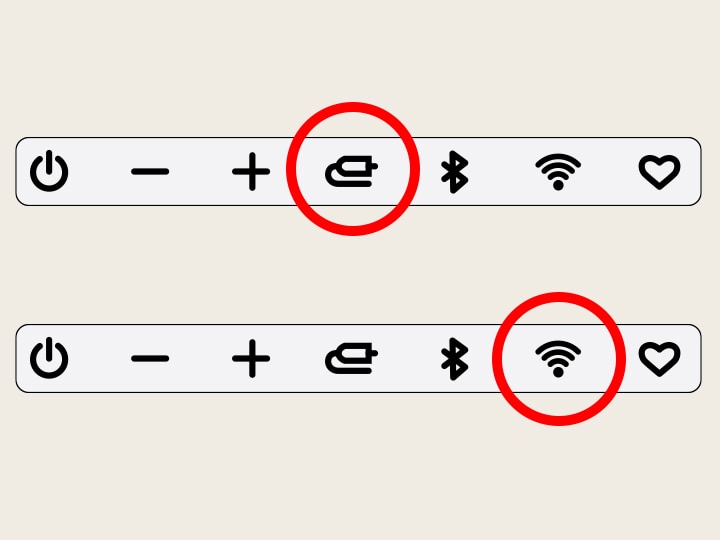
∙ How to exit Demo Mode on the H7

Method 1) Press and hold the Input button on the H7 main unit for 10 seconds.

Method 2) Press and hold the Wi‑Fi button on the H7 main unit for 5 seconds.

The status lighting bar will blink white, indicating that Demo Mode has been disabled and all wireless network settings on the device have been reset.

Set of H7 buttons highlighting the Input button for Method 1 and the Wi-Fi button for Method 2.

What should I do when the LED bar on the Sound Suite M7/M5 lights up in Cozy Amber and volume/playback/input controls do not work?

If the LED bar on the M7/M5 is lit in orange and volume, playback, or input mode controls are not responding, the device has entered Demo Mode. In Demo Mode, certain functions may be restricted. You can disable Demo Mode by following the instructions below.

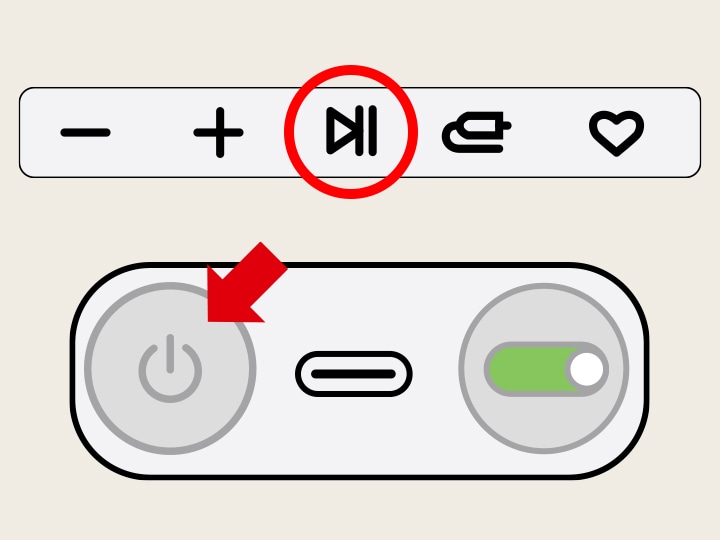
∙ How to exit Demo Mode on the M7/M5

Method 1) Press and hold the Play/Pause button on the M7/M5 for 10 seconds.

Method 2) Press and hold the power button on the rear of the M7/M5 for 10 seconds. The status lighting bar will blink white, indicating that Demo Mode has been disabled and all wireless network settings of the device have been reset.

Set of M7/M5 buttons hightlighting the Play/Pause button for Method 1 and the Power button for Method 2.

What should I do when the top button of the Sound Suite W7 lights up in Cozy Amber and the level cannot be adjusted?

If the top button of the W7 is lit in Cozy Amber and you cannot adjust the level or connect to other devices, the product has entered Demo Mode. In Demo Mode, certain functions may be limited. You can exit Demo Mode by following the instructions below.

∙ How to exit Demo Mode on the W7

Method) Press and hold the top button on the W7 for 10 seconds.

Dolby Atmos FlexConnect

Q.

I am trying to group H7, M7, M5, and W7 using DAFC, but it isn’t working.

A.

If the router’s 5GHz band is using a DFS channel (52–144), DAFC grouping may fail.

In this case, the ThinQ App will show a DFS‑related warning popup, and DAFC group creation will not be possible.

∙ Recommended solutions

- Change the router’s 5GHz channel to a standard channel (36/40/44/48/149/153/157/161)

- Reconnect H7 / M7 / M5 / W7 to the same router & same band (standard 5GHz or 2.4GHz)

- Reboot both the products and the router, then try DAFC grouping again.

Q.

I would like to know which LG TV models support Dolby Atmos FlexConnect (DAFC).

A.

Here’s the current list of LG TVs that support Dolby Atmos FlexConnect:

∙ 2025 Model Info. - OLED G5, C5, CS5

Planned update in the second half of 2026 : OLED CS5, QNED 9M  

∙ 2026 Model Info. - OLED W6, G6, C6, 

Planned update in the second half of 2026 : OLED CS6, B6, B6E, MRGB95, MRGB9M, MRGB85, QNED85, QNED82

Q.

Can Dolby Atmos be achieved using only four M7 or M5 speakers with a DAFC‑supported TV?

A.

Even if your LG TV doesn’t support Dolby Atmos FlexConnect, or if you’re using a TV from another brand, you can still experience FlexConnect with the LG Sound Suite H7 together with the M7 or M5 speakers.

By connecting the H7 to your TV via HDMI ARC, the H7 can serve as the FlexConnect main device and pair with the M7 or M5 speakers. This allows you to build out a more immersive, expanded spatial audio setup.

Q.

If my TV does not support Dolby Atmos FlexConnect (DAFC), does that mean I cannot use DAFC with LG Sound Suite?

A.

Even if your LG TV doesn’t support Dolby Atmos FlexConnect, or if you’re using a TV from another brand, you can still experience FlexConnect with the LG Sound Suite H7 together with the M7 or M5 speakers.

By connecting the H7 to your TV via HDMI ARC, the H7 can serve as the FlexConnect main device and pair with the M7 or M5 speakers. This allows you to build out a more immersive, expanded spatial audio setup.

Q.

Does Dolby Atmos work with only two M7 speakers?

A.

Yes! With a Dolby Atmos FlexConnect supported TV, just two M7 speakers will give you Dolby Atmos playback. No soundbar needed for that setup.

Q.

When using Dolby Atmos FlexConnect (DAFC) with the Sound Suite H7, does the H7 need to be connected to the TV with HDMI?

A.

Yes — the H7 needs to be connected to the TV via HDMI (ARC/eARC) when used in a Dolby Atmos FlexConnect setup. In this configuration, the H7 acts as the FlexConnect hub, while the M7 or M5 speakers connect wirelessly to the H7!

So while the speakers connect wirelessly within the system, the H7 itself still requires an HDMI connection to the TV.

Q.

When connecting an LG TV with LG Sound Suite, can DAFC and Wow Orchestra be used at the same time?

A.

When a DAFC-supported TV like the G5 is paired directly with M7 speakers via FlexConnect, both the TV and the M7s work together to create the optimal sound. 

If you’re running DAFC with the H7 as the leader, the TV speakers won’t output sound. In that setup, the H7 and M7 speakers handle the channel roles and work together to deliver the full audio experience.

Q.

Can I install two M7/M5 speakers as rear speakers and place two more beside the soundbar?

A.

Yes, that setup is possible! You can place two M7 speakers behind the listening position and use the M5 speakers to the left and right of the soundbar. Dolby Atmos FlexConnect is designed to support flexible speaker placement, and the system will automatically optimize the audio based on the position of the connected speakers using DAFC.

ThinQ App

Q.

The Sound Suite products connected to Wi‑Fi appear offline in the ThinQ App. Why?

A.

There are two main reasons why products may appear offline.

Case1) More than one router in the home uses the same SSID 

If there are two or more routers broadcasting the same SSID, your smartphone may connect to a different router than the one your Sound Suite product is registered to.

In this situation, the product may appear offline in the app.

To control the product, your smartphone must be connected to the same router as the Sound Suite device.

 Recommended action

Separate the SSIDs of your routers (recommended).

Set different SSIDs such as: Home_Main / Home_Ext

Please ensure that both the smartphone and the product connect to the correct, same SSID.


Case2) Weak Wi‑Fi signal

If Wi‑Fi signal strength is low, the product may appear offline.

 Recommended action

Place the router closer to both the smartphone and the Sound Suite device so that both connect to the same router with the strongest signal.


If the issue persists: Reset the network settings.

 Recommended steps 

Please move your smartphone closer to the router you want to connect to the Sound Suite device.

Turn Wi‑Fi off and on again on your smartphone.

The smartphone will reconnect to the correct router automatically.

Features

Q.

Does the LG Sound Suite H7 support DTS?

A.

Unfortunately, the LG Sound Suite H7 doesn’t support DTS, but if you have a DTS-supporting TV you can output the audio signal as PCM to the soundbar. However, if your TV supports DTS and can output the audio signal as PCM to the soundbar, you can still play DTS content that way.

Q.

Can the LG Sound Suite M7/M5 be connected to a computer?

A.

The LG Sound Suite M7 and M5 support USB Audio (UAC 2.0). By connecting your computer to the M7 or M5 via a USB cable, you can play audio at up to 24-bit / 96kHz quality.

For an even fuller sound, you can wirelessly pair two identical M7 or M5 speakers in stereo mode. In that setup, simply connect the “master” speaker to your computer via USB, and you’ll get a richer stereo listening experience.

The LG Sound Suite H7, M7, and M5 all support Bluetooth, so you can also connect them to a laptop wirelessly if you prefer!

Q.

Does the LG Sound Suite H7 support wall‑mounting?

A.

A mounting bracket is included in the box, so wall installation is definitely possible

Q.

Can I connect more than one W7 subwoofer to the LG Sound Suite H7?

A.

Support for connecting more than one LG Sound Suite W7 units is expected to roll out around June 2026 via a software update.

Q.

Are there dedicated stands for the LG Sound Suite?

A.

The stands for the LG Sound Suite M7 and M5 are planned to go on sale starting around April 2026, but please note that availability timing may vary by country!

Q.

When ordering LG Sound Suite, can I choose any speaker combination I want?

A.

Yes, there are multiple configurations that are possible as the LG sound suite is based on modular expansion. So you can start with a H7 soundbar or M5/M7 surround speaker, and later expand it based on your needs!

Q.

What is the difference between the LG Sound Suite M7 and M5?

A.

While both models support DAFC, Room Calibration Pro, and AI Sound Pro, their hardware configurations differ:

M7: Features a woofer and 3 full-range speakers for a more immersive sound. It can support DAFC with just one unit.

M5: A compact yet dynamic model featuring a woofer and dual tweeters. To achieve full DAFC functionality, two units are required

Q.

Is the LG Sound Suite compatible with the StanbyMe TV?

A.

Unfortunately, the StanbyMe series doesn't support Dolby Atmos FlexConnect. You can still connect Sound Suite products to it via Bluetooth though!

How to deal with error messages displayed on the TV?

Q.

There was a problem connecting to [Sound Suite Model]. Would you like to continue using the current speaker? If you want to try connecting again, please press the 'Retry' button.

:

This message appears when a connection error occurs during the wireless speaker group setup process.


Button Information

YES: Keep the current connection and proceed with calibration.

Retry: Reset the current wireless speaker group and start again.

Q.

To use DAFC (Dolby Atmos Flexconnect), select at least two M5 speakers or one M7 speaker.

Do you want to set up your speaker again? If 'NO' is selected, sound will only be output through the TV (Soundbar)

:

This message appears when you try to connect only one M5 speaker to the leader device.

M5 supports DAFC (Dolby Atmos FlexConnect) only when at least two units are connected.


Button Information

YES: To use DAFC (Dolby Atmos FlexConnect),

→ Select at least two M5 speakers or at least one M7 speaker.

NO: If only one M5 speaker is available,

→ DAFC (Dolby Atmos FlexConnect) is not supported. Press NO to exit the DAFC (Dolby Atmos FlexConnect) connection.

Q.

The selected wireless speaker setup doesn't support Dolby Atmos FlexConnect. Listen using only the [TV device] and the subwoofer? If 'NO' is selected, you can connect additional wireless speakers.

:

This message appears when you try to connect only the W7 (subwoofer) by itself.

Connecting the subwoofer (W7) alone is possible, but DAFC (Dolby Atmos FlexConnect) is not supported.


Button Information

YES: If you want to connect only one W7 subwoofer to the TV, press YES to proceed with the wireless connection.

NO: If you want to connect other Sound Suite speakers in addition to the subwoofer (W7), press NO to return to the product search/group setup step.

Q.

A problem occurred while connecting the subwoofer. If you want to try connecting again, please press the 'Retry' button.

:

This message appears when an issue occurs while connecting the W7 (subwoofer).


Button Information

YES: Press YES to return to the search/connection step and try again.

NO: Press NO to stop and end the connection process.

Q.

The network is unstable or a group connection failed.

If you want to try connecting again, please press the 'Retry' button.

:

This message appears when the network connection issues occur or the group setup fails during the grouping process.

How to fix it?


Check the wireless environment

Make sure the environment is not subject to heavy wireless interference.

Ensure the devices you want to connect are not placed too far apart.


Button Information

Retry: Return to the grouping step and try connecting again.

Exit: Exit the grouping process.

Q.

Connection with ThinQ has been lost.

Would you like to try again? If 'NO' is selected, sound will only be output through the TV.

:

This message appears when the connection between the TV and ThinQ is lost during the calibration process.


Button Information

YES: Press YES to re-establish the connection and enter QR scan mode.

NO: Press NO to stop the connection, exit the TV DAFC (Dolby Atmos FlexConnect) setup, and switch sound output to the TV.

Q.

Only some speakers were calibrated.

Would you like to continue using the current speaker?

If you want to try connecting again, please press the 'Retry' button.

:

This message appears when only some of the wireless speakers in the group have successfully completed calibration.


This can often occur in environments with unstable wireless connections or excessive noise.

For a successful connection, we recommend trying again in a stable wireless environment and a quiet setting.


Button Information

YES: Press YES to complete calibration and use DAFC (Dolby Atmos FlexConnect)  with the speakers that were successfully calibrated.

Retry: Press Retry to attempt calibration again.

Q.

To use Dolby Atmos FlexConnect, at least two [Sound Suite] speakers are required.

Do you want to set up your speaker again?

If 'NO' is selected, sound will only be output through the TV.

:

This message appears when only one M5 speaker in the group has successfully completed calibration.

This usually happens in environments with unstable wireless connections or excessive noise.

For a successful connection, we recommend trying again in a stable wireless environment and a quiet setting.


Button Information

YES: Press YES to continue with the DAFC (Dolby Atmos FlexConnect)  connection and restart the speaker connection process.

NO: Press NO to end the DAFC (Dolby Atmos FlexConnect) connection and switch sound output to the TV.

Q.

The network is unstable or a group connection failed. If you want to try connecting again, please press the 'Retry' button.

:

This error usually occurs in environments with unstable wireless networks or excessive noise. Here’s how to resolve it:


Check Network Status

Use a stable 2.4GHz or 5GHz Wi-Fi connection.

Connections may be limited when using DFS channels.


Improve Environment

For a successful Sound Suite DAFC (Dolby Atmos FlexConnect) connection, try again in a stable wireless environment and a quiet setting.


Button Information

Retry: Press Retry to attempt calibration again.

Exit: Press Exit to end the calibration process.

Q.

 The TV microphone is turned off. Please turn on the mic switch for calibration.

:

This error occurs when the TV microphone is turned off. To proceed with calibration correctly, check the following:


Check the microphone switch location

Refer to the TV user manual or the settings menu for the switch location (varies by model).


Turn the microphone switch ON

Switching it ON will clear the error message and allow calibration to continue.

Q.

[Sound Suite Device Name] is connected. Sound will be automatically output after calibration.

:

When a speaker with a previous DAFC (Dolby Atmos FlexConnect)  connection history reconnects to the TV, the system automatically calculates and applies the optimal calibration values based on the existing calibration data and the currently connected speakers, ensuring the best sound quality.

This notification will disappear after a few seconds.

Q.

[Sound Suite Device Name] is disconnected.

Sound will be automatically output after calibration.

:

When some speakers are disconnected from DAFC (Dolby Atmos FlexConnect) , the system automatically updates and applies the optimal calibration values based on the existing calibration data and the currently connected speakers, ensuring the best sound quality.

This notification will disappear after a few seconds.

Q.

The wireless speaker is disconnected or experiencing poor signal reception. Would you like to search for the device again? If 'NO' is selected, sound will only be output through the TV.

:

This message appears when the speakers connected via DAFC (Dolby Atmos FlexConnect) are disconnected or when the current combination does not support DAFC (Dolby Atmos FlexConnect) mode. Here’s how to resolve it:


Check Speaker Connection Status

If the LED under a previously connected speaker is blinking green, the connection has been lost.

Check whether all speakers are disconnected or if only one M5 or one W7 speaker is connected.


Check Wireless Environment

Make sure the router is working properly.

Ensure the environment is not subject to heavy wireless interference.


Button Information

YES: Retry product search.

NO: Automatically switch to TV Sound Out mode and output sound through the TV only.

Q.

Switch output to the HDMI ARC-connected device. Exit features or apps in current use. Switching output to the newly selected HDMI ARC port. Exit any features or apps currently in use.

:

This message appears when an HDMI ARC/eARC connection is detected while using DAFC (Dolby Atmos FlexConnect) mode. Here’s how it works and how to resolve it:


Automatic Switching

When an HDMI ARC device is connected, the TV automatically switches audio output to HDMI ARC mode.

Sound will then be outputted through the HDMI ARC-connected device.


How to Keep DAFC (Dolby Atmos FlexConnect) Mode

If you want to continue listening in DAFC (Dolby Atmos FlexConnect) mode even after connecting an HDMI ARC device,

→ Change the TV’s [Sound Output Mode] back to DAFC (Dolby Atmos FlexConnect).

Path: [Settings] → [Sound Output] → Select DAFC (Dolby Atmos FlexConnect)


Popup

The notification will close automatically, and HDMI ARC mode will be activated.

Switching back to DAFC (Dolby Atmos FlexConnect)  may require recalibration.

Q.

Exiting Dolby Atmos FlexConnect.

:

This message appears when the sound output is switched from DAFC (Dolby Atmos FlexConnect)  mode to another output and does not return to DAFC (Dolby Atmos FlexConnect) mode within one minute. Here’s how it works and how to resolve it:


Cause

If the TV remains in a different output mode for more than one minute after leaving DAFC (Dolby Atmos FlexConnect) mode, DAFC (Dolby Atmos FlexConnect) mode will automatically end.


How to return to DAFC (Dolby Atmos FlexConnect) mode:

To use DAFC (Dolby Atmos FlexConnect) mode again, change the TV’s [Sound Output Mode] back to DAFC (Dolby Atmos FlexConnect).


Popup Behavior

The notification will close automatically, and the TV will continue playing sound through the selected output mode.

Q.

Dolby Atmos FlexConnect feature has been stopped due to network unavailability.

:

This message appears when the TV’s Wi-Fi connection to the router is lost. Since DAFC (Dolby Atmos FlexConnect)  requires a stable network connection, please check the following:


Check Wi-Fi Connection Status

Make sure the TV is properly connected to the router.

Go to [Settings] → [Network] → [Wi-Fi Connection] to check the status.


Check Network Environment

Ensure the router is working normally.

Avoid environments with heavy wireless interference (e.g., microwave ovens, Bluetooth devices).


Restore DAFC (Dolby Atmos FlexConnect) Mode After Reconnection

After restoring the Wi-Fi connection, change the TV’s sound output mode back to DAFC (Dolby Atmos FlexConnect).

Path: [Settings] → [Sound Output] → Select DAFC (Dolby Atmos FlexConnect)

Q.

 When ending the Dolby Atmos FlexConnect connection, Miracast will also be disconnected. Would you like to disconnect?

:

This message appears when you try to disconnect DAFC (Dolby Atmos FlexConnect)  after Miracast has been connected while DAFC (Dolby Atmos FlexConnect) is in use. Here’s how it works and how to resolve it:


Cause

DAFC (Dolby Atmos FlexConnect) and Miracast share the same wireless connection, so disconnecting DAFC (Dolby Atmos FlexConnect) will also disconnect Miracast.


User Options

Selecting YES will disconnect both DAFC (Dolby Atmos FlexConnect) and Miracast.

Selecting NO will cancel the disconnection process and keep both DAFC (Dolby Atmos FlexConnect) and Miracast connected.


Popup Behavior

The notification will close automatically after selection, and the chosen action will be applied immediately.

Q.

When ending the Dolby Atmos FlexConnect connection, Miracast will also be disconnected. Would you like to disconnect?

:

This message occurs when Dolby Atmos FlexConnect (DAFC) and Miracast are used at the same time, and DAFC is disabled.


In this case, the message “Ending Dolby Atmos FlexConnect.” is displayed, and both DAFC and Miracast will be disconnected.

Q.

 Try connecting a 2.4GHz or 5GHz Wi-Fi network to connect Dolby Atmos Flex Connect devices. This function is not available when using DFS channels on your wireless router. Please check the network status and try again. Exiting Dolby Atmos FlexConnect.

:

This message appears when the TV is connected to a router using DFS channels or the 6GHz band. Since Sound Suite does not currently support DFS channels or 6GHz, please check the following:


Switch to a Supported Channel

Connect the TV to a 2.4GHz or standard 5GHz channel.

DFS channels and the 6GHz band are not supported at this time.


Restore DAFC (Dolby Atmos FlexConnect) Mode

After changing the network, set the TV’s sound output mode back to DAFC (Dolby Atmos FlexConnect) .

Q.

To connect [Sound Suite] devices, switch to a 5GHz Wi-Fi Network and try again. This function is not available when using DFS Channels on your wireless router. Please check the network status and try again. Exit Dolby Atmos FlexConnect.

:

This message appears when the TV is connected to a router using DFS channels, 2.4GHz, or the 6GHz band. The DAFC (Dolby Atmos FlexConnect) feature requires a stable 5GHz Wi-Fi connection, so please check the following:


Switch to a Supported Channel

Check your router settings and connect the TV to the 5GHz band.

DFS channels and the 6GHz band are not supported by Sound Suite at this time.


Retry DAFC (Dolby Atmos FlexConnect) Connection

After confirming that the TV is connected to 5GHz Wi-Fi, try reconnecting in DAFC (Dolby Atmos FlexConnect) mode.

Q.

Try connecting a 2.4GHz or 5GHz Wi-Fi network to connect Dolby Atmos Flex Connect devices. This function is not available when using DFS channels on your wireless router. Please check the network status and try again.

:

This message appears when the TV with a previous DAFC (Dolby Atmos FlexConnect)  connection history is turned on and the router connection status has changed.

Sound Out remains in DAFC (Dolby Atmos FlexConnect) mode and will automatically attempt to reconnect shortly.

Q.

When you disconnect Dolby Atmos FlexConnect, Wi-Fi Direct will also be turned off. Would you like to disconnect?

:


This message appears when you try to disconnect DAFC (Dolby Atmos FlexConnect)  while Wi-Fi Direct is also connected. Here’s how it works and what to do:


Cause

DAFC (Dolby Atmos FlexConnect) and Wi-Fi Direct share the same wireless connection, so disconnecting DAFC (Dolby Atmos FlexConnect) will also disconnect Wi-Fi Direct.


Button Information

YES: Both DAFC (Dolby Atmos FlexConnect) and Wi-Fi Direct connections will be disconnected.

NO: The disconnection process will be canceled, and both features will remain active.

Q.

The issue has been resolved and the Dolby Atmos FlexConnect device is now connected.

:

This message appears when the DAFC (Dolby Atmos FlexConnect) connection was disconnected due to a Wi-Fi issue, but the network has recovered and DAFC (Dolby Atmos FlexConnect) has successfully reconnected. Here’s what you need to know:


Cause

The Wi-Fi connection between the TV and the router was temporarily lost, causing DAFC (Dolby Atmos FlexConnect) to disconnect. Once the network stabilized, the system automatically reconnected.


Is user action required? No action is needed.

DAFC (Dolby Atmos FlexConnect) mode has been restored, and sound output will continue through DAFC (Dolby Atmos FlexConnect).


Additional Check

If network instability occurs repeatedly, check the router status and use a stable 2.4GHz or 5GHz Wi-Fi band.

DFS channels and the 6GHz band are not supported.

Q.

The connection to the Dolby Atmos FlexConnect device has been disconnected, and the output speaker is now the TV speaker. To use the Dolby Atmos FlexConnect device smoothly, ensure that the router's power is always on. Check if it's working properly with the wireless speaker, then try reconnecting.

:

This message appears when a DAFC (Dolby Atmos FlexConnect) device is disconnected during DAFC (Dolby Atmos FlexConnect) operation. Here’s how it works and what to do:


Cause

Occurs when the Wi-Fi connection is lost or communication with the DAFC (Dolby Atmos FlexConnect) device becomes unstable.

If the TV loses its network connection, DAFC (Dolby Atmos FlexConnect) mode is disabled and sound is output through the TV speakers.


Automatic Recovery Conditions

If Wi-Fi is restored within 150 seconds, the popup will automatically disappear and DAFC (Dolby Atmos FlexConnect) will reconnect.

If reconnection fails, sound will continue to play through the TV speakers.


User Actions

Check that the router is powered on.

Ensure the wireless speakers are functioning properly, then try reconnecting DAFC (Dolby Atmos FlexConnect).

Q.

Reconnecting due to disconnection of the wireless router. There may be no sound until the connection is completed.

:

This message appears when the connection between the TV and the wireless router is lost and the TV is attempting to reconnect. Here’s what you need to know:


Cause

Occurs when the Wi-Fi connection between the TV and the router is temporarily interrupted.

DAFC (Dolby Atmos FlexConnect) requires a stable network connection.


Automatic Recovery Conditions

If Wi-Fi is restored within 150 seconds, the popup will automatically close and DAFC (Dolby Atmos FlexConnect) will reconnect.

Until recovery, sound may not be available.


User Actions

Check that the router is powered on.

Verify the network status and, if necessary, reconnect the TV to Wi-Fi.

Q.

There is an issue with Dolby Atmos FlexConnect connection attempting to reconnect. The output speaker has been changed to the TV speaker.

:

This message appears when the TV with a previous DAFC (Dolby Atmos FlexConnect) connection history is turned on and the Wi-Fi setting has changed during the power cycle. Here’s how it works and what to do:


Cause

If the Wi-Fi network setting changes while the TV is rebooting, the previous DAFC (Dolby Atmos FlexConnect) connection cannot be maintained.

DAFC (Dolby Atmos FlexConnect) will reset the previous connection and attempt to reconnect using the updated network information.


Operation

During the reconnection attempt, sound will be output through the TV speakers.

Once the connection is successfully restored, DAFC (Dolby Atmos FlexConnect) mode will be reactivated.


User Actions

Ensure the Wi-Fi network is properly configured and stable.

If the router settings have changed, reconnect the TV to Wi-Fi and retry DAFC (Dolby Atmos FlexConnect) mode.

Q.

The issue has been resolved and the Dolby Atmos FlexConnect device is now connected. The output speaker has been changed to Dolby Atmos Flex Connect.

:

This message appears when the DAFC (Dolby Atmos FlexConnect)  connection is successfully restored after the TV’s Wi-Fi setting has changed, and the output mode has switched back to DAFC (Dolby Atmos FlexConnect). Here’s what you need to know:


Cause

When the TV is powered off and on, if the Wi-Fi v changes or the network is reset, the previous DAFC (Dolby Atmos FlexConnect) connection is disconnected.

Once DAFC (Dolby Atmos FlexConnect) reconnects using the updated network information, this message is displayed.


Operation

When this message appears, the TV’s sound output is switched to DAFC (Dolby Atmos FlexConnect) mode.

No additional settings are required; DAFC (Dolby Atmos FlexConnect) can be used normally.

Q.

Failed to reconnect the Dolby Atmos FlexConnect device, keeping the output speaker as the TV speaker. For smooth use of the Dolby Atmos FlexConnect device, please check if the wireless router and wireless speaker are working properly, then try reconnecting.

:

This message appears when the TV attempts to automatically reconnect DAFC (Dolby Atmos FlexConnect) after the Wi-Fi connection setting has changed, but all speakers fail to reconnect. Here’s what you need to know:


Cause

When the TV is powered off and on, if the Wi-Fi setting changes, the previous DAFC (Dolby Atmos FlexConnect) connection is disconnected.

If the automatic reconnection using the updated network information fails, this message is displayed.


Current Status

All speakers are disconnected from DAFC (Dolby Atmos FlexConnect).

The TV’s sound output setting remains in DAFC (Dolby Atmos FlexConnect) mode, but sound is currently played through the TV speakers.


User Actions

Check the connection status between the TV and the wireless router.

Ensure the router and wireless speakers are functioning properly, then try reconnecting DAFC (Dolby Atmos FlexConnect).

Q.

[Sound Suite Device] of [Sound Suite Device] devices are connected to Dolby Atmos FlexConnect. For smooth use of the Dolby Atmos FlexConnect device, please check if the wireless router and wireless speaker are working properly, then try reconnecting.

:

This message appears when the TV attempts to reconnect DAFC (Dolby Atmos FlexConnect)  after the Wi-Fi setting has changed, but only some of the previously connected speakers successfully reconnect. Here’s what you need to know:


Cause

DAFC (Dolby Atmos FlexConnect) connection was reset due to the Wi-Fi setting change, and only a few speakers were able to reconnect.


Current Status

Sound output in DAFC (Dolby Atmos FlexConnect) mode is available, but the optimal sound experience cannot be provided because some speakers are not connected.


User Actions

Check that the wireless router and speakers are functioning properly.

Retry DAFC (Dolby Atmos FlexConnect) connection to ensure all speakers are successfully connected.

Q.

There is an issue with Dolby Atmos FlexConnect connection attempting to reconnect. The output speaker has been changed to the TV speaker.

:

This message appears when the DAFC (Dolby Atmos FlexConnect)  connection fails. The guidance is as follows:


Cause

An unknown internal TV issue has occurred.


Current Status

The TV’s sound output is set to DAFC (Dolby Atmos FlexConnect), but audio is currently playing through the TV speakers.


Automatic Recovery

The TV will automatically attempt to reconfigure DAFC (Dolby Atmos FlexConnect).

If the connection is successfully restored, DAFC (Dolby Atmos FlexConnect) mode will be reactivated.


User Actions

Check your network status and ensure that the router and wireless speakers are functioning properly.

Q.

Failed to reconnect the Dolby Atmos FlexConnect device, keeping the TV speaker as the output device.

:

This message appears when the DAFC (Dolby Atmos FlexConnect) connection fails due to an internal TV issue and, after attempting reconnection, only some speakers were successfully reconnected.


Cause

The DAFC (Dolby Atmos FlexConnect) connection could not be maintained due to network issues, Wi-Fi change, or communication errors with the speakers.


Current Status

The TV automatically attempts to reconfigure DAFC (Dolby Atmos FlexConnect), but the speaker reconnection process has failed.

Audio output has been switched to the TV speakers.


User Actions

To use DAFC (Dolby Atmos FlexConnect) mode with the same speaker combination as before, please proceed with DAFC (Dolby Atmos FlexConnect) reconfiguration.

Q.

Failed to reconnect the Dolby Atmos FlexConnect device, keeping the output speaker as the TV speaker.

:

This message appears when the DAFC (Dolby Atmos FlexConnect) connection fails due to an internal TV issue and, after attempting reconnection, only some speakers were successfully reconnected.


Cause

The DAFC (Dolby Atmos FlexConnect) connection could not be maintained due to network issues, Wi-Fi network change, or communication errors with the speakers.


Current Status

The TV automatically attempts to reconfigure DAFC (Dolby Atmos FlexConnect), but only some speakers were reconnected during this process.

When only some speakers are connected, DAFC (Dolby Atmos FlexConnect) output will proceed using the connected speakers after this message is displayed.


User Actions

To use DAFC (Dolby Atmos FlexConnect) mode with the same speaker combination as before, please proceed with DAFC (Dolby Atmos FlexConnect) reconfiguration.